What this page is, and what's on it
Services is your firm's whole book of work at the level the app actually works in — one row per service, not per engagement. Find it under Engagements in the top bar, then Services. Its own subtitle says what it holds: Work your firm holds — services on your own engagements, and services another firm has awarded you.
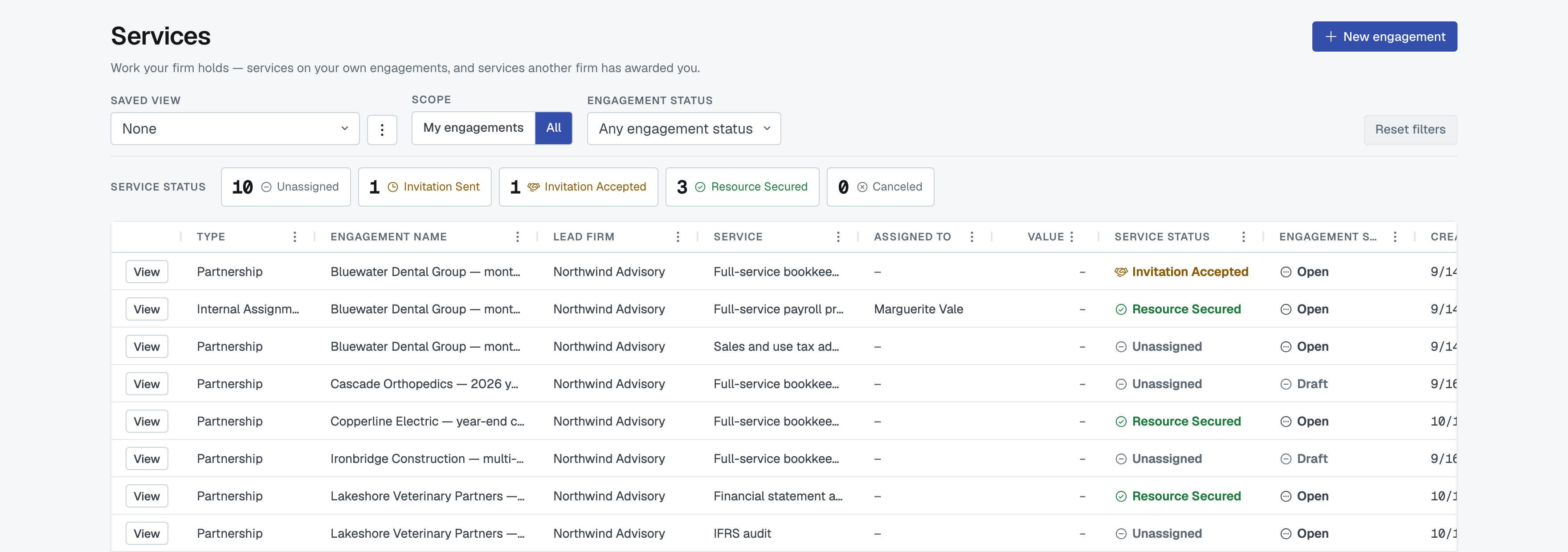
Three kinds of row land here:
- Services your own people are covering on engagements your firm leads — internal assignments, whether or not anybody is assigned yet.
- Services you've put out to other firms on engagements your firm created.
- Services another firm has awarded you on their engagement.
A service another firm has merely invited you to is not here. It stays on Invitations Received until it's awarded to you — and if you decline it, or the lead picks somebody else, it never arrives. That's deliberate: this page is work you hold, not work you're bidding for. See Respond to an invitation you received.
Narrowing it to your own work
Scope has two settings. My engagements shows only services on engagements you're a contact on, plus any service assigned to you personally. All shows everything your firm holds.

Account admins land on All; everyone else lands on My engagements. Either way you can flip it — it's a filter, not a permission.
Filtering by the engagement's status
The Engagement status dropdown narrows the list to services sitting on engagements at one status — Open, Closed Won, Canceled, and any status your firm has added of its own. It starts on Any engagement status.
This is the answer to "which of my services are on work that's still live?", and it's why the grid carries two status columns side by side: Service Status is where that one piece of work stands, Engagement Status is where the whole job stands. They're different questions and they move independently.
The status tiles
Under the filter bar sits a row of tiles headed Service status: Unassigned, Invitation Sent, Invitation Accepted, Resource Secured, Canceled, each with a count.
They're buttons, not a summary. Click one and the list drops to just those rows; click it again to clear. A tile reading 0 still works — pressing it is a fair way to confirm there are none.
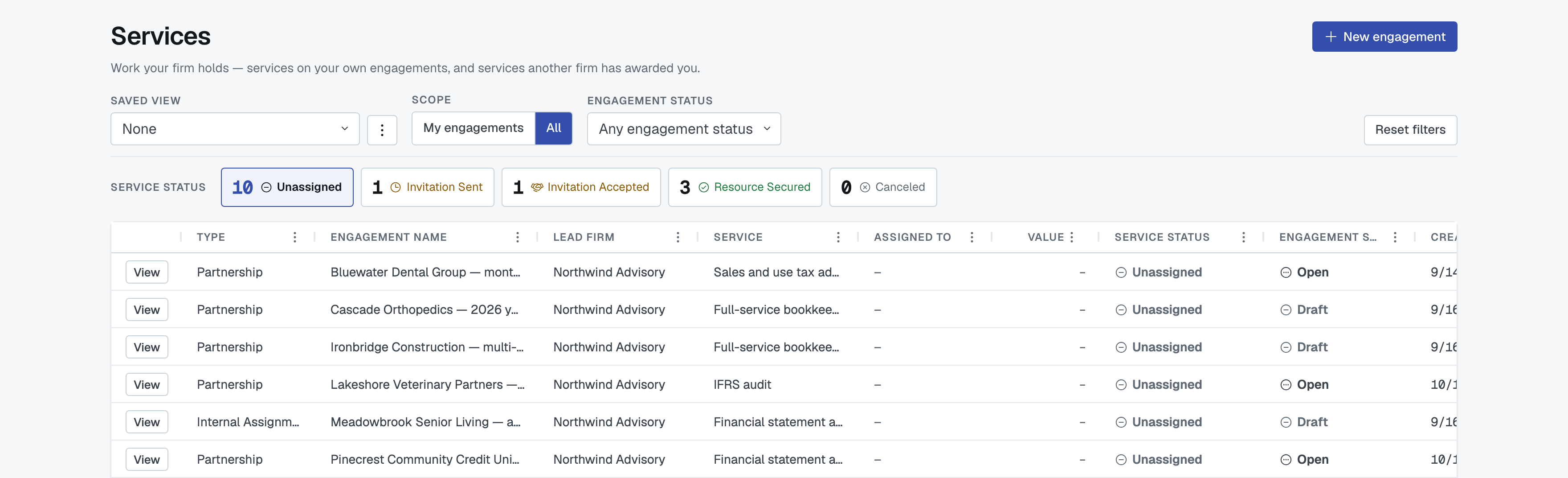
The counts run over whatever Scope, the Engagement status dropdown and your column filters have left, so they always add up to the list in front of you. Selecting a tile doesn't change the other counts.
For what each status means — and how a service's status differs from an individual invitation's — see Understand service statuses.
Finding a particular slice
- Services nobody is covering yet — click the Unassigned tile. These are the ones to act on: either invite firms, or assign one of your own people.
- Services you've asked other firms about and are waiting on — Invitation Sent.
- Services where a firm has said yes and you still have to award it — Invitation Accepted. These are waiting on you.
- Services that are covered — Resource Secured, whether an outside firm won the work or one of your own employees is on it.
- Canceled services — Canceled.
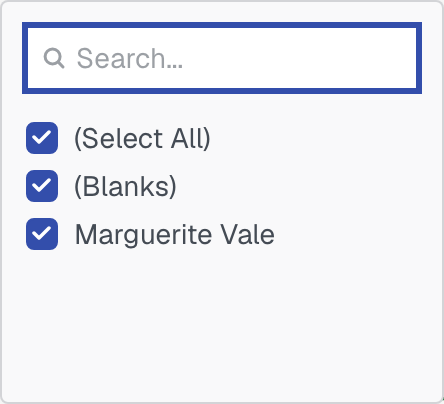
- Everything one person is carrying — filter the Assigned To column. Open the three dots in that column's header and tick the names you want. (For a fuller picture of one person's workload, open their own page instead — see The Employees page.)
- Everything with one client firm — filter the Lead Firm column the same way.
Per-column filtering works the same way on every list in FirmLinks; Saved views, filters and paging covers it once.
What the columns tell you
Type is how the service is being covered — Partnership, Referral, Consultation, Internal Assignment, Firm Vendor. Then the Engagement Name, the Lead Firm, the Service itself, who it's Assigned To, its Value, the two status columns, and Created DT — the date that service or that bid was created.

Two honest gaps worth knowing:
- On a service you've handed to another firm, Value shows a dash. The partner's price isn't published on this flat grid; open the engagement to see it.
- Assigned To shows a dash until somebody is named — including the awarded partner firm's own person, which appears here once they assign one.
Starting work from a row
View opens the engagement with that service in view, which is where everything you can do lives: invite more firms, award one, cancel, assign an employee, message the people involved. See Reading an engagement.
Clearing up
Reset filters sits at the right of the filter bar and is greyed out when there's nothing to clear. It resets Scope to your normal starting point, empties the Engagement status dropdown, un-presses the status tile, clears every column filter, and puts the Saved view dropdown back to None. It never deletes a saved view.
If you keep coming back to the same slice — say unassigned services on open engagements — save it once rather than rebuilding it. See Saved views, filters and paging.
Was this article helpful?
That’s Great!
Thank you for your feedback
Sorry! We couldn't be helpful
Thank you for your feedback
Feedback sent
We appreciate your effort and will try to fix the article