What an engagement is, and what this page is for
An engagement is the record of one piece of client work you're outsourcing, or one you're bidding on for another firm. It's made up of one or more services — the individual pieces of work — and each service carries the invitations you've sent to other firms (or the internal assignment you've made to your own staff) to cover it. This page is where you read all of that at a glance. Keep in mind what the page is for: it helps you find and secure a firm (or your own employee) to do the work. It doesn't track the work itself once someone is staffed to it.
The header
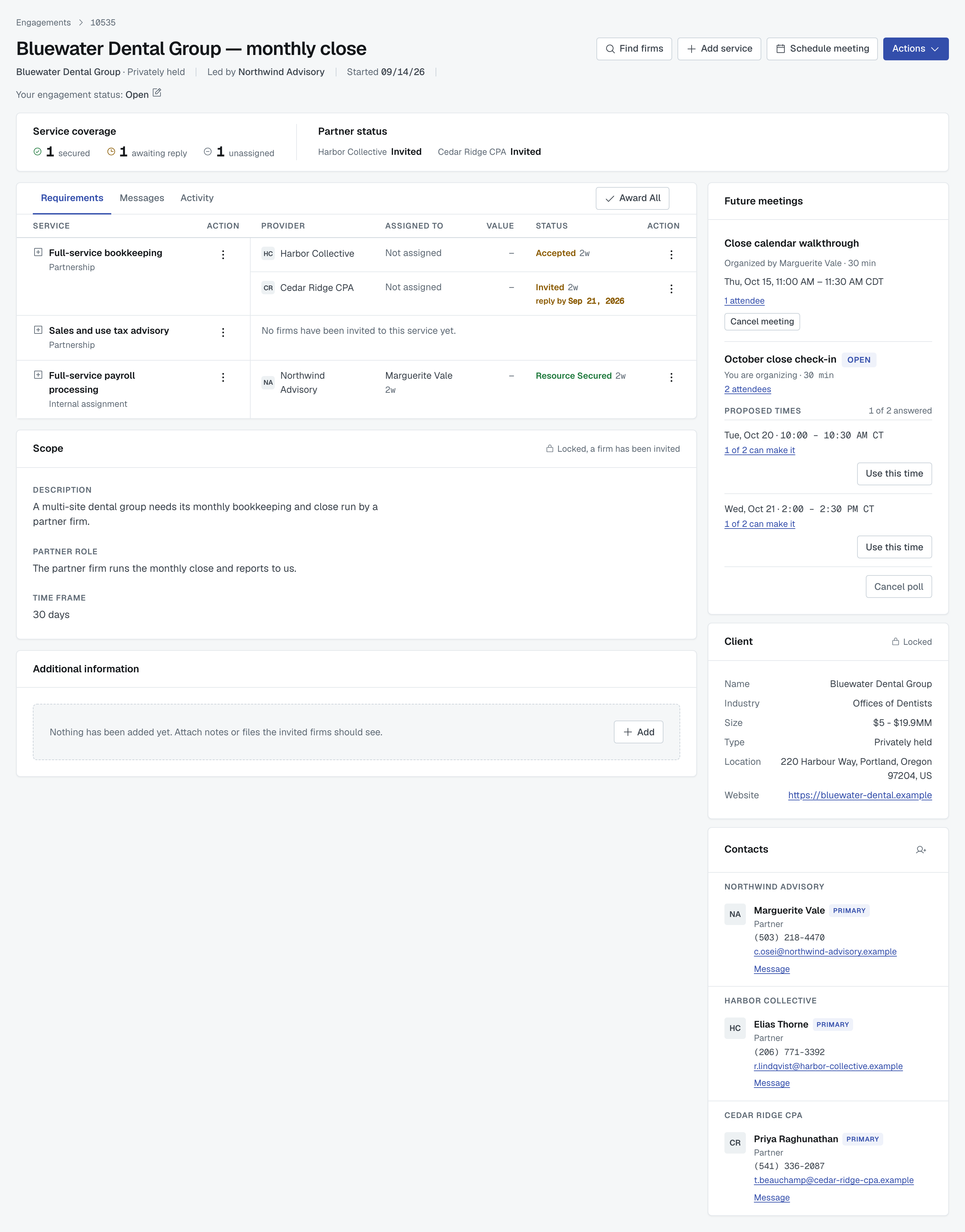
At the top you'll find the engagement's title and, on the line beneath it, the client it's for, which firm is leading the engagement (Led by and the firm's name), and Started with a date. Started is the day the engagement began for your firm: the day you launched it if you lead it, or the day you were first invited to one of its services if you didn't.
The same line ends with Your engagement status: and a status — Draft, Invited, Open, Closed Won, Closed Lost, Closed Declined or Canceled. It is your own firm's position on the engagement, separate from anything below it on the page, and the other firm may read something different on the same engagement. The Engagements list explains what each status means. When you're allowed to change it, a small pencil sits beside it and opens the same dialog as Actions › Update engagement status, so you don't have to hunt for it.
Along the top-right you'll see a row of buttons: Find firms and Add service (for the firm leading the engagement, to bring in more help or add more work), Schedule meeting (shown only to people who are contacts on the engagement, including an invited firm's contacts before they accept), and Actions, covered below.

Service coverage and partner status
Just under the header, one band answers two questions about the whole engagement.
On the left, Service coverage totals up the services on the engagement into three counts — how many are secured (a firm has been awarded the work, or one of your own people is assigned to it), how many are awaiting reply (an invitation is out and either nobody has answered yet, or a firm has accepted and is waiting for you to award it), and how many are still unassigned. An accepted invitation is not secured yet — the service only counts as secured once you award it. These numbers are calculated from the services listed below; they aren't set separately.
On the right, the band shows where the other firms on the engagement stand, by each firm's own engagement status:
- If you're the lead firm, it's headed Partner status and lists the firms you've invited, each with its engagement status. If there are many, the list scrolls sideways. If you haven't involved any other firm yet, this half of the band isn't shown.
- If you're an invited firm, it's headed Lead firm status and shows a single row: the lead firm and its engagement status. You never see the other firms invited to the engagement here.
- If your firm's collaboration team is managing the engagement for the lead firm, it's headed Partner status and lists the lead firm first, then every other firm on the engagement. The lead firm's row is the only one with a pencil: it lets you update the lead firm's engagement status on its behalf, and the lead firm's primary contact is emailed when you do. Every other firm's status is that firm's own to set. See When a collaboration team manages the engagement below.
The services table
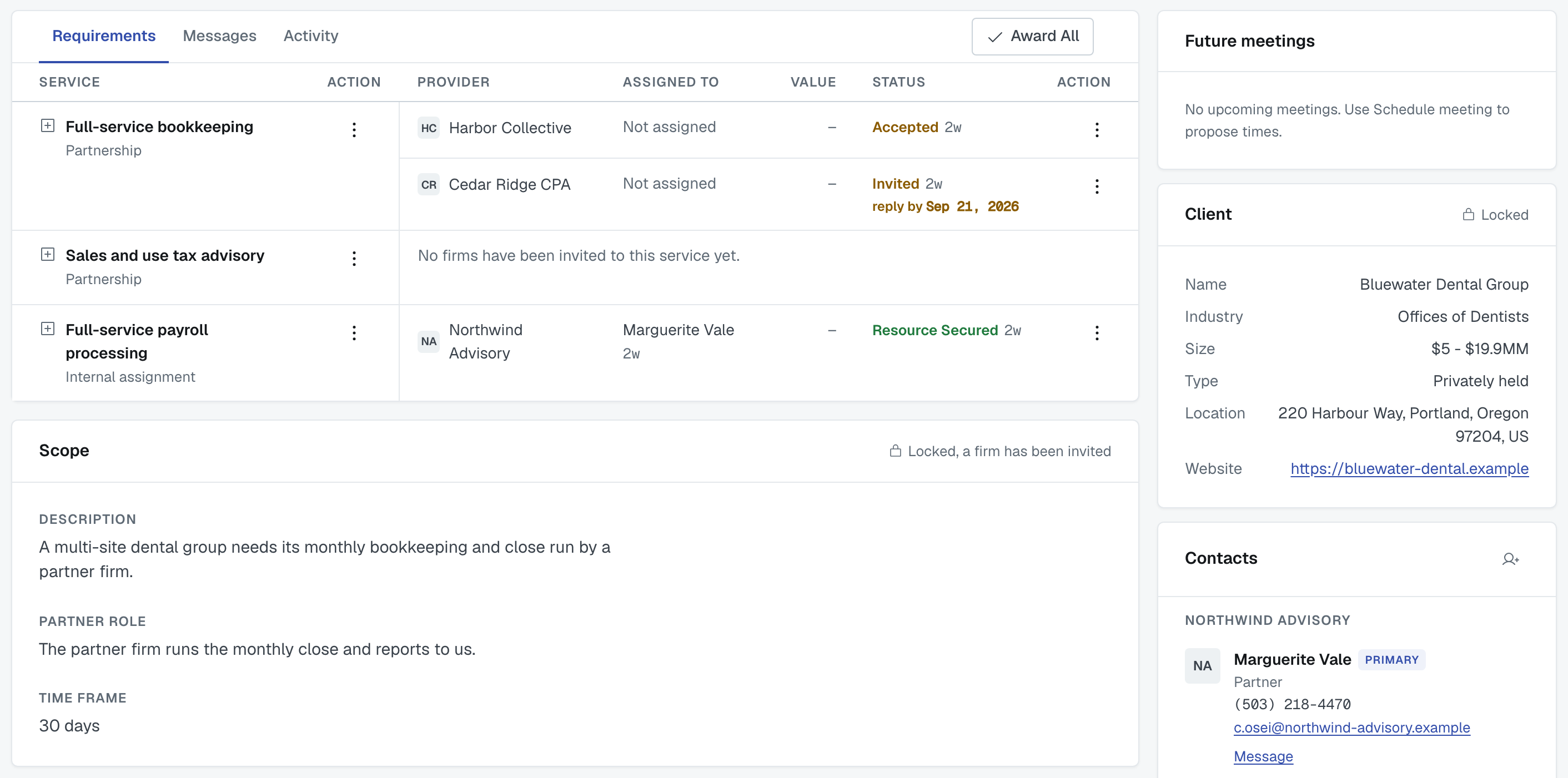
Below the tabs, each service on the engagement gets its own row group. Left to right the columns are Service (the service's name and type — Consultation, Partnership, Internal assignment, and so on), Action, Provider, Assigned to, Value, Status, and a second Action. The first Action column holds the ⋮ menu for the service itself; the last one holds the ⋮ menu for each invitation under it. Click a service's name to expand it and see its service line, location, industry, and any notes attached to it.
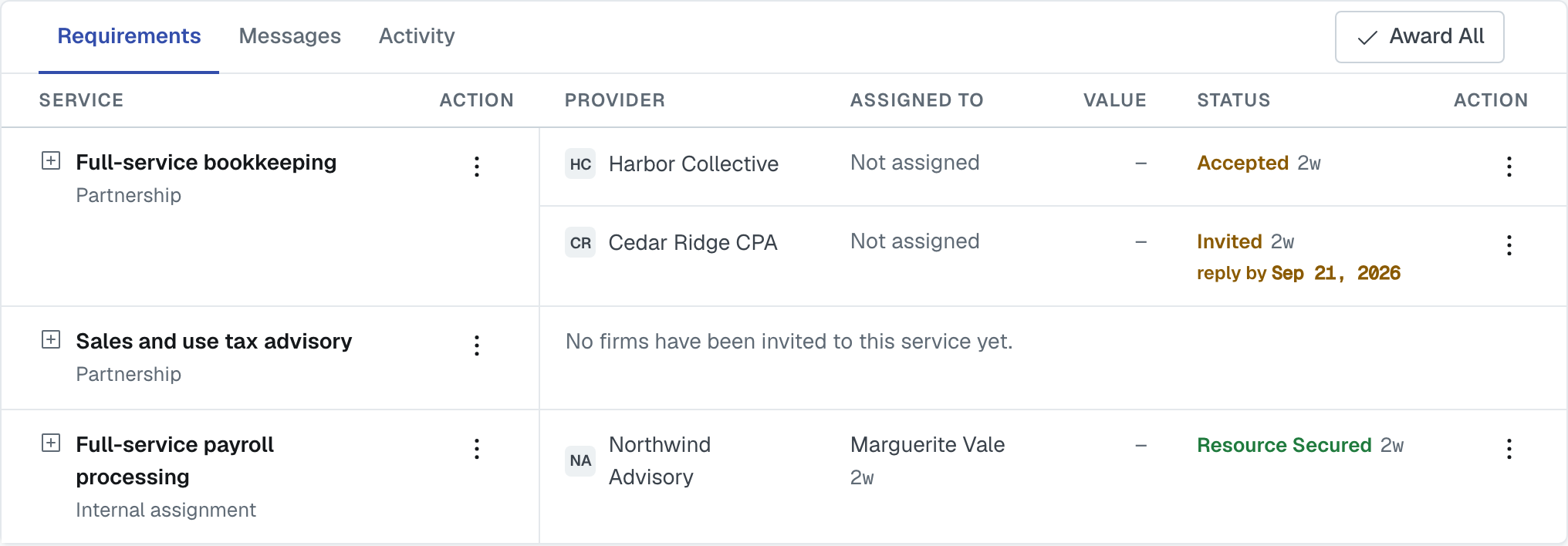
Each service moves through the same stages: Unassigned carries no status badge at all — instead the service reads "No firms have been invited to this service yet." until you send one. From there it moves to Invitation Sent (shown on screen simply as Invited, while a firm has an invitation out and hasn't answered), then Invitation Accepted (shown on screen as Accepted — the invited firm has said yes), and then Resource Assigned, which shows on screen as Awarded when an outside firm wins the work, or as Resource Secured when the work is assigned internally to one of your own employees. Canceled can happen at any point and takes the service or invitation out of play. An award that ends later reads Terminated or Withdrawn on that firm's invitation — see Understand service statuses.
The service menu
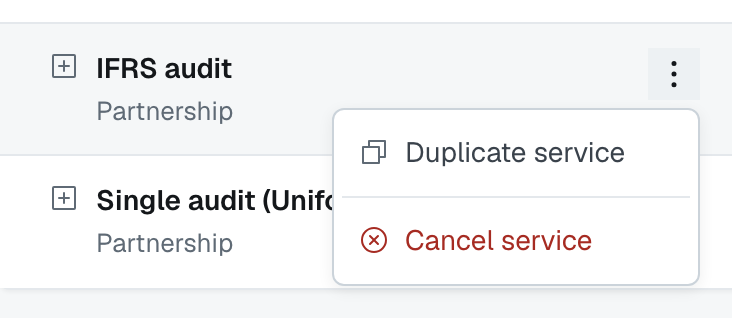
If you lead the engagement, the ⋮ in the Action column beside a service's name acts on the service, and what it offers depends on where the service stands:
- Nobody invited yet — Find Firms, Edit Requirements, Duplicate service and Delete Service.
- Invitations out, nothing awarded — Find Firms, Duplicate service and Cancel service. This is also the menu on a service whose award was terminated or withdrawn: the service stays open, so you can invite another firm to it.
- Awarded — Duplicate service and Cancel service. Cancelling an awarded service also ends the awarded firm's invitation, which then reads Canceled; the confirmation names the firm before you go ahead.
- Canceled — Duplicate service only.
- An internal assignment — Duplicate service, plus Edit Requirements and Delete Service while nobody is assigned to it.
Update value is not on this menu: the value belongs to an invitation, so it lives on the invitation's menu.
The invitation menu
Each invitation (or internal assignment) sits in its own row under the service, with its own ⋮ menu in the last Action column. What it holds depends on whose row it is and where it stands:
- Lead firm, an invitation not yet answered — Cancel Invite.
- Lead firm, an invitation the firm has accepted — Award and Pass.
- Lead firm, another firm's award — Update value and Terminate.
- Invited firm, its own invitation before it answers — Assign employee, Update value, Accept and Decline.
- Invited firm, its own award — Assign employee, Update value and Withdraw.
- An internal assignment — Assign employee and Update value.
While an invitation is still Invited, a reply by date sits under its status — the date the invited firm was asked to respond by, shown in red once it has passed. It leaves the row once the firm answers. Value is the dollar amount tied to that invitation or assignment, shown as a dash until it's been set.

If an invitation or a whole service becomes inactive — for example, another firm won a service you were also invited to, an award ended, or a service was canceled outright — it drops out of the table. Show inactive services and invitations, at the bottom of the table, brings everything hidden on the engagement back into view.
Awarding a service to a firm
When an invited firm accepts, its invitation row moves to Accepted and the decision is yours. Open the ⋮ menu on that firm's own row — not the one beside the service's name — and choose Award. Pass sits under it if you would rather not use that firm. Both ask you to confirm, and the award dialog says the part that matters out loud: If you have invited multiple providers to a service, only one can be awarded.

Confirming Award service places the work. Every other firm still waiting on that same service is passed automatically, so you never have to turn anyone down by hand — see Track invitations you sent.
If the arrangement later falls through, the menu on the awarded row carries Terminate, and the awarded firm's own menu carries Withdraw. Either one ends that firm's award without closing the engagement, and the service stays open so you can invite another firm to it. Understand service statuses covers what each one does.
Award All
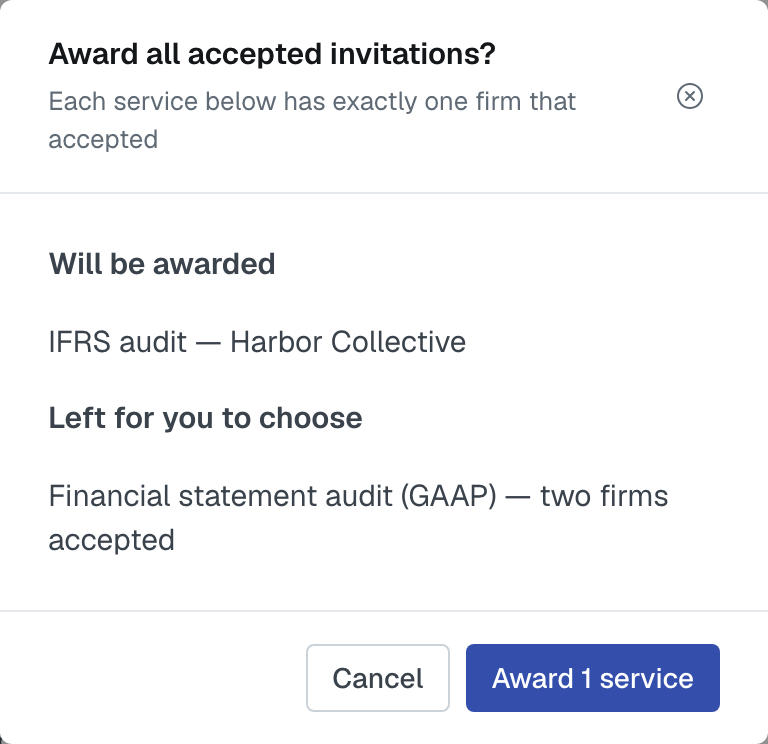
If several services each have exactly one firm that accepted, you can award them in one go. As the lead firm, an Award All button sits at the right-hand end of the Requirements tab row whenever at least one service qualifies. A service qualifies when exactly one of its invitations is Accepted and none of its invitations is already Awarded; awards on other services make no difference.

If every service with an acceptance qualifies, one press awards them all straight away. If any service has two or more firms that accepted, you're asked first: Award all accepted invitations? lists what Will be awarded and what is Left for you to choose, and the button names how many services it will award. The ones left over are yours to award one at a time. Each award is an ordinary award, with the same emails to the firms.
Answering several invitations at once
If a firm has invited you onto more than one service of the same engagement, you do not have to answer them one at a time. On the Requirements tab, Decline All and Accept All sit side by side at the right-hand end of the tab row.

Accept All accepts every invitation of yours that is still Invited or In Review, in one press. There is no confirmation step, because accepting is not the end of anything: you are saying you will do the work, and the lead firm still has to award it to you.
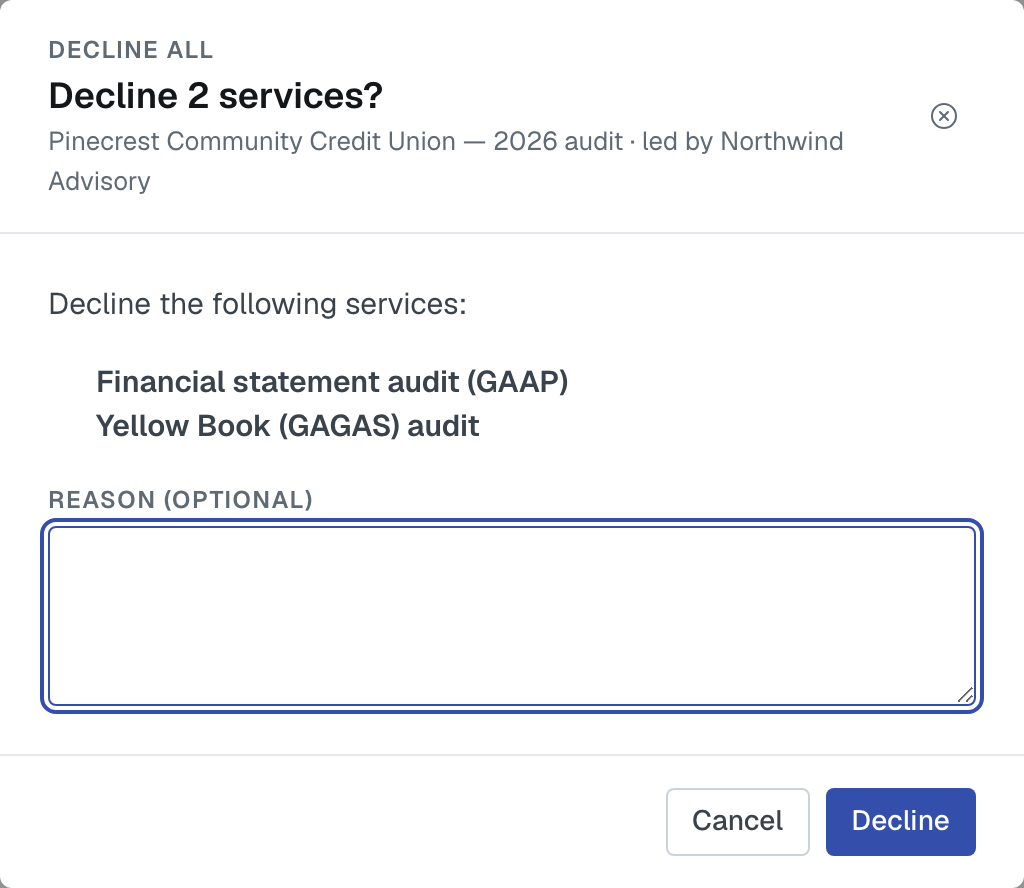
Decline All opens the decline dialog, listing every service you have not answered yet under Decline the following services:, with a Reason (optional) box and Decline. There is nothing to tick: the list is what will be declined. To decline only some of them, use Decline on each invitation's own menu instead — it opens the same dialog, listing just that one service. The lead firm sees your reason; other invited firms never do.
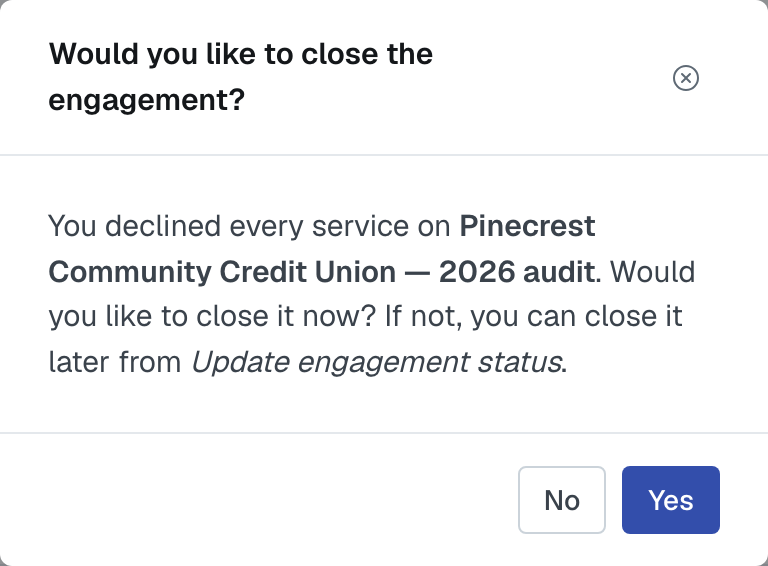
When your last decline leaves your firm with nothing still open and nothing awarded on the engagement, FirmLinks asks Would you like to close the engagement? Yes opens Update engagement status with Closed Declined already chosen. No leaves the engagement at Invited, and you can close it later from Actions › Update engagement status or the pencil beside your status. See The Engagements list for what Closed Declined means.
Both buttons are only there when there is something to answer. They disappear once you have answered every invitation of yours on that engagement, and they never show on the Messages or Activity tabs. ⛔ They are not on the Invitations list. The only control on a row there is View, which opens the invitation — so answering everything in one go always means opening the engagement first. See Respond to an invitation you received.
Additional information, scope, and the client
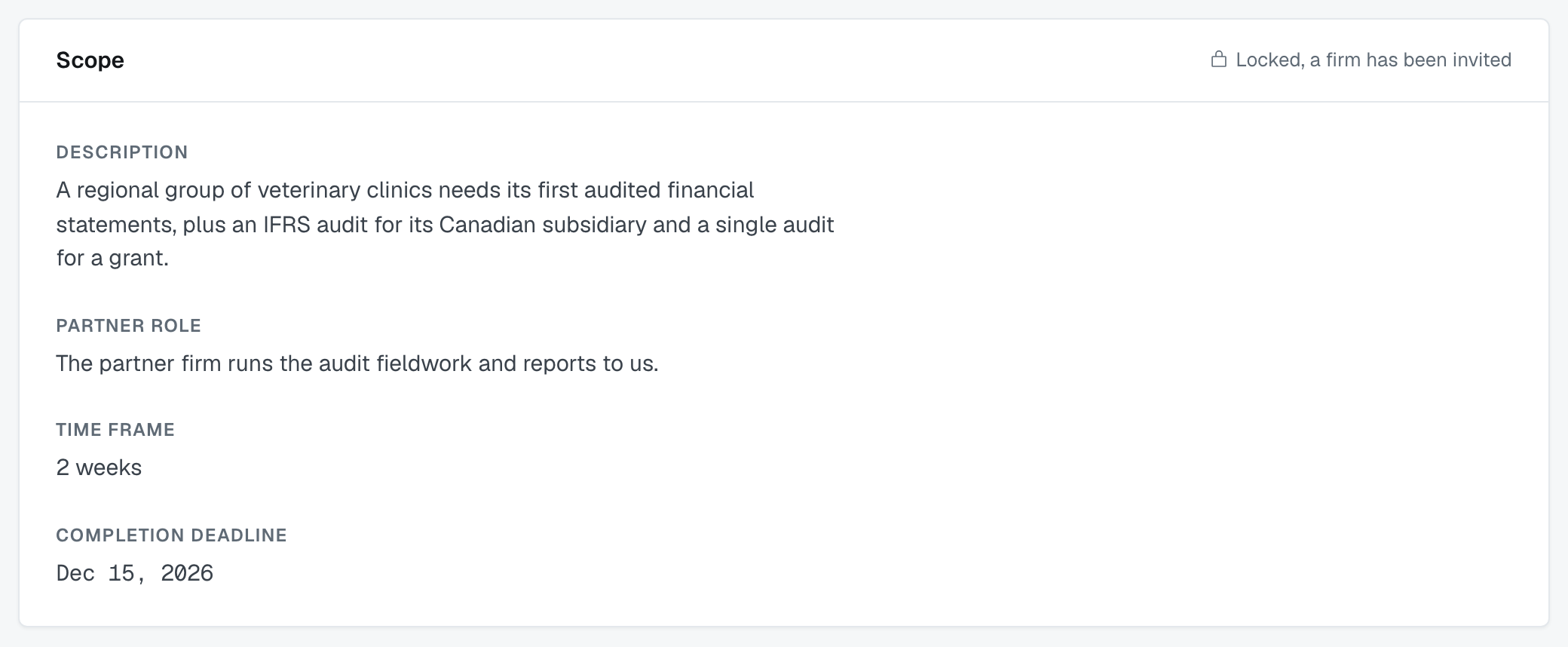
Below the table, an Additional information panel holds notes or files the lead firm wants every invited firm to see; it starts empty until someone at the lead firm adds to it, and invited firms can only read it. A Scope panel holds the engagement's description, the partner firm's role, its time frame and, when the lead firm set one, its Completion deadline — this locks once a firm has been invited, so it can't shift under a firm that has already agreed to it. The completion deadline is optional: the lead firm sets it when creating the engagement, beside Time to start, every firm on the engagement sees it, and the row is simply missing when there isn't one. It can't be changed after launch either, so a deadline that moves belongs under Additional information. On the right side of the page, a Client panel shows the client's name, industry, size, type, location, and website.
Adding to Additional information by hand
If your firm is leading the engagement and you are one of its contacts on it, the Additional information panel carries an Add button — in the panel's header when there are already entries, or inside the empty panel when there are none. It opens Add additional information: one box, up to 2,000 characters, and Save. What you write is stamped with the date and your name, shown to every contact on the engagement, and emailed to them.
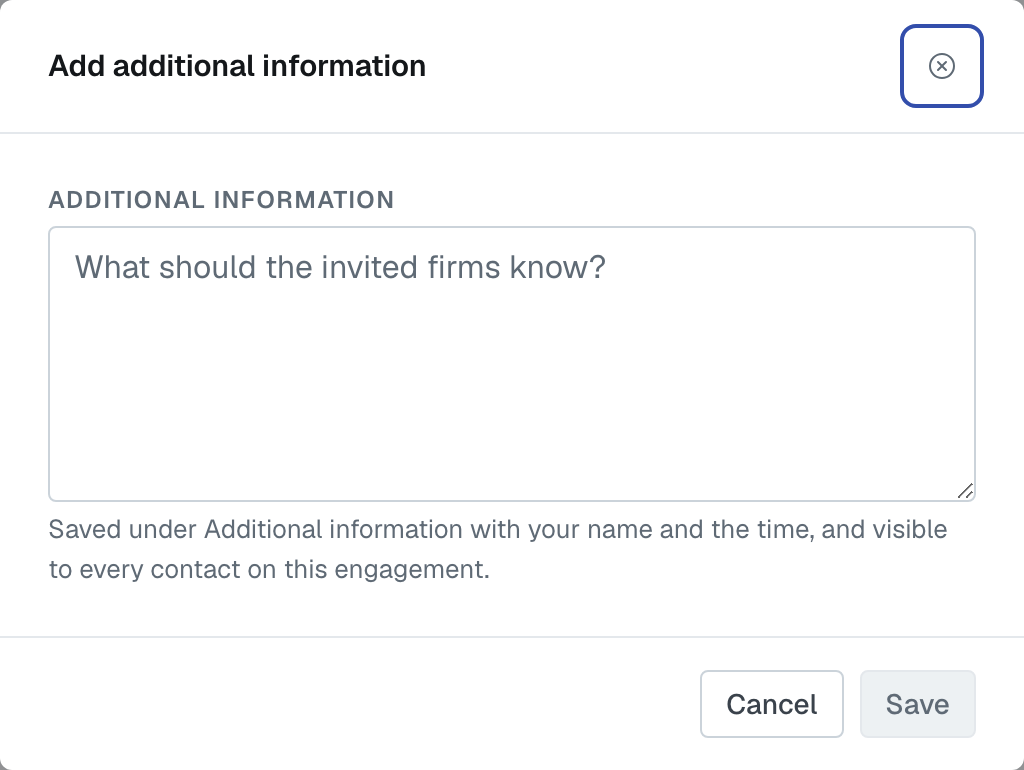
Two things to know before you press Save. An entry cannot be edited or deleted afterwards — the panel is a running list, so a correction is a second entry, not a fix to the first. And this is typed text only: there is nowhere here to attach a file, despite the empty panel inviting you to attach notes or files. To get a document to the other firm, put it on a message instead — every composer on the Messages tab takes an attachment and it goes only to the people in that channel. A contact's own Send files link, in the contacts rail, is the other route: it opens that person's file-drop page in a new tab, and only appears if they have set one up.
This is the by-hand path. The same box has a second door — Draft additional information on the Messages tab, which fills it in from a recent conversation for you to edit — described under Requirements, Messages, and Activity below.
Contacts
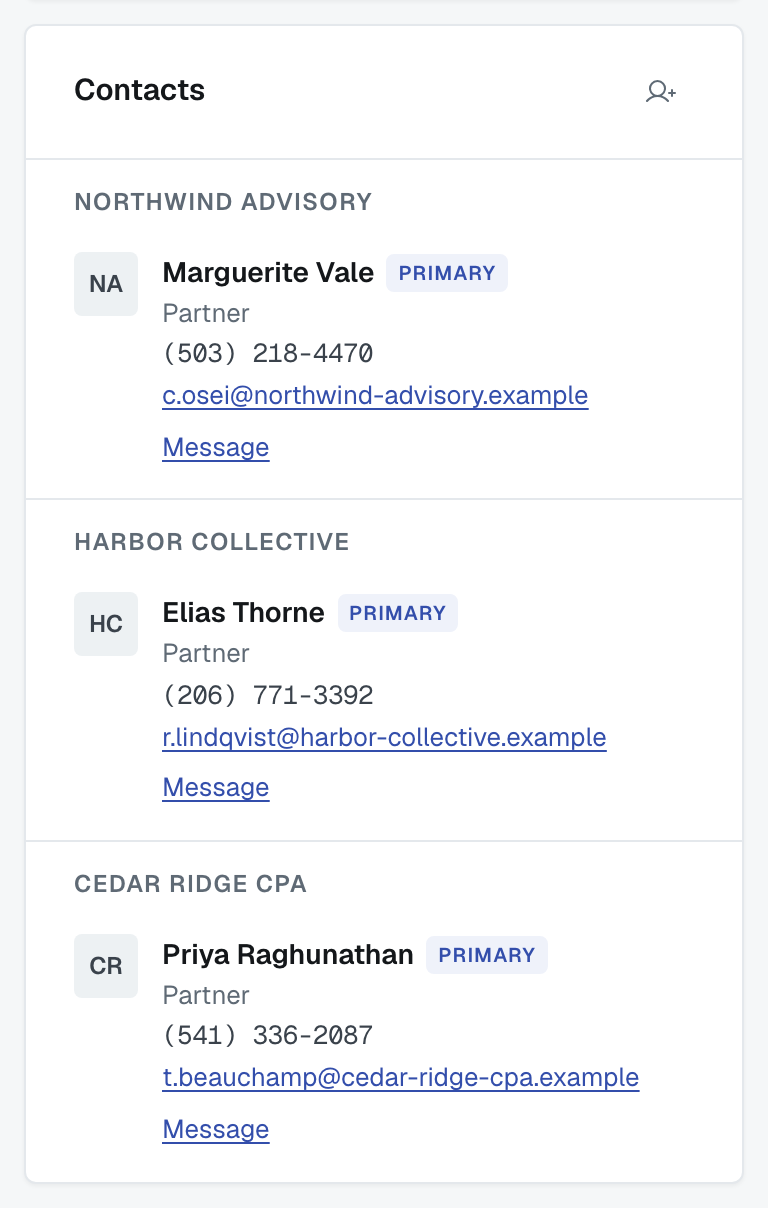
The right-hand rail lists the people on the engagement, grouped by firm, with each firm's icon (or its two-letter mark, if it hasn't uploaded one) next to its group. Whoever is the primary contact for their firm is marked with a Primary tag and listed first in their firm's group; everyone else follows in order of last name. A firm has exactly one primary contact on an engagement, though it may have several people listed. Higher up the same column — under the management card where there is one, and above Client — the Future meetings card lists the meetings still ahead that you organize or were invited to; see Schedule a meeting from an engagement.
To hand the primary role to someone already listed, click Make primary beside their name. It appears on every contact of your own firm except the current primary, and anyone at your firm can use it. A short confirmation names both people: the new primary takes over, the old one stays on as an ordinary contact, and email about the engagement that goes to your firm's primary contact goes to the new person from then on.
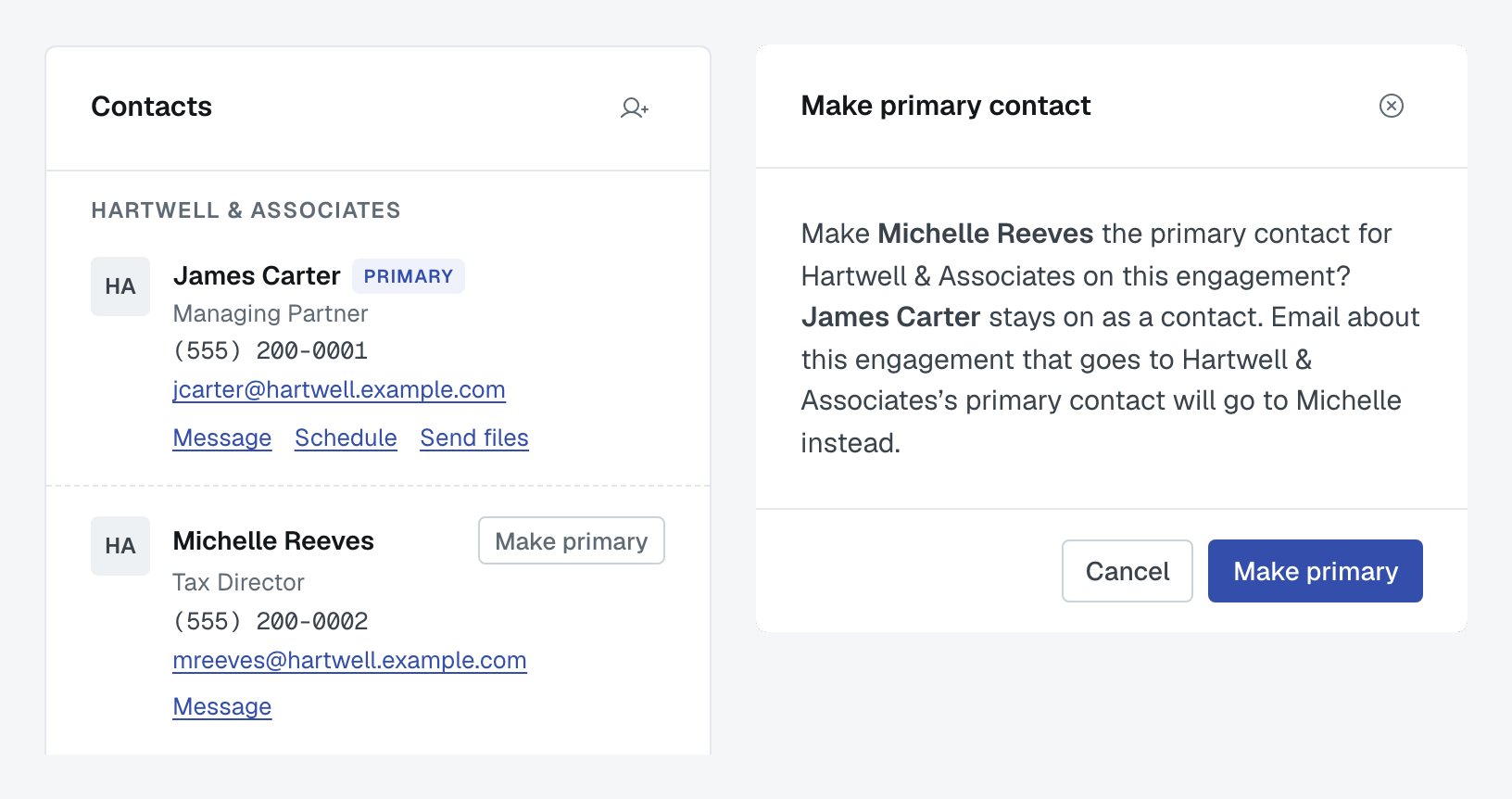
Anyone whose firm is on the engagement can take one of their own firm's contacts off it — including themselves — using the remove button on that person's row. Three things stop it: the person must be at your own firm, they must not be the primary contact, and they must not be assigned to a service. Where one of those rules applies the button is simply not there, rather than there and refusing. To remove the primary contact, make someone else primary first.
Adding one of your own people as a contact
The Contacts card header carries a small add-a-person button, labelled Add a contact, and it is there for anyone whose firm is on the engagement. It opens Add contact: a Find box that searches by name or job title, the list of your own employees to pick from, and Add contact to finish. You can only add people from your own firm, and the dialog says so — every other firm adds its own contacts. (The one exception is a collaboration team managing the engagement, covered below.) People already on the engagement appear in the list but cannot be picked.
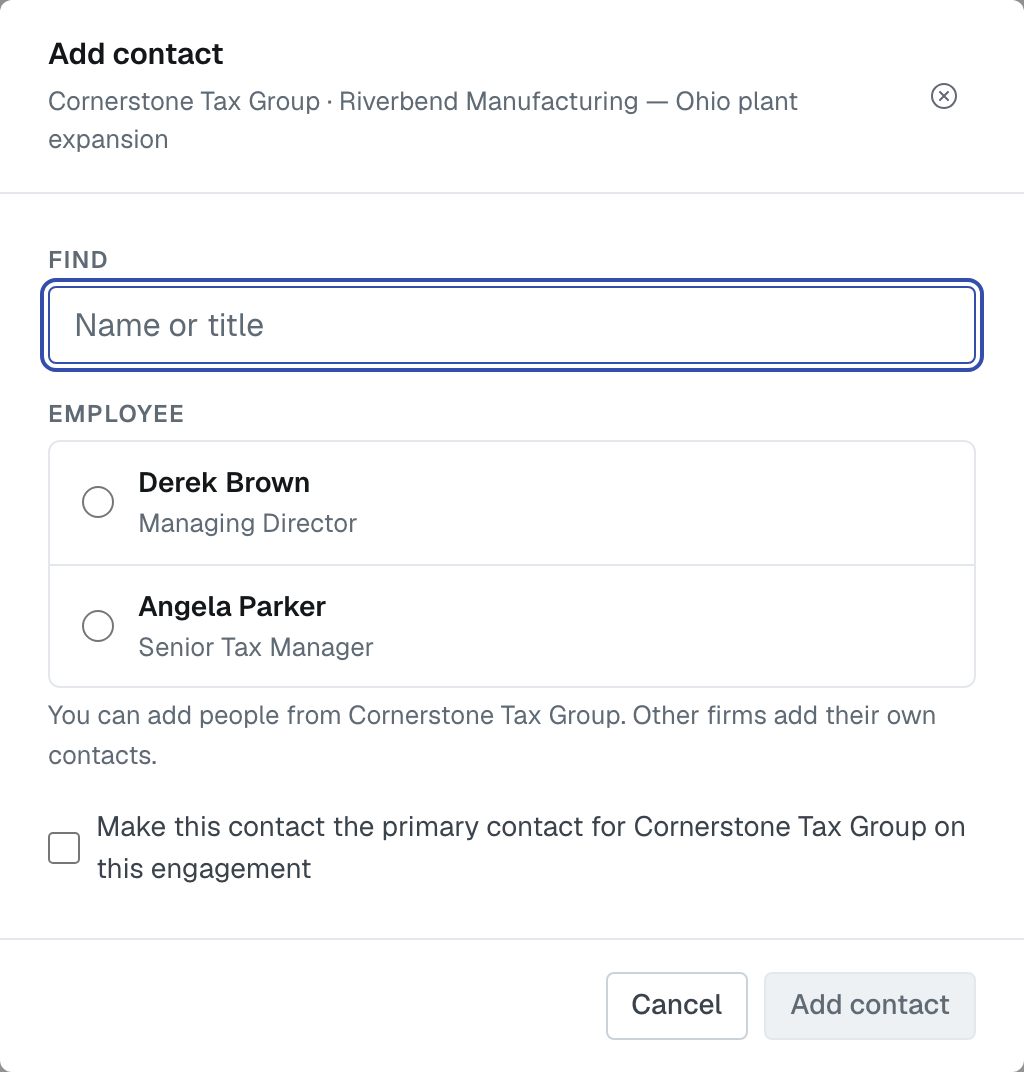
Under the picker is a checkbox reading Make this contact the primary contact for your firm on this engagement. Tick it and the person you are adding takes the primary role; whoever held it stays on the engagement as an ordinary contact. Leave it clear — the normal case — and you are simply adding another name. To make somebody who is already a contact the primary, don't use this dialog: use Make primary on their row, described above.
When a collaboration team manages the engagement
Some alliances are hosted by a firm whose collaboration team can find and manage resources on a member's engagements. If your firm belongs to one, the lead firm can hand an engagement to that team — either when launching it (see What happens after you launch an engagement) or later from this page.
The management card. When such a team is available, a card titled with the host firm's name and the word Management sits at the very top of the right-hand rail. Its switch reads Enable the host firm's collaboration team to manage this engagement. — or, once it's on, that the host firm manages this engagement. The lead firm's primary contact on the engagement can turn it on here, or from Actions › Enable (host firm) collaboration. Either way you're asked to confirm first.

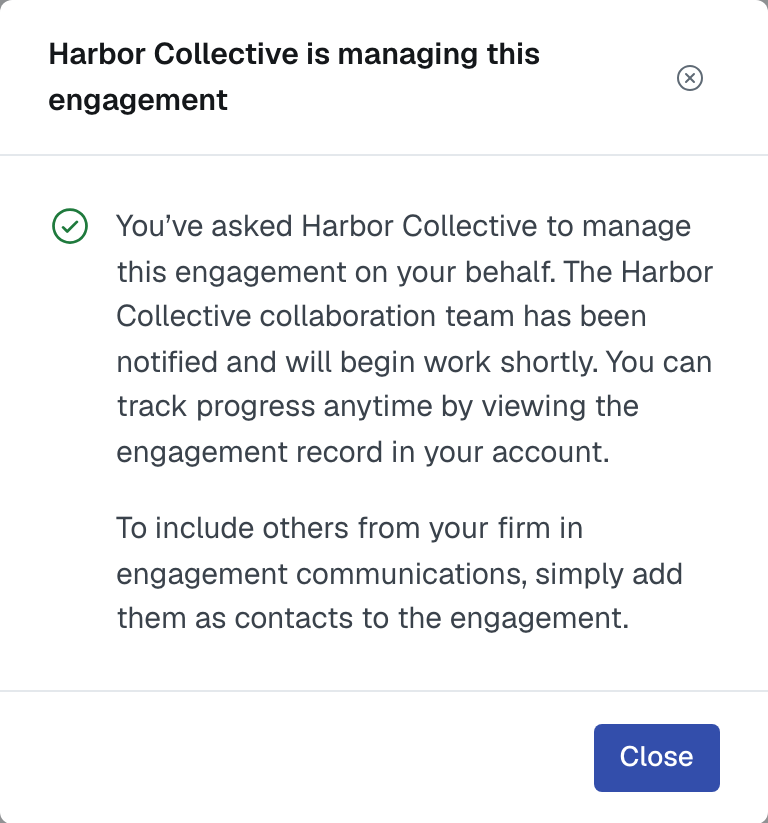
The notice. Once the team is managing the engagement, a notice titled with the host firm's name and is managing this engagement opens over the page. It says the collaboration team has been notified and will begin work shortly, and that to include others from your firm you add them as contacts on the engagement. Close dismisses it. The lead firm's primary contact also gets an email saying so.
What the team can do while it manages the engagement:
- act on the services and invitations the same way the lead firm can;
- see Partner status with the lead firm first, and use the pencil on the lead firm's row to update the lead firm's engagement status for it (the lead firm's primary contact is emailed each time);
- add, Make primary and remove the lead firm's contacts — the add-a-person button sits beside the lead firm's name in Contacts, and removing follows the same rules as for your own people (never the primary, never someone assigned to a service);
- on a service awarded to the team's own firm, use both Terminate and Withdraw, because it holds the lead firm's role and the awarded firm's at once.
Turning it off. From the team's own seat the switch is shown whether management is on or off. While it's off, the switch is greyed out with Only (the lead firm) can turn this on. While it's on, the team can turn it off: Stop managing this engagement? and Turn off management. The lead firm's primary contact is emailed, existing invitations and awards stay exactly as they are, and the lead firm carries on managing the engagement itself.
Scheduling a meeting
Schedule meeting in the header finds a time that works for the people you choose and sends everyone a calendar invitation; the Future meetings card in the right-hand column shows what is still ahead. Both are covered in full in Schedule a meeting from an engagement.
The Schedule link beside a person's name in the contacts rail is different: it opens their own booking page in a new tab, and only appears if that person has saved a Booking link on Settings › My Calendar.
Requirements, Messages, and Activity
Three tabs sit above the services table: Requirements (everything covered above), Messages, and Activity.
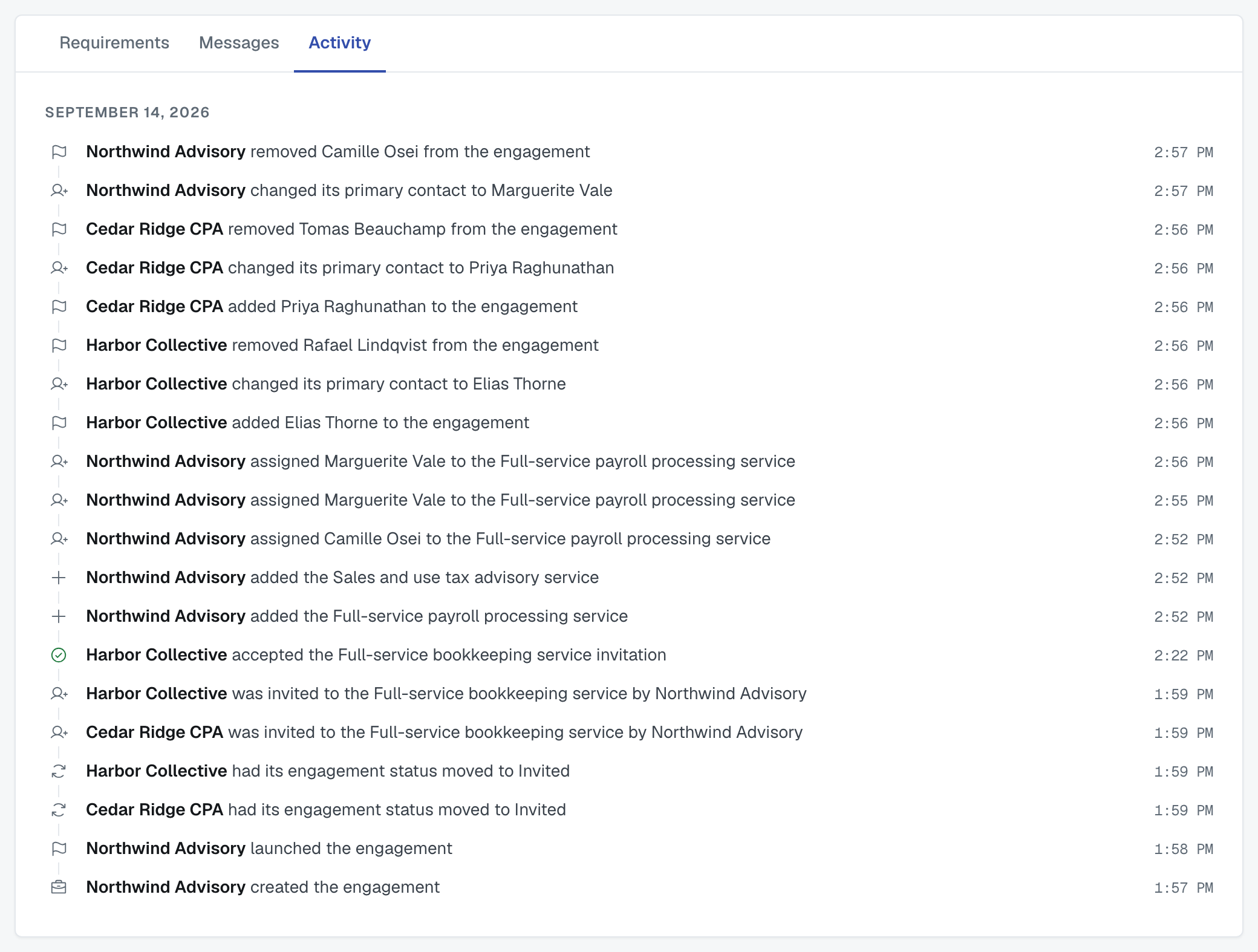
The Activity tab is a chronological log of what's happened on the engagement — firms invited, services added, employees assigned, status changes — grouped by date, most recent first.
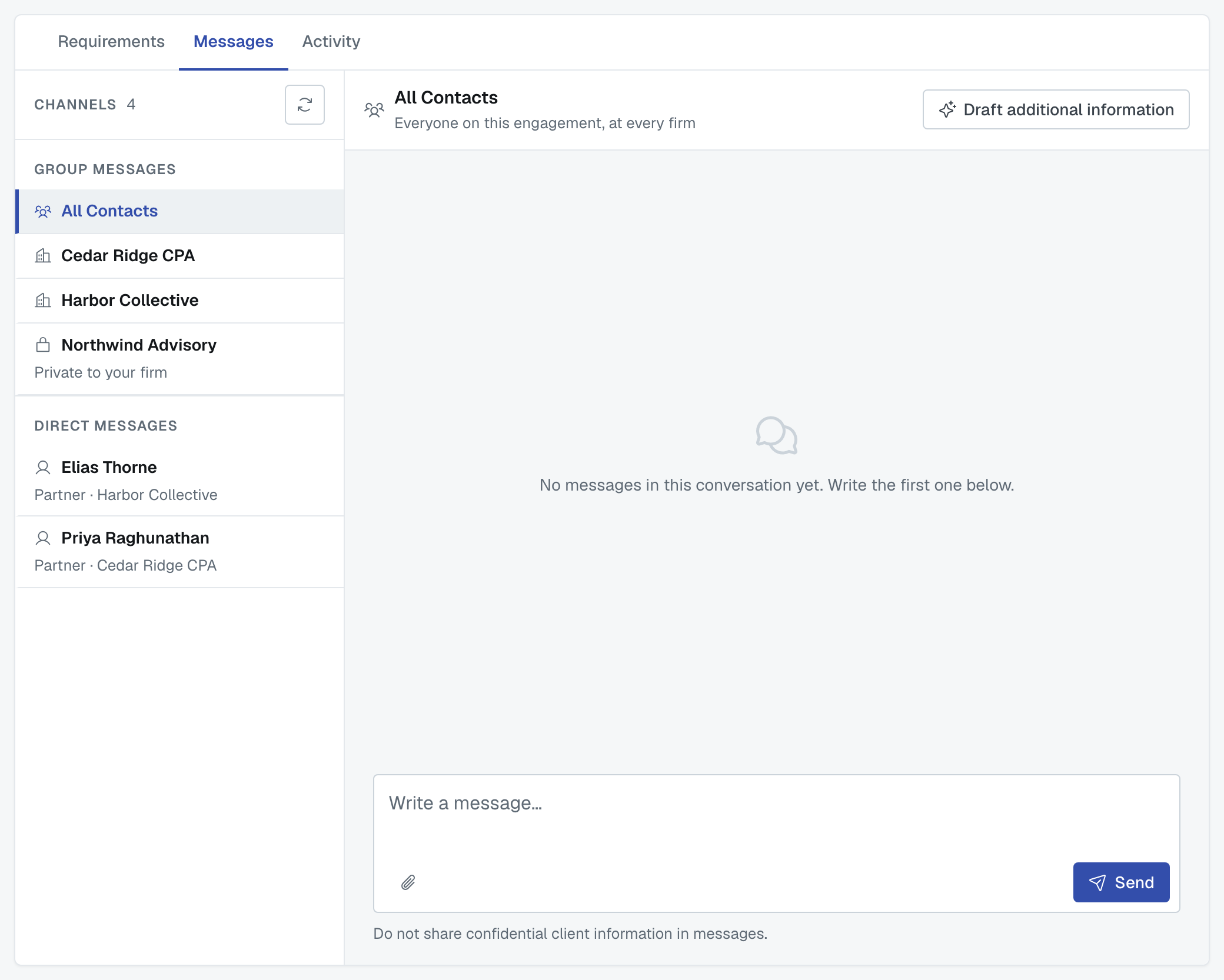
The Messages tab lists the conversation channels tied to this engagement: an All Contacts channel everyone on the engagement can see, a channel per invited firm, direct messages to individual people, and a private channel — marked with a padlock — that only your own firm can see. If you're the lead firm, a Draft additional information button above a channel lets you summarize its recent messages (up to 20 messages from the last 5 days) into a starting draft for the Additional information panel, which you review and edit before saving; it never posts anything on its own. Every composer carries a reminder not to share confidential client information in messages.
The Actions menu
The Actions button opens a menu with Update engagement status — a short dialog that walks you through closing, reopening, or canceling the engagement, asking for a reason if you're canceling it. Closing it as won asks you to confirm the value of each awarded service. A service whose award ended is listed too, marked Award terminated or Award withdrawn: enter what was actually billed, or 0. Those figures become the engagement's total.
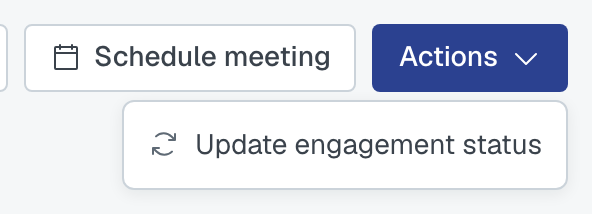
If you lead the engagement and your alliance's collaboration team can manage it, the menu also carries Enable (host firm) collaboration, the same thing as the switch on the management card. Delete engagement appears only when nobody has been invited to it and no employee has been internally assigned — once either has happened, deleting isn't offered.
If you were invited to the engagement, Actions only appears when there is something in it for you. While your firm is still Invited, that is once you have declined everything and have nothing open or awarded on it: then Update engagement status offers Closed Declined and nothing else.
What you can change once an engagement exists
The engagement's status is the one thing on this page you can edit. Actions › Update engagement status opens the dialog, and the small pencil beside the status in the header opens the same one.
Everything else here you add to rather than change: Add service for more work, Find firms for more invitations, the add-a-person button and Make primary on Contacts, and Add under Additional information.
⛔ The engagement's own wording is not editable on this page. Its title, its description, the description of the lead and partner roles and the time frame — everything shown under Scope — and the whole Client panel are read-only here. Once a firm has been invited they also say so: Scope shows a padlock reading Locked, a firm has been invited, and Client reads Locked. That part is deliberate — the brief must not shift under a firm that has already agreed to it.
While the engagement is still a Draft, none of this applies. A draft row on the Engagements list does not open this page at all: it opens the builder you created it in, where every field is editable until you press Launch. See Create an engagement by hand (without the AI assistant).
So if a launched engagement's brief turns out to be wrong, say so where the invited firms will read it. Add an entry under Additional information, and mention it in the channel with each firm.
Who sees what
What you can see and do here depends on which firm you're on and your relationship to the engagement — not on whether you're a member, editor, or admin at your firm; that distinction doesn't change anything on this page. The lead firm sees every service and every invitation on the engagement. An invited firm that hasn't yet been awarded anything sees only the services it was invited to, and only its own invitation on each — it can't see who else was asked. Once an invited firm is awarded at least one service, its view widens to every service on the engagement, including other firms' invitations that have reached an awarded or secured state, though it still can't see a competitor's invitation that hasn't been decided yet. A firm given management rights over the engagement sees everything the lead firm sees, regardless of its own status.
Was this article helpful?
That’s Great!
Thank you for your feedback
Sorry! We couldn't be helpful
Thank you for your feedback
Feedback sent
We appreciate your effort and will try to fix the article