Where an invitation lands
When another firm invites you onto a service, it lands under Invitations Received — work you could win, before anyone is awarded — and you get an email, and the engagement appears on your dashboard's In Process list if you are one of its contacts. The email lists every service you were invited to on that engagement, each with its own reply-by date. If the firm later invites you to another service on the same engagement, a second email names only the new service. These emails can't be switched off (see My Notifications: choose which emails you get and how often), and a weekday 8 AM email reminds whoever owes the reply — your firm's main point of contact while the service is Invited, or the person assigned once it is In Review — when it is due that day or overdue.
Reading the list
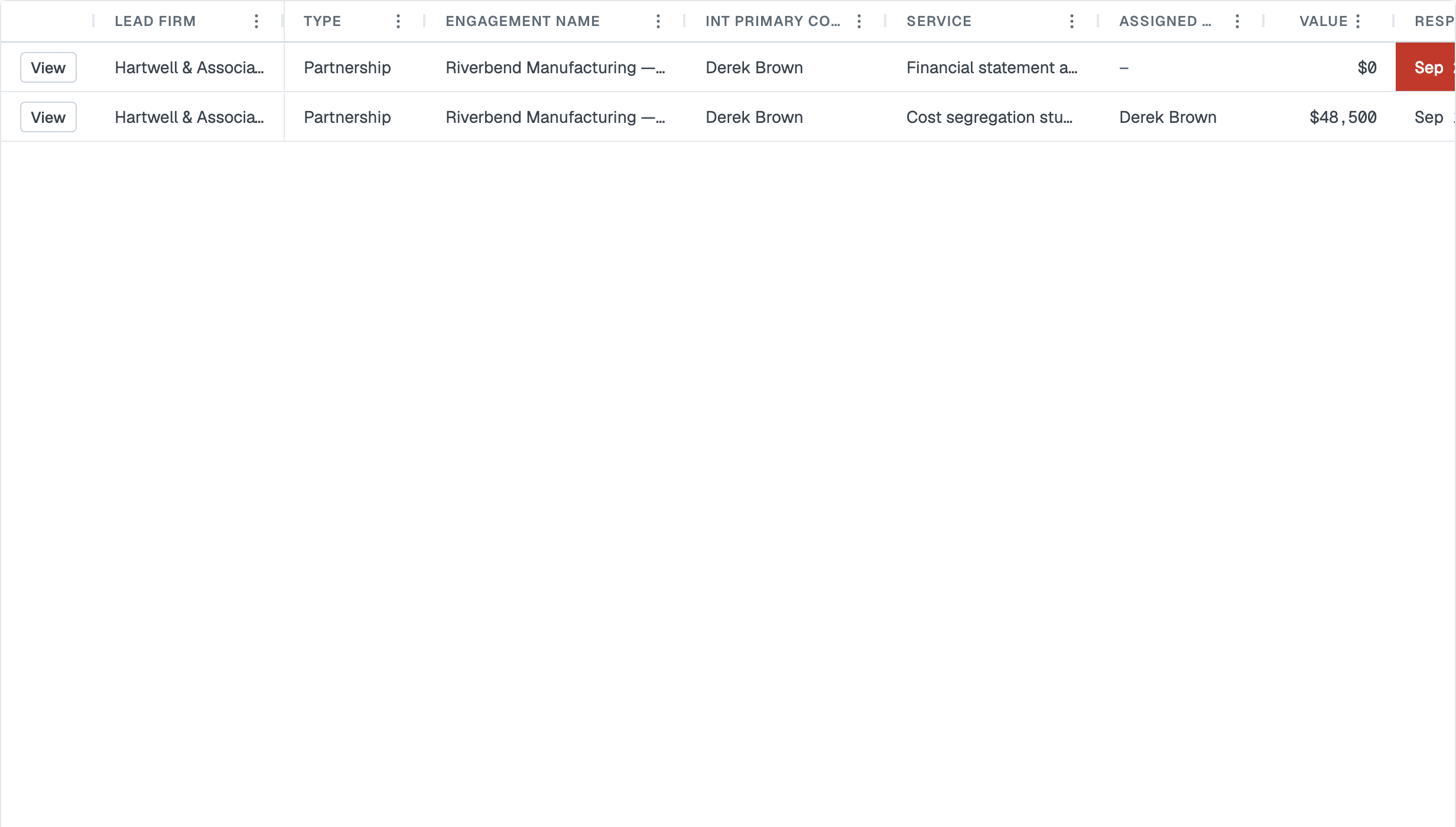
One row per service you've been invited to, not one per engagement — a firm can invite you onto three services of the same job, and you can answer them differently.
Each row shows the lead firm, the kind of arrangement, the engagement, your primary contact, the service, who you've assigned internally, the value, the Respond By date, the Invitation Status and the Engagement Status.
The counters across the top break the list down: Invited · In Review · Accepted · Awarded · Declined · Passed · Canceled. Filter to Invited on a Monday morning and you have your answer list. An award that later ends — Terminated by the lead firm, or Withdrawn by you — has no counter of its own; Understand service statuses explains both.
Narrowing the list to your own invitations

Scope, above the list, switches between My engagements — the engagements where you are one of your firm's named contacts — and All, every invitation your firm has received. Admins arrive on All; everyone else arrives on My engagements, and whichever you used last is what you come back to. To narrow it to a colleague instead of to yourself, filter the Assigned To column from its three-dots menu in the grid header, and Reset filters to put it all back. Track invitations you sent describes both controls in full — they work the same on this side of the list.
What you can see, and what you can't
Before anything is awarded to you, you see only the services you were invited to, and only your own invitation on each. You can't see which other firms were asked or what they said. That's deliberate — the same protection applies to you when you're the one inviting.
Once you're awarded at least one service, your view widens to the whole engagement, including other firms' awarded lines. A competitor's undecided invitation stays hidden.
Answering
Open the invitation and read the service, its scope, and any Additional information the lead firm attached. Your answers live on the ⋮ menu of your own invitation's row, in the last Action column: Assign employee, Update value, Accept and Decline.
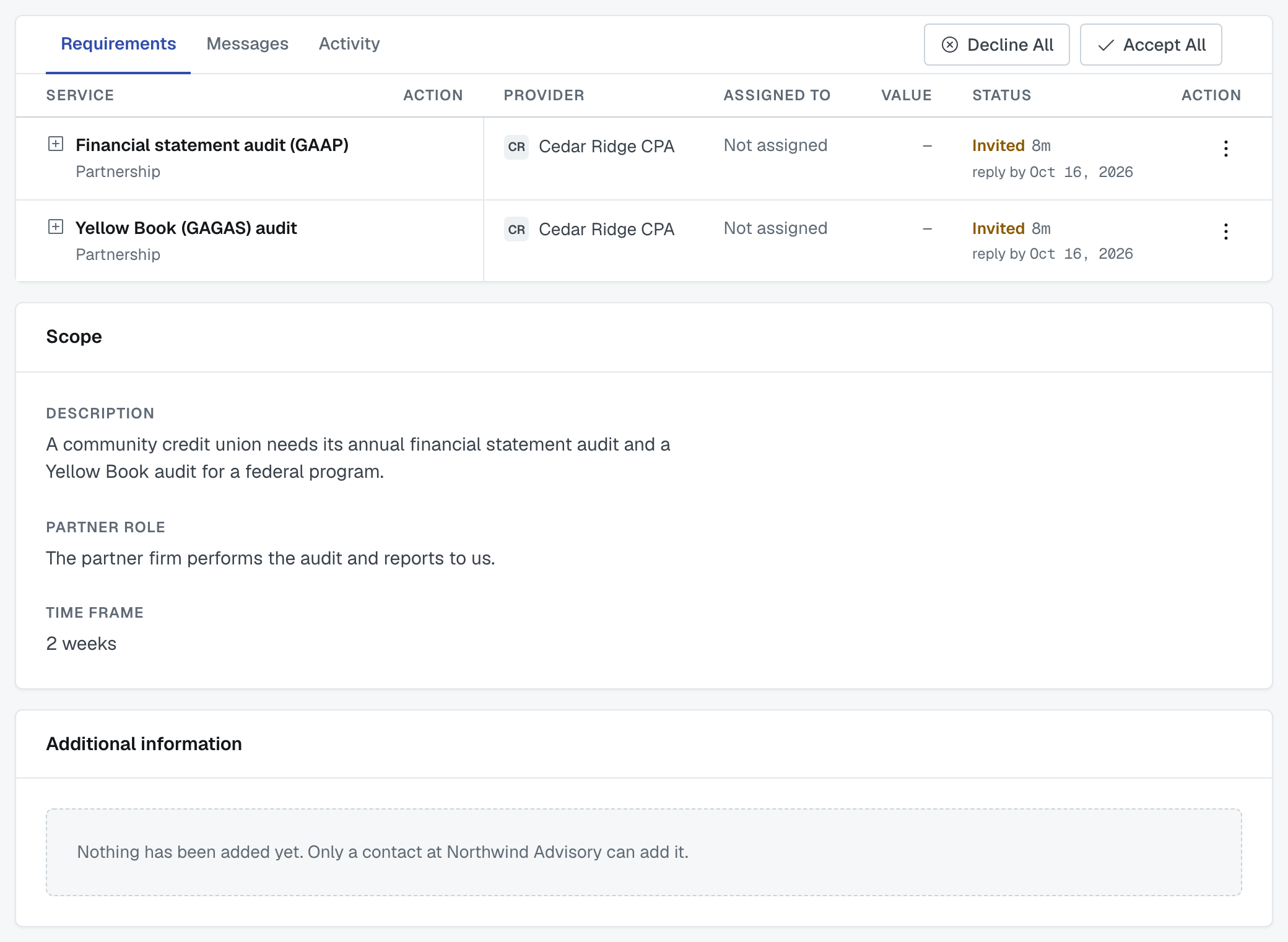
The client's name stays hidden until you ask for it. The Client card reads Confidential until you choose View client information and agree to protect it. Accepting doesn't reveal it, and neither does being awarded the work. See Client confidentiality: what other firms see, and when.
Accept — you're saying you'll do the work if they award it to you. It doesn't award it: the lead firm still chooses, and may have asked several firms.
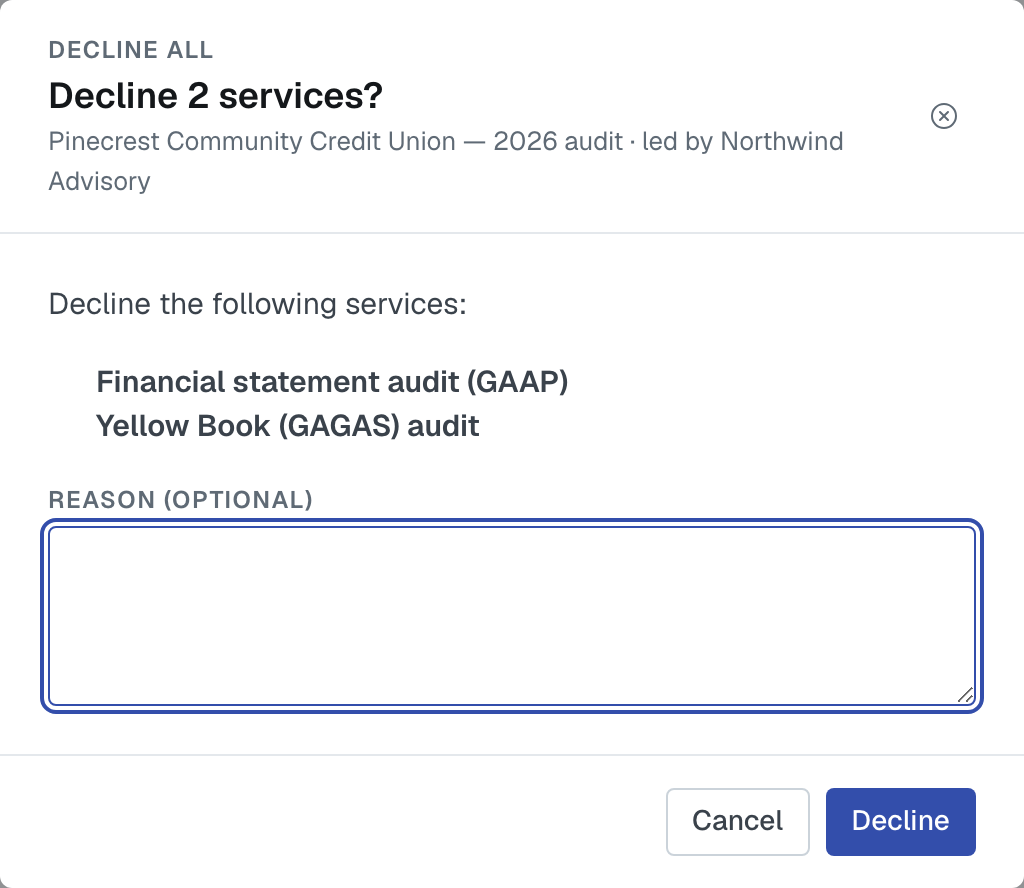
Decline — you're out. A dialog lists the service under Decline the following services:, with a Reason (optional) box; you can leave it empty and still press Decline. Only the lead firm reads your reason; competing firms never see it.
Until the lead firm awards the work, you can change your mind: an accepted invitation's menu offers Decline, and a declined one offers Accept.
Assign one of your own people — pick who at your firm would do it. Doing that moves your invitation to In Review, which tells the lead firm you're seriously looking. Simply opening the invitation does the same.
Ask first. Every engagement has message channels, including one straight to the lead firm. If the scope is unclear, ask before you answer — questions there are normal and quick.
Answering every service at once
If you were invited onto several services of the same engagement, Decline All and Accept All sit side by side at the right-hand end of the Requirements tab row while anything is still unanswered.
- Accept All accepts every invitation of yours that is still Invited or In Review, straight away.
- Decline All opens the same decline dialog, listing every service you haven't answered yet, with the same optional reason. There's nothing to tick: to decline only some, use Decline on each row instead.
Neither button is on the Invitations Received list; open the engagement first. Reading an engagement covers both.
After you've declined everything
When your last decline leaves you with nothing still open and nothing awarded on the engagement, FirmLinks asks Would you like to close the engagement? Yes takes you to Update engagement status to close it; No leaves it as it is, and you can close it later. Understand service statuses explains what happens next and what the closed status means.
Awarded, or passed
Awarded means the work is yours, and the engagement's full detail opens up to you.
Passed means they chose somebody else. It isn't a mark against you — it's the automatic other side of somebody being awarded.
The Respond By date
If the lead firm set one, it's shown in the Respond By column of the list. On the engagement itself it sits under your invitation's status only while the invitation is still Invited, and turns red once it has passed. Nothing expires on its own — a late invitation is still answerable, and nobody is removed automatically. Treat it as what it is: the date they'd like to know by.
Was this article helpful?
That’s Great!
Thank you for your feedback
Sorry! We couldn't be helpful
Thank you for your feedback
Feedback sent
We appreciate your effort and will try to fix the article