What the list holds
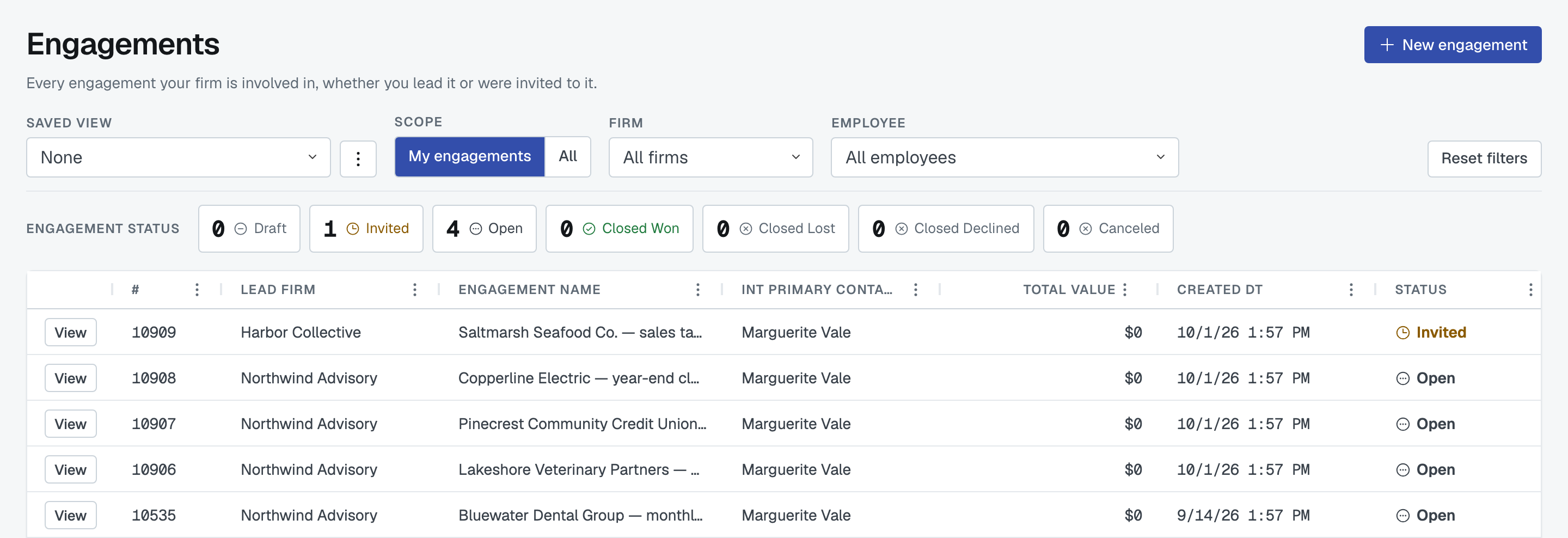
Engagements is every engagement your firm is involved in, whether you lead it or were invited to it. Newest first.
A row appears here when your firm leads the engagement, was invited to any service on it, has been awarded work on it, or manages it for another firm. Drafts are the one exception: a draft is visible only to the person who created it, including from your admins, and it stays that way until it is launched.
To open one, use View at the left of the row. A draft opens in the draft editor instead of the read-only page — see Reading an engagement for what you'll find there.
Yours, or your whole firm's
Scope has two buttons:
- My engagements — engagements you are personally named as a contact on, or that have a service assigned to you.
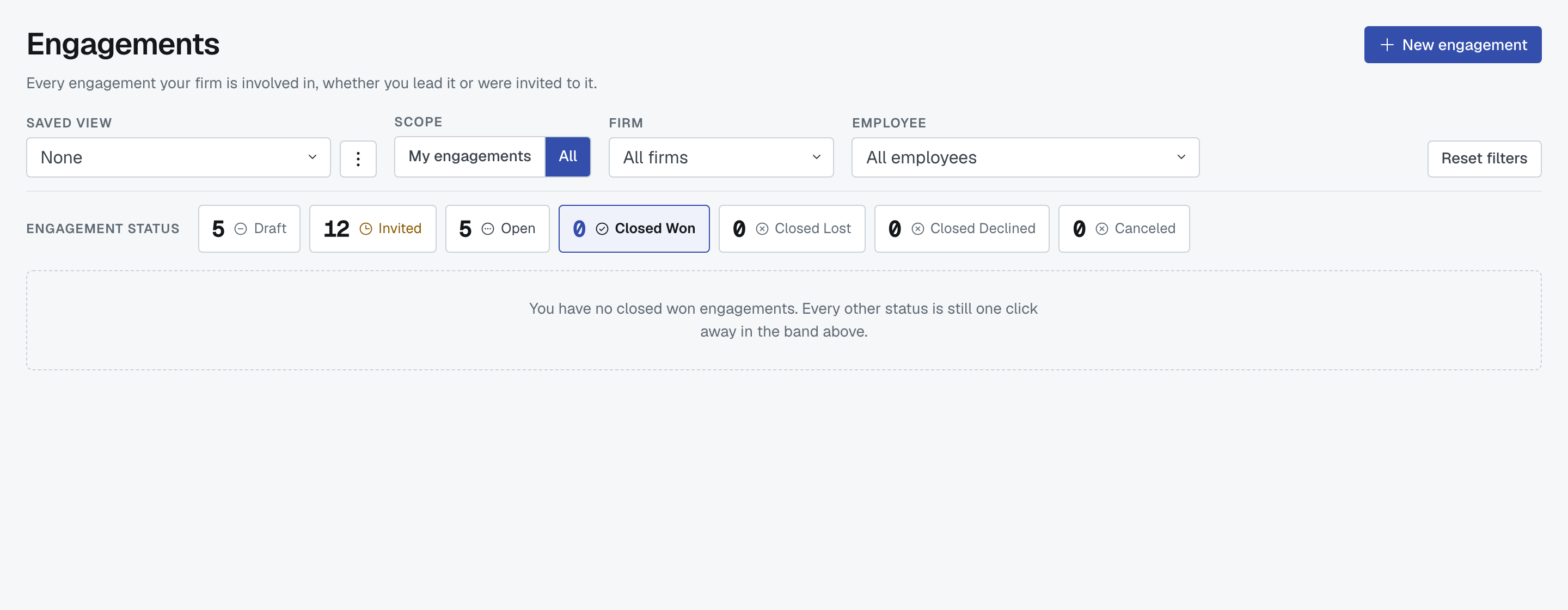
- All — every engagement your firm is on.
Admins land on All; everybody else lands on My engagements. That is a starting view, not a permission — anyone can switch, and the app remembers whichever you used last.
Filtering by firm, by person and by status
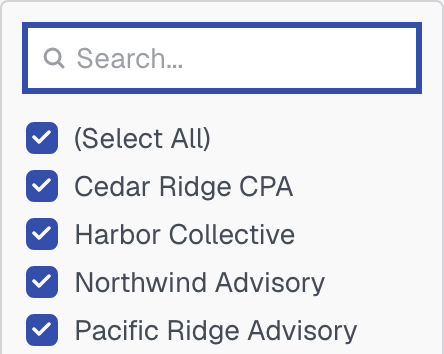
Firm lists every firm party to an engagement you can see, leading or invited — so picking Cedar Ridge leaves only the engagements Cedar Ridge is on. All firms clears it.
Employee narrows to one person's work, and it follows the Firm box: choose a firm first and the list becomes that firm's people. It lists people who have a service on an engagement assigned to them. If you change the firm and your chosen person isn't in the new list, the selection is dropped rather than left filtering silently.

The Engagement status band across the middle is a control, not a scoreboard. Click a tile to keep only that status, click it again to release it. The counts are taken after Scope, Firm and Employee have had their say, and a tile showing 0 still works — pressing it answers "how many?" with "none".

When a status leaves you with nothing, the table is replaced by a line naming it: "You have no draft engagements. Every other status is still one click away in the band above."
The columns, and filtering inside them
Left to right: View, # (the engagement's number), Lead Firm, Engagement Name, Int Primary Contact, Total Value, Created DT, Status.
Int Primary Contact is your own firm's primary contact on that engagement — not the lead firm's.
Every column except View carries a three-dots button in its header, and the filter for that column lives in that menu. There is no funnel icon to look for. Each column gets the filter that suits it: type-ahead on Engagement Name, a tick-list on Lead Firm, Int Primary Contact and Status, number ranges on # and Total Value, and a date filter on Created DT.
Reset filters puts everything back at once: the Firm and Employee boxes, the pressed status tile, every column filter, and Scope back to your own default. It is greyed out while nothing is applied.
What each status means
Two things to know before the list. First, the status you see is your own firm's position on that engagement, not the other firm's — the lead firm may read Open on the same engagement where you read Invited. Second, these are engagement statuses; the services underneath and the invitations under those carry their own, and they are explained in Understand service statuses.
- Draft — created but never launched. Nobody but its author can see it, and no firm has been contacted.
- Invited — you hold at least one live invitation on this engagement and have not been awarded anything yet. This is the tile to press for "which engagements have invitations". An engagement where you have declined everything also waits here until you close it as Closed Declined.
- Open — the engagement is live for your firm. The lead firm's row moves here when the engagement is launched; an invited firm's row moves here the moment it is awarded its first service.
- Closed Won — your firm marks the work as won. Nothing sets it automatically.
- Closed Lost — the work went elsewhere. For an invited firm this one can arrive on its own: if every invitation you held was passed over or called off by the lead firm, you declined none of them, and you were awarded nothing, your row moves to Closed Lost for you. It is also a mark you can set by hand.
- Closed Declined — your firm said no. Only an invited firm can reach it, and only by its own choice: once you have declined at least one invitation and have nothing still open or awarded on the engagement, you can close it as Closed Declined — FirmLinks asks right after your last decline, and Update engagement status offers it until then. Nothing sets it automatically.
- Canceled — the engagement is off. Set by hand.
The difference between the last two closed statuses is who said no: Closed Lost means the lead firm didn't choose you, Closed Declined means you turned the work down.
One rule sits behind all of that: once your row reads Open, nothing moves it again automatically. Closed Won, Closed Lost and Canceled from that point on are your firm's own decision, made on the engagement page.
Value and dates
Total Value is money committed, read from where you sit. If you lead the engagement, it is the value of the services you have awarded out plus your own internal lines at Resource Secured. If you were invited, it is the value of what has been awarded to your firm. An engagement where nothing has been awarded yet reads $0, and that is correct rather than missing — the value of bids still outstanding is not committed money.
Created DT is the day the engagement was created, and the date filter in that column's menu is how you narrow to a period.
Saved views and paging
The Saved view control, the page-size selector and the reset behaviour work the same way on every list in FirmLinks — see Saved views, filters and paging.
Was this article helpful?
That’s Great!
Thank you for your feedback
Sorry! We couldn't be helpful
Thank you for your feedback
Feedback sent
We appreciate your effort and will try to fix the article