Who's on it
Employees lists everybody at your own firm — one row each, sorted by surname. Find it under Engagements in the top bar, then Employees.

It includes people you've deactivated: the Status column reads Active or Inactive, so a deactivated colleague still shows with their history intact rather than vanishing. Nobody from another firm ever appears here.
You can't add or invite somebody from this page — there's no button for it. New people are invited under your firm's user settings; see Add, deactivate and reactivate users, and your authorized domains.
Finding an employee
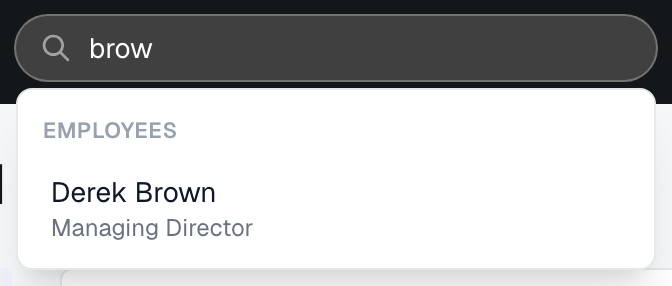
Quickest: type the name into the Search... box in the top bar. Results come back grouped, with an Employees group; click the name and you land straight on their page.
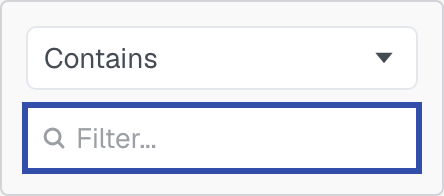
On the list itself, filter a column — open the three dots in its header. Employee Name, Title and Email take text you type; Location and Status give you a tick-list to choose from. Phone can't be filtered. Reset filters, at the right of the bar, clears the lot and is greyed out when there's nothing to clear.
This page has no filters above the grid at all — the column filters are the filters here. How they work, and how to keep a set of them as a named view, is in Saved views, filters and paging.
What the counts in the list mean
Three number columns sit at the right, and they answer three different questions. Don't add them together.
Active Services counts the individual services that person is assigned to where the work is staffed — status Resource Secured — and the engagement it sits on is still Open. So it's "what is this person actually on right now". It drops when an engagement closes, even though their name stays on the record, and it doesn't count invitations still out for bid.
Active Engagements counts engagements at status Open where that person is either a contact or assigned to a service — limited to engagements you're allowed to open, so the number always matches the rows on their Engagements tab.
Completed counts their finished body of work: engagements that have closed, on work your firm either led or was awarded a service on. It's not a running total and it never overlaps with Active Engagements.
An employee's own page

Click View on their row, or pick them out of the search box.
The header carries their name, their job title and Active or Inactive on one line beneath it. Employees above the name takes you back to the list. If you're an account admin you'll also see Edit profile; if you aren't, it isn't there — the button is absent rather than greyed out, because the permission isn't coming. To change your own details you don't need this page at all: go to your profile in Settings. See Update your own profile and password.
The four workload figures
A strip under the name gives four figures, each with a line saying exactly what it counts:
- Open engagements — engagements at status Open.
- Completed — their finished engagements.
- Services in progress — invitations against them sitting at In Review or Accepted.
- Awarded services — services won, with the total value of that work beside the count.
A dash instead of a number means that figure hasn't been reported for this person, which is not the same as none. A genuine zero shows as 0.
The three tabs
Profile opens first. It holds whatever profile text has been written for them, or says plainly that none has been.
Engagements lists the engagements they're involved in — the engagement's number, its name, its status and the date it was created — with a band of Engagement status tiles above it. Press one to see only engagements at that status; press it again to clear. View opens the engagement.
Services is the one to read for "what is this person actually doing". It lists every service assigned to them, newest first, with the engagement number and name, the service name, its value, the state of the invitation behind it, the engagement's own status, and the date. The tiles above it filter by invitation state: In Review, Accepted, Declined, Awarded, Passed, Canceled. For what those words mean, see Understand service statuses.
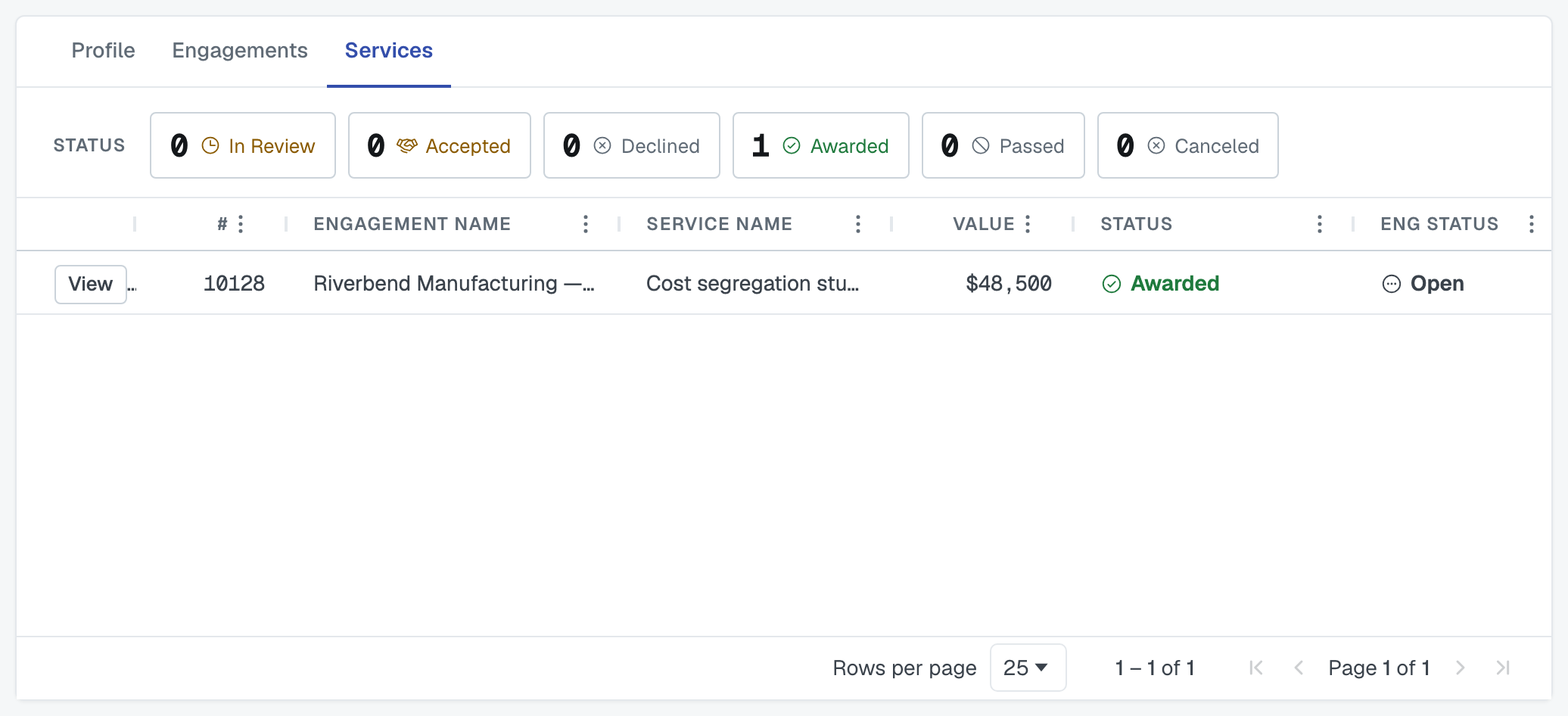
Some rows on that tab have no View button. That's a service on an engagement your firm isn't party to — your own employee is named on it, so the row is real work and stays, but the engagement itself isn't yours to open.
Both tabs show 25 rows at a time, changeable to 100 or 250 at the foot of the grid.
Contact information
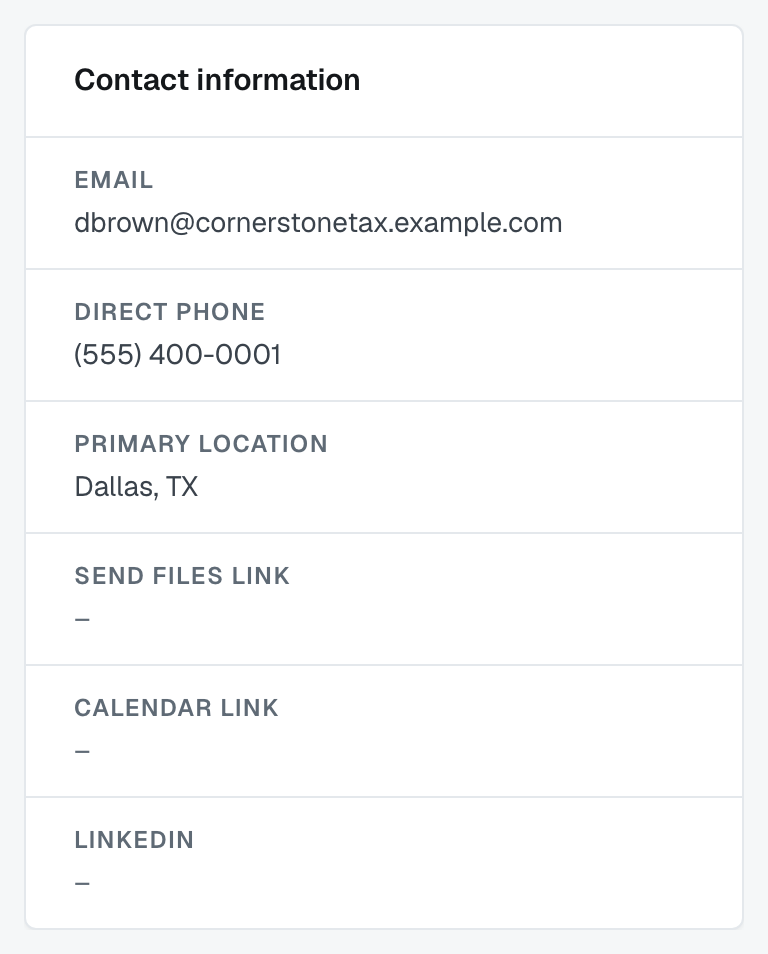
The card down the right stays put whichever tab you're on: Email, Direct phone, Primary location, Send files link, Calendar link and LinkedIn. The last three are live links and open in a new tab.
A dash means the field is empty, not that it's hidden. Anyone can fill their own in from their profile in Settings; an account admin can fill in a colleague's with Edit profile. On both of those forms the send-files link is the field labelled Send Secure Files URL.
Calendar link is the exception: it is the person's booking link, and only they can set it, on Settings › My Calendar. Neither My Profile nor Edit profile has a calendar field any more. See My Calendar: out of office, booking link, meeting link and calendar feeds.
Was this article helpful?
That’s Great!
Thank you for your feedback
Sorry! We couldn't be helpful
Thank you for your feedback
Feedback sent
We appreciate your effort and will try to fix the article