Your firm's roster, and who can change it
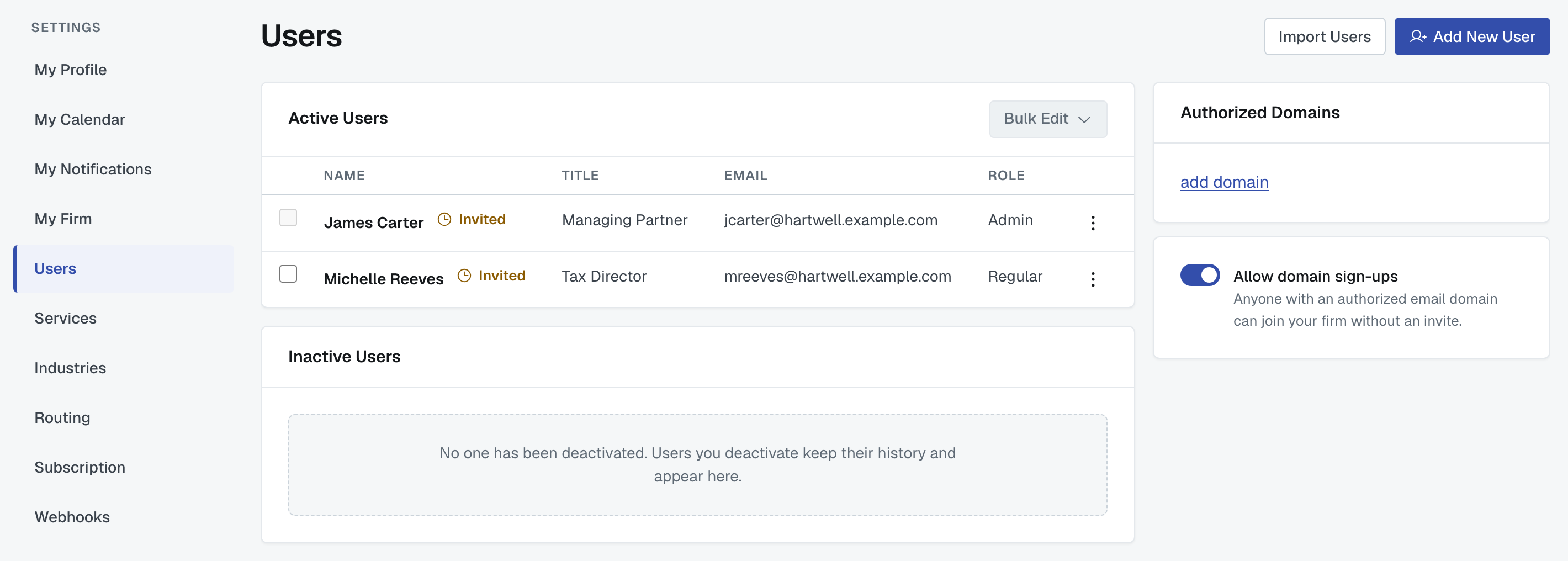
Settings › Users is your firm's roster. Administrators only — everything on this page is an admin action.
Adding one person
Add New User asks for first name, last name, title, email and an access level (Admin, Editor or Regular — see Change a user's role). Leave Send an email invite ticked and they get a link that sets them up in your firm.
Two refusals to expect:
"Invites can only be sent to addresses on your verified domains." The dialog names the domains you can use. To invite somebody at another domain your firm owns, verify that domain first — it's on the same page.
"That address already has an account." Every email address on FirmLinks belongs to exactly one person. If they should be at your firm and aren't, contact support rather than inventing a second address for them.
Personal addresses (Gmail and the like) are refused, as everywhere else.
Importing a list
Import Users takes a spreadsheet. Your file needs the columns First Name, Last Name and Email Address, as CSV or XLSX. Everyone in it is invited.
Two more columns are optional:
- Title — their job title, as it shows on the Users page.
- Role — Regular, Editor or Admin. Capitals don't matter. Leave the cell blank and the person comes in as Regular.
⚠️ Anything else in the Role column imports that person as Regular. There's no guessing — "Administrator" or "Editr" both become Regular. The person is still imported and invited; only the role is set to Regular.
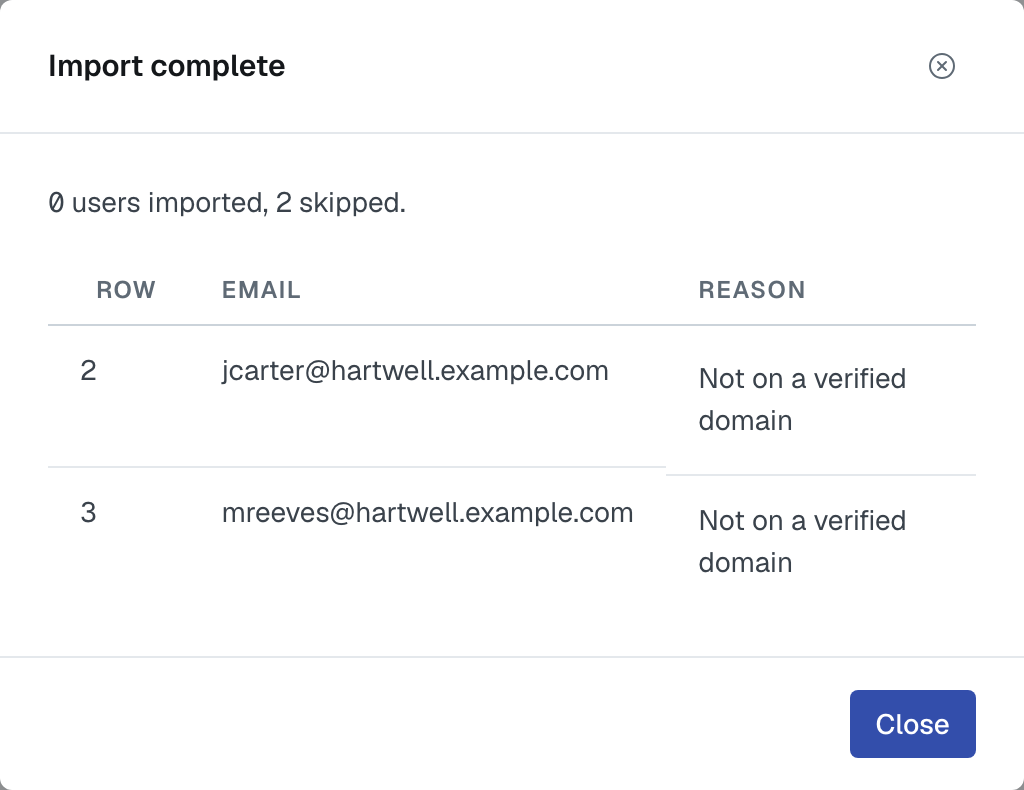
When the import finishes, Import complete tells you how many users were imported and how many were skipped, and that each imported person has been sent an invitation.
- Rows that were skipped are listed with their row number, email and a reason — a missing field, a personal address, an address not on a verified domain, or an address that already has an account. The rest still go.
- Roles that were not recognised are listed separately, with the row number, the person's name and exactly what your file said. Fix them on the Users page: tick those people, then Bulk Edit › Update Role.
Deactivating somebody
Open the ⋮ menu on their row and choose Deactivate. The dialog says what it means: they will lose access to your firm's account. Their history is kept, and they appear under Inactive Users where you can reactivate them.
So deactivating is the right move when somebody leaves. It's not a delete:
- They can't sign in to your firm any more.
- Their history stays — the engagements they ran, the messages they sent, who they assigned.
- They can be brought back with one click.
You can't deactivate yourself, and the page says so. Nor can you change your own role. That's what stops a firm locking itself out of its own account — another admin has to do it.
Reactivating
Inactive Users holds everybody you've deactivated. Reactivate and they're back with the role they had; they sign in with their existing password.
Authorized Domains
The same page lists your firm's email domains and whether each is Validated. Two things depend on them:
- You can only invite colleagues at a validated domain.
- Allow domain sign-ups — with it on, anyone with an authorized email domain can join your firm without an invite.
Adding and verifying a domain is covered in Verify your firm's website domains.
Leave domain sign-ups off if you'd rather approve each person. With it off, somebody who signs up on your domain doesn't get in — your admins are emailed that they asked, and one of you adds them.
Was this article helpful?
That’s Great!
Thank you for your feedback
Sorry! We couldn't be helpful
Thank you for your feedback
Feedback sent
We appreciate your effort and will try to fix the article