The Add other users step
The Add other users step, near the end of setup, adds the rest of your firm. You can add people at any time afterwards, but it's worth doing here: during setup, admins and editors are the people who can help choose your firm's services. After setup, you can also bulk import users in Settings › Users.
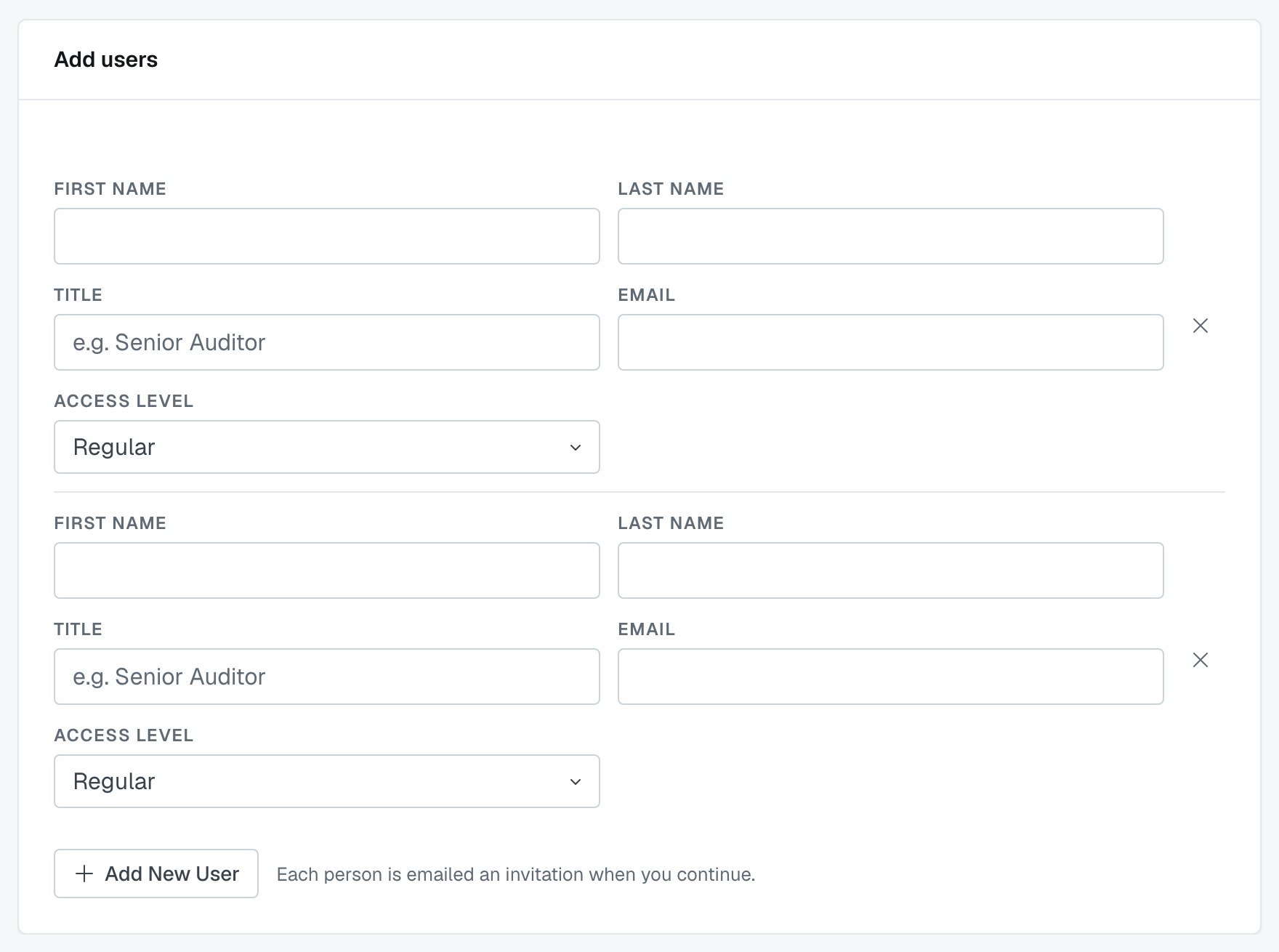
Adding people
For each person: first name, last name, title, work email, and an access level.
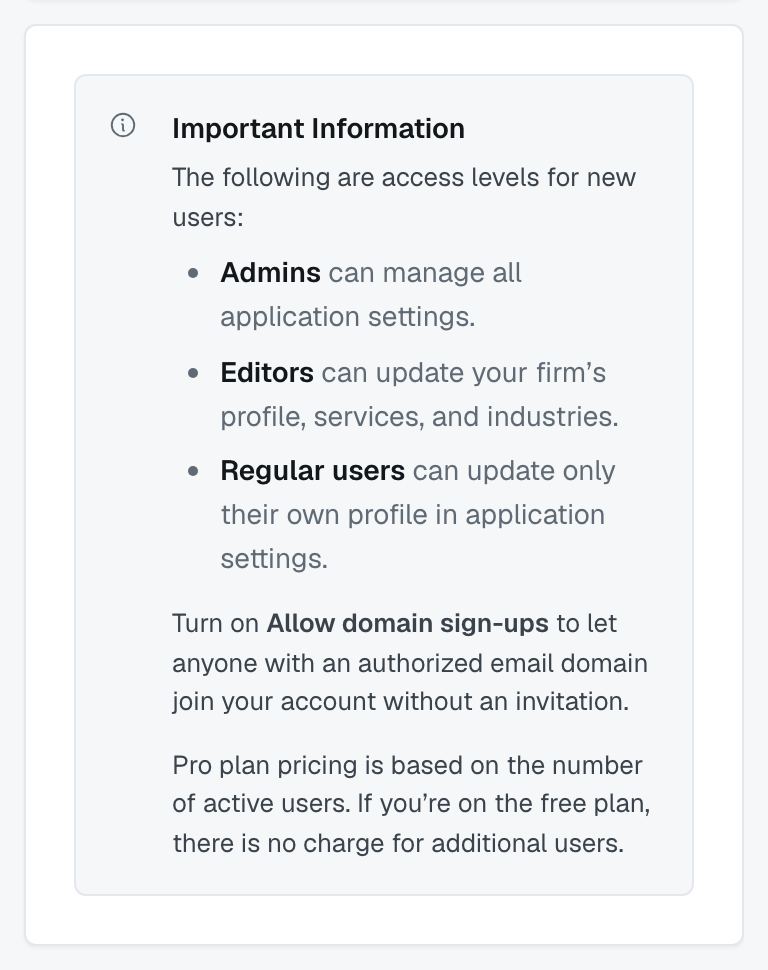
- Admin — can manage all application settings.
- Editor — can update your firm's profile, services, and industries.
- Regular — can update only their own profile in settings.
Add as many rows as you need. Each person is emailed an invitation when you press Continue, not as you type.
Two rows that get refused
You'll see a count like "3 invitations sent, 2 could not be", with the failures left on screen for you to fix or remove. The reasons:
"This address is not on one of your verified domains." Invites can only be sent to addresses on your verified domains, and the step lists them above the rows. To invite somebody at another domain your firm owns, verify that domain first.
"That address already has an account. Nothing was sent to them." They're already on FirmLinks — at your firm or another one. If they should be at yours and aren't, contact support rather than guessing.
Personal email addresses are refused for the same reason they are at signup — "Personal addresses are not accepted. Use their work address."
Allow domain sign-ups
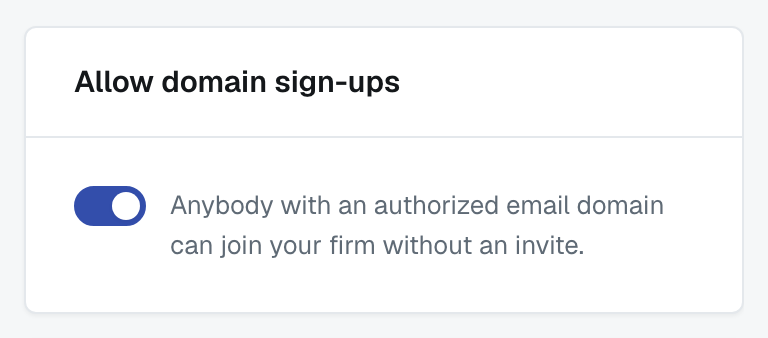
The switch under the invitations lets anybody with an email address at your verified domain join your firm without an invitation. It saves you inviting people one at a time at a firm where everybody shares a domain.
Leave it off if you'd rather approve each person. With it off, somebody signing up on your domain doesn't get in — your administrators are emailed that they asked, and one of you adds them.
Afterwards
Everybody you added appears under Settings → Users, with invitations shown as waiting until each person sets their password. Changing somebody's access level later, deactivating them, or importing a long list from a spreadsheet are all covered in Your team.
Was this article helpful?
That’s Great!
Thank you for your feedback
Sorry! We couldn't be helpful
Thank you for your feedback
Feedback sent
We appreciate your effort and will try to fix the article