What the checklist is
When your firm's account is new, Account setup sits in the top bar with the number of items still outstanding. It's a list of up to ten things, in the order they're meant to be done, and it should take 10–15 minutes.
Nothing has to be done in one sitting and nothing is lost if you leave. The badge stays in the top bar until the list is finished.
A short overview dialog opens the first time you land here, and on each visit until you tick Do not show this again.
The steps, in order
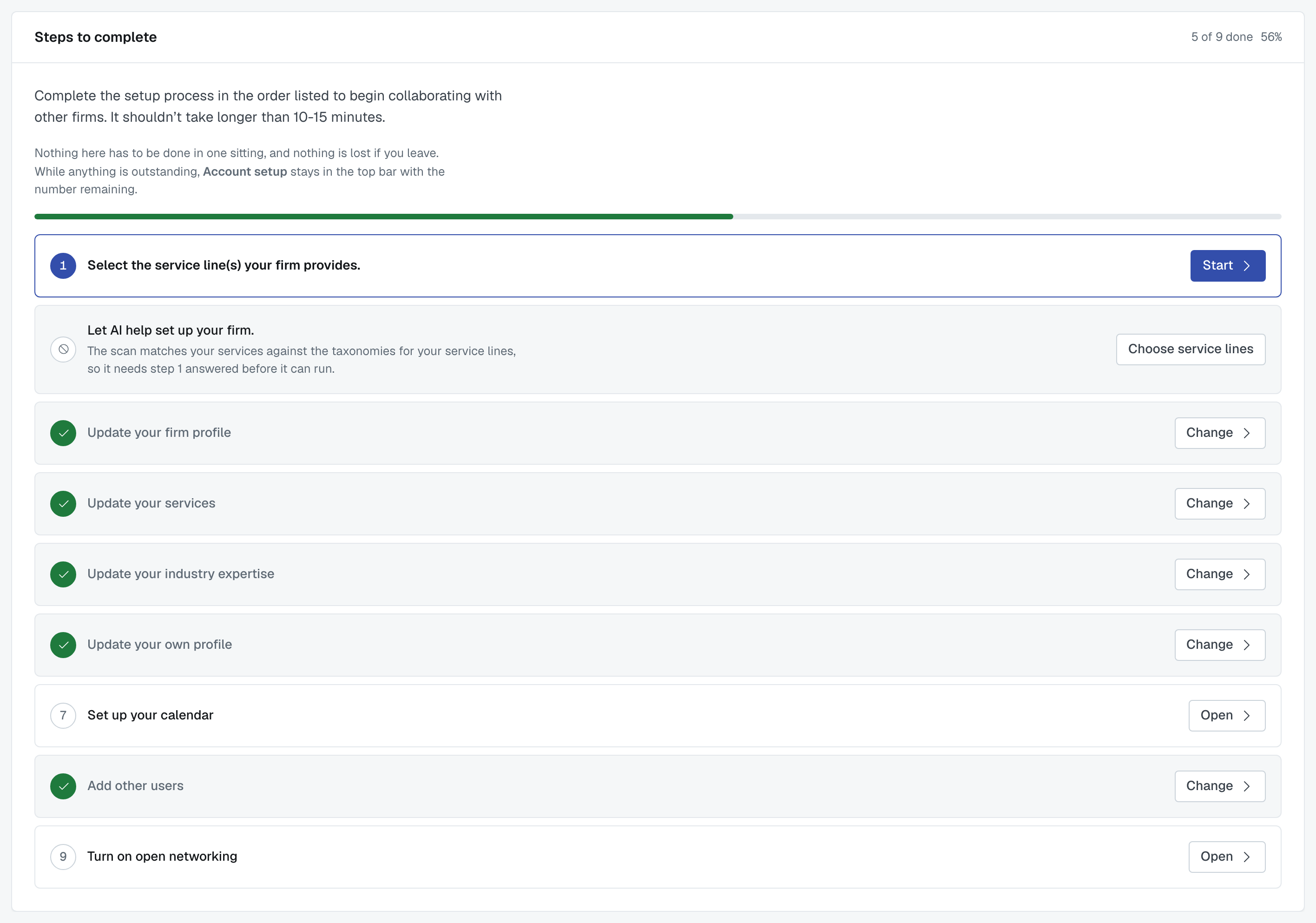
- Select the service line(s) your firm provides. — the type of work your firm does.
- Let AI help set up your firm. — read your website and any documents you upload, and fill in the rest for you.
- Update your firm profile — what other firms see before they invite you.
- Update your services — the specific services you offer.
- Update your industry expertise
- Update your own profile — your name, title, photo, office and time zone.
- Set up your calendar — your booking link, your default meeting link and your calendar feeds.
- Accept or decline your invitations. — only appears if invitations were waiting when you first opened setup.
- Add other users — your colleagues.
- Turn on open networking — only on plans that include it. This is also where you say whether you offer a referral incentive to firms that refer work to you through the open network.
There is no longer a step for watching the intro video.
The calendar step
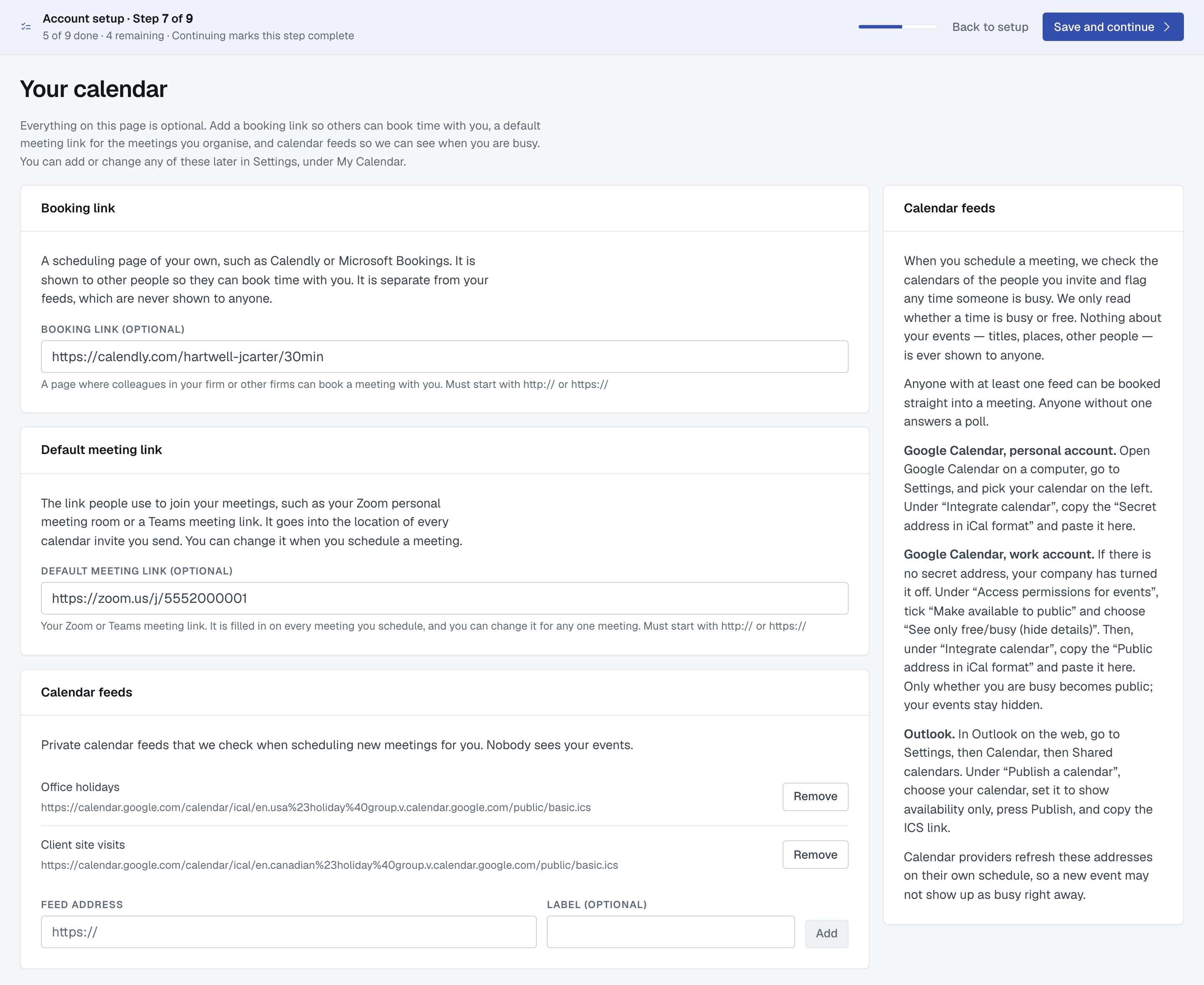
Set up your calendar opens Your calendar, a short version of Settings › My Calendar: Booking link, Default meeting link and Calendar feeds. Out of office isn't on it; that stays in Settings.
Everything on the page is optional. Feeds are added and removed on the spot with Add and Remove; the two links are saved when you press Save and continue. Pressing Save and continue on an empty page is how you skip it — the step is ticked either way (if it is your last step, the button reads Save and finish setup), and you can add or change any of it later under Settings › My Calendar. What each card does is in My Calendar: out of office, booking link, meeting link and calendar feeds.
Why step 1 comes first
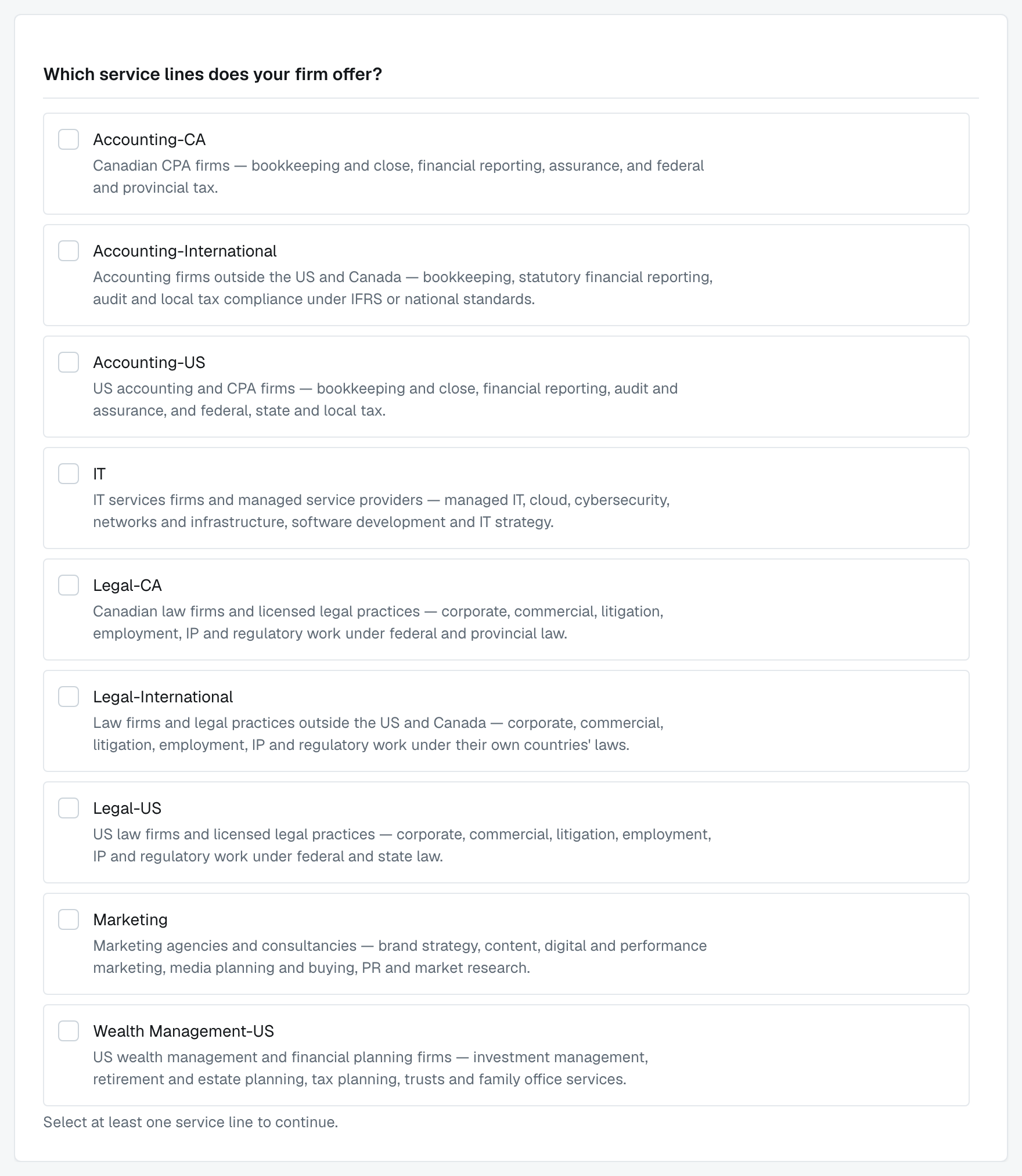
Everything after it depends on it. The AI scan matches what it finds against the catalogue of services for your service lines, /settings/services is built from them, and so is every match another firm will ever get for you. Until service lines are answered, the AI scan step is shown but can't be started, and it says why.
You pick one or more:
- Accounting Services — bookkeeping and the monthly close, financial reporting, assurance and audit, tax compliance and advisory. The work performed on a client's financial records, statements and filings.
- Legal Services — corporate and commercial legal work. Choose this only if your firm practises law.
How a step gets ticked
You tick it. Pressing Continue on a step marks it complete. On the checklist, a step you've finished shows a green tick and a Change button; inside the step itself, the bar at the top says Completed with a small ✕ beside it that un-marks it. Nothing is worked out from your record — if you fill in your firm profile without going through the step, the row stays unticked until somebody marks it, and un-marking always puts it back.
Two of the ten are yours, not your firm's: your own profile and your calendar. Everyone at the firm has their own copy of those two. The others are the firm's — whoever does one has done it for everybody.
If your list looks shorter than ten
That's normal, and it's not a fault:
- Open networking isn't on every plan. It's included on Pro plans but not on Free or alliance memberships. On a plan without it, the row isn't drawn at all, and the count still adds up.
- Accept or decline your invitations is only on the list if invitations were already waiting when you first opened setup. Once it's there, it stays there — answering your last invitation doesn't make the step disappear, so you can still press Continue on it. An invitation that arrives later doesn't add the step; you'll find it in the Collaboration Center.
- If your firm's account was set up for you by an alliance or partner firm, the AI scan step is left out — they've already filled that in.
- If you're a colleague rather than one of the firm's administrators, you get two steps: your own profile and your calendar. The rest are the firm's, and an administrator answers them.
Once setup is finished, it stays finished
Which steps your list has is settled when setup is first opened. Changing your plan afterwards adds or removes nothing — so upgrading from Free to Pro once your setup is done does not bring the checklist back with an open networking step on it. To turn open networking on after that, use Collaboration Center › Open Networking; see Open networking and your referral incentive.
Was this article helpful?
That’s Great!
Thank you for your feedback
Sorry! We couldn't be helpful
Thank you for your feedback
Feedback sent
We appreciate your effort and will try to fix the article