What the step offers, and that it's optional
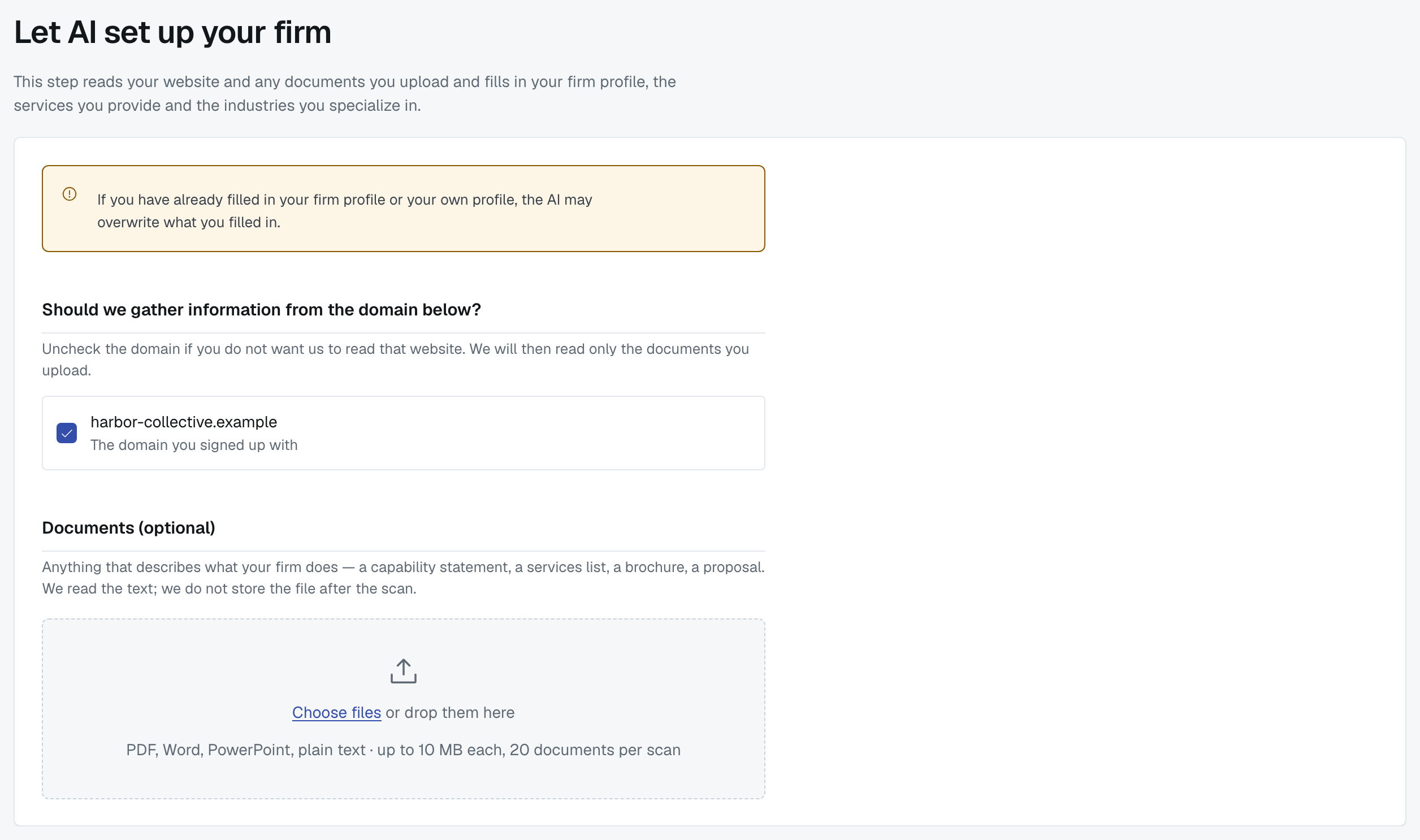
The Let AI set up your firm step, second in the list, offers to fill in most of your account for you. It's optional — you can skip it and type everything yourself — but it's the difference between ten minutes and an afternoon.
What it reads
Your website. The domain you signed up with is offered with a tick next to it. Untick it and we read nothing from the web — only the documents you upload. Only the domains on your firm profile are offered, and an administrator adds or verifies those in Settings › My Firm.

Any documents you upload — a capability statement, a services list, a brochure, a proposal. See Upload documents for the AI scan.
That's all. It doesn't read your email, your files, your clients or anything inside FirmLinks.
What it fills in
Your firm profile (a short description, your offices, your logo, your social links), the services you provide, and the industries you specialize in.

⚠️ If you've already filled in your firm profile or your own profile, the scan may overwrite what you typed. That's why it comes before the steps that ask you to fill those in by hand.
It needs your service lines first
The scan matches what it finds against the catalogue of services for your service lines, so step 1 has to be answered before it can run. Until then the step is visible but can't be started, and it tells you so.
Nothing is saved until you say so
The scan runs on our servers and takes a while — on a big site, minutes rather than seconds. You can leave the page; it keeps going.
When it's done you get a Summary of Findings — what the scan found for each part of your account — and, under it, What we read: the website and documents it actually got into. Nothing reaches your account until you press Continue, which saves what was found and takes you to the next step.
You don't edit the findings on this page. The steps that follow — your firm profile, your services and your industry expertise — open already filled in, so if the scan got your description wrong, or found an office you closed two years ago, fix it there.
Your logo is the same: we find the candidate, and the file is only downloaded and stored when you press Continue.
If you want to try again — say you've updated your website — press Start a new scan. It replaces these findings; anything you've already saved to your firm is kept.
When it comes back with little or nothing
It happens, and the usual reasons are dull:
- The site is mostly images. A homepage whose services are pictures of text has nothing to read.
- The site blocked us, or was down when we looked.
- The documents were thin — a one-page brochure with a phone number on it.
Fill the gaps in by hand and carry on; the rest of setup is the same either way. You can also run the scan again later from Settings → Services, which is a separate article.
Was this article helpful?
That’s Great!
Thank you for your feedback
Sorry! We couldn't be helpful
Thank you for your feedback
Feedback sent
We appreciate your effort and will try to fix the article