What the page is for
Settings › My Calendar holds everything about your own time: who covers your new work while you are away, the link people use to book time with you, the link your meetings are held on, and the calendars FirmLinks checks when someone schedules a meeting with you. It sits directly under My Profile in the Settings menu, because these are settings about you rather than about the firm.
Anyone at your firm can use it, whatever their role — but only for themselves. Nobody else, not even an administrator, can change it for you.
The page has four cards, in this order: Out of office, Booking link, Default meeting link and Calendar feeds. They save in different ways, and each one says how where it is.
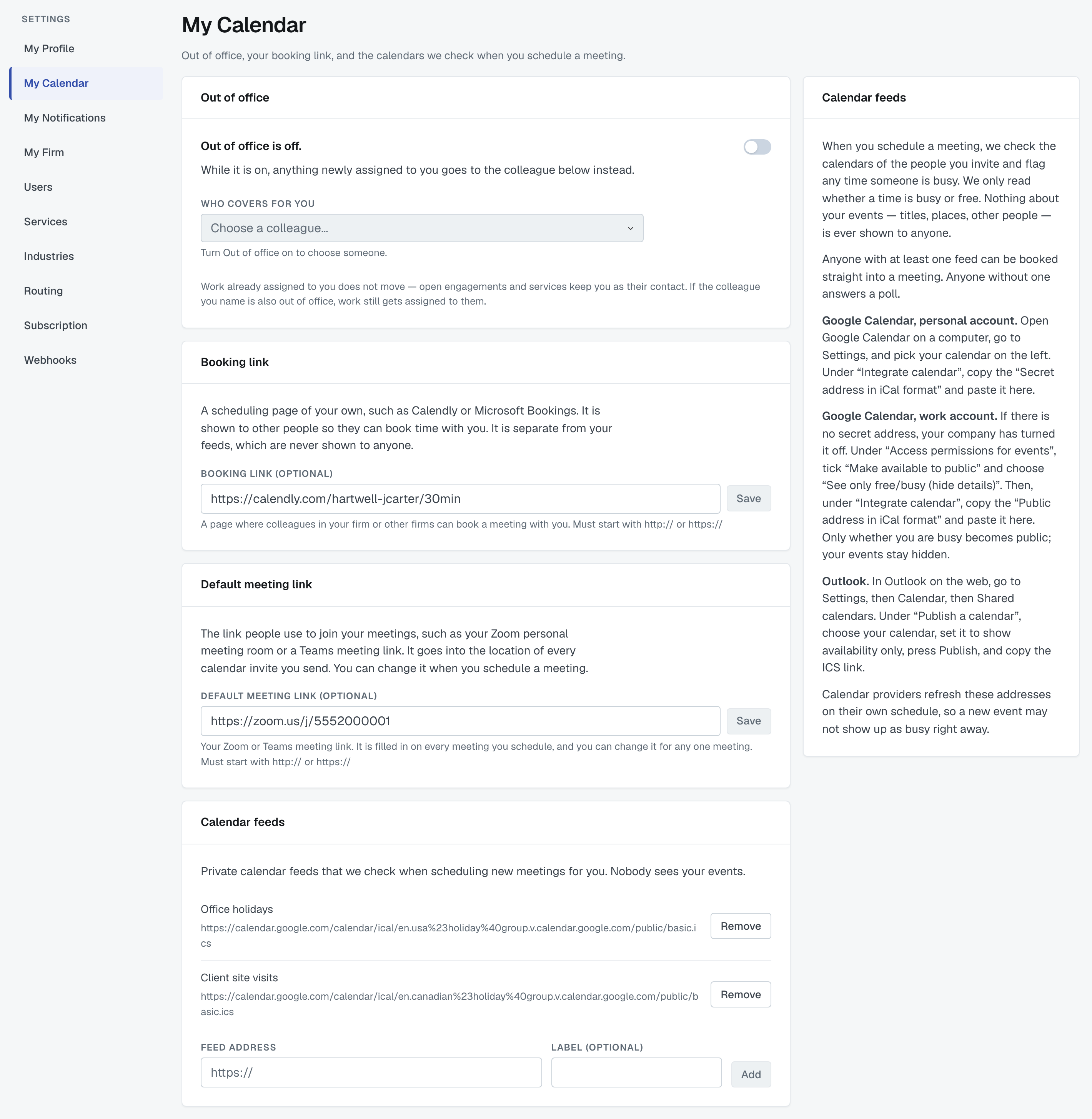
The old Settings › Out of Office page is now the first card here. A link or bookmark to the old page brings you to this one.
Out of office
This is where you tell FirmLinks you are away and name the colleague who should receive your new work while you are out. Set it before you leave: nobody can turn it on for you.
Turning it on
- Go to Settings › My Calendar.
- In the Out of office card, turn on the switch.
- Under Who covers for you, choose the colleague.
There is no Save button — the switch and the choice of colleague save as soon as you change them. Once a change has saved, the card's header shows when it was last autosaved.
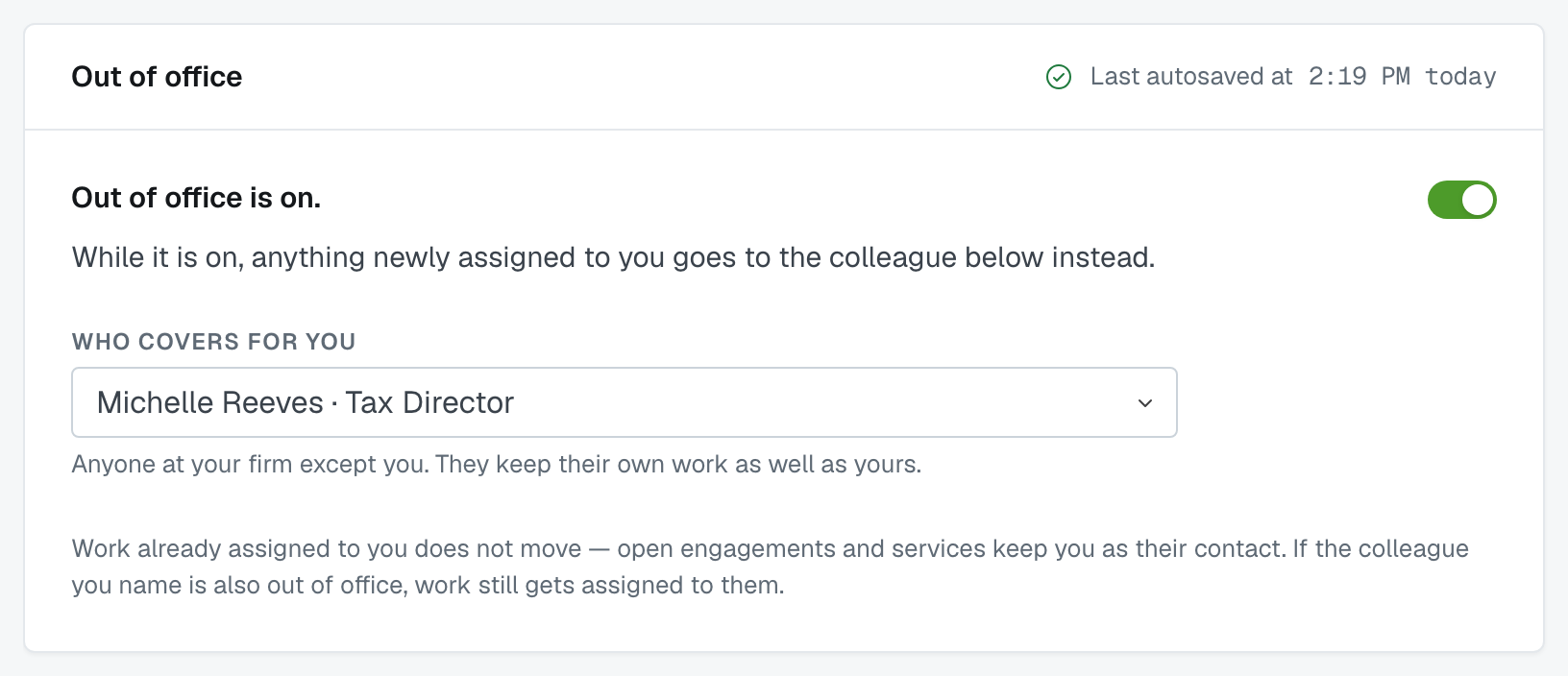
⚠️ When you turn it on, the first colleague in the list is picked for you straight away. Check Who covers for you and change it if that is not the right person.
You can choose anyone at your firm except yourself, whatever their role. They keep their own work as well as taking on yours.
If you are the only person at your firm, the switch is greyed out: there is nobody to cover for you yet.
Turning it off
Turn the switch off. New work comes to you again, and the colleague you had chosen is cleared — you choose again next time.
There are no dates. Out of office stays on until you turn it off yourself, so remember to switch it off when you are back.
What moves to your colleague, and what doesn't
Only newly assigned work moves. While it is on, when FirmLinks would make you a contact on a newly arrived invitation — as your firm's main point of contact, as the main contact for a service, or through a routing rule as the primary or additional contact — your colleague is named instead.
Work already assigned to you does not move. Open engagements and services keep you as their contact. If something needs handing over while you're away, reassign it yourself before you go.
A colleague's deliberate choice stands. If someone at your firm picks you by name as a contact on an engagement, you get it, even while you are out.
It does not pass on a second time. If the colleague covering for you is also out of office, your new work is still assigned to them — it is not passed on again to whoever they chose.
The reminder on your dashboard
While Out of office is on, a red bar across the top of your dashboard says "Out of office is on. Anything newly assigned to you is going to [name] instead.", with a Turn it off link that brings you back to this page.
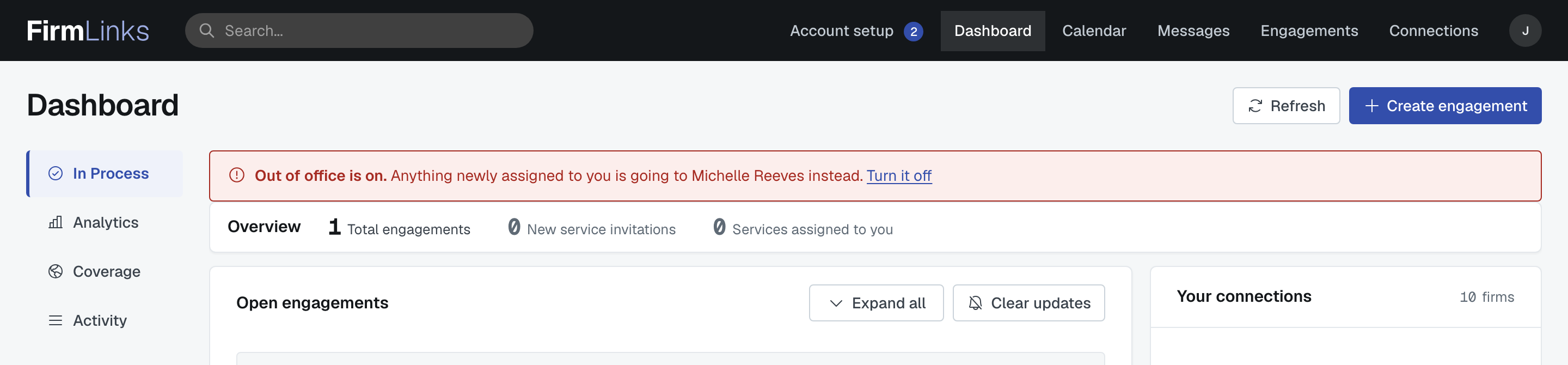
If the colleague you chose has since left your firm, nothing is being sent on — new work is coming to you again. The bar says so and offers Choose someone else.
Booking link
Your Booking link is a scheduling page of your own, such as Calendly or Microsoft Bookings — a page where colleagues in your firm or people at other firms can book a meeting with you. It is shown to other people: it appears as a Schedule link beside your name in an engagement's contacts, and as Calendar link on your page in Employees.
- Paste the address into Booking link (optional). It must start with
http://orhttps://. - Press Save beside the field.
Save stays greyed out until the address differs from the one already saved. To remove your booking link, clear the field and press Save.
This used to be the Calendar URL field on My Profile. It is the same link, and this is now the only place to set it — it is no longer on My Profile, on the profile step of account setup, or on the form an administrator uses to edit a colleague.
The booking link is separate from your calendar feeds. The booking link is public to the people you work with; the feeds are never shown to anyone.
Default meeting link
Your Default meeting link is the link people use to join your meetings — your Zoom personal meeting room, say, or a Teams meeting link. Save it once and it is filled in on every meeting you schedule.
- Paste the link into Default meeting link (optional). It must start with
http://orhttps://, with no spaces. - Press Save beside the field. Like the booking link, Save is greyed out until the value changes.
When you schedule a meeting, the link appears already filled in under Call-In Phone Number / Video Link on the first step. You can change it, or replace it with a phone number, for that one meeting; the saved default is not touched. Whatever is in that field goes into the Location of the calendar invitation everyone receives. See Schedule a meeting from an engagement.
Calendar feeds
A calendar feed is the private address of your own calendar, in iCal (.ics) format. With one added, FirmLinks can tell when you are busy, so when anyone schedules a meeting that includes you — a colleague, or someone at another firm — it can suggest times you are free and answer polls for you instead of asking you.
FirmLinks only ever reads whether a time is busy or free. Nothing about your events — titles, places, other people — is ever shown to anyone, and nobody else can see the feed address.
Anyone with at least one feed can be booked straight into a meeting. Anyone without one is asked to answer a poll.
Adding a feed
- Copy your calendar's feed address (see below for where to find it).
- Paste it into Feed address.
- Optionally type a Label, such as Work or Personal, up to 60 characters.
- Press Add.
A feed saves the moment you add it; there is nothing else to press. FirmLinks checks the address there and then, and refuses it — with the reason under the box — if:
- it can't read a calendar at that address. The address must start with
https://and be a.icscalendar feed, not the web address of your calendar page. - you have already added that same address.
- you already have 10 feeds, which is the most you can have. Remove one to add another.
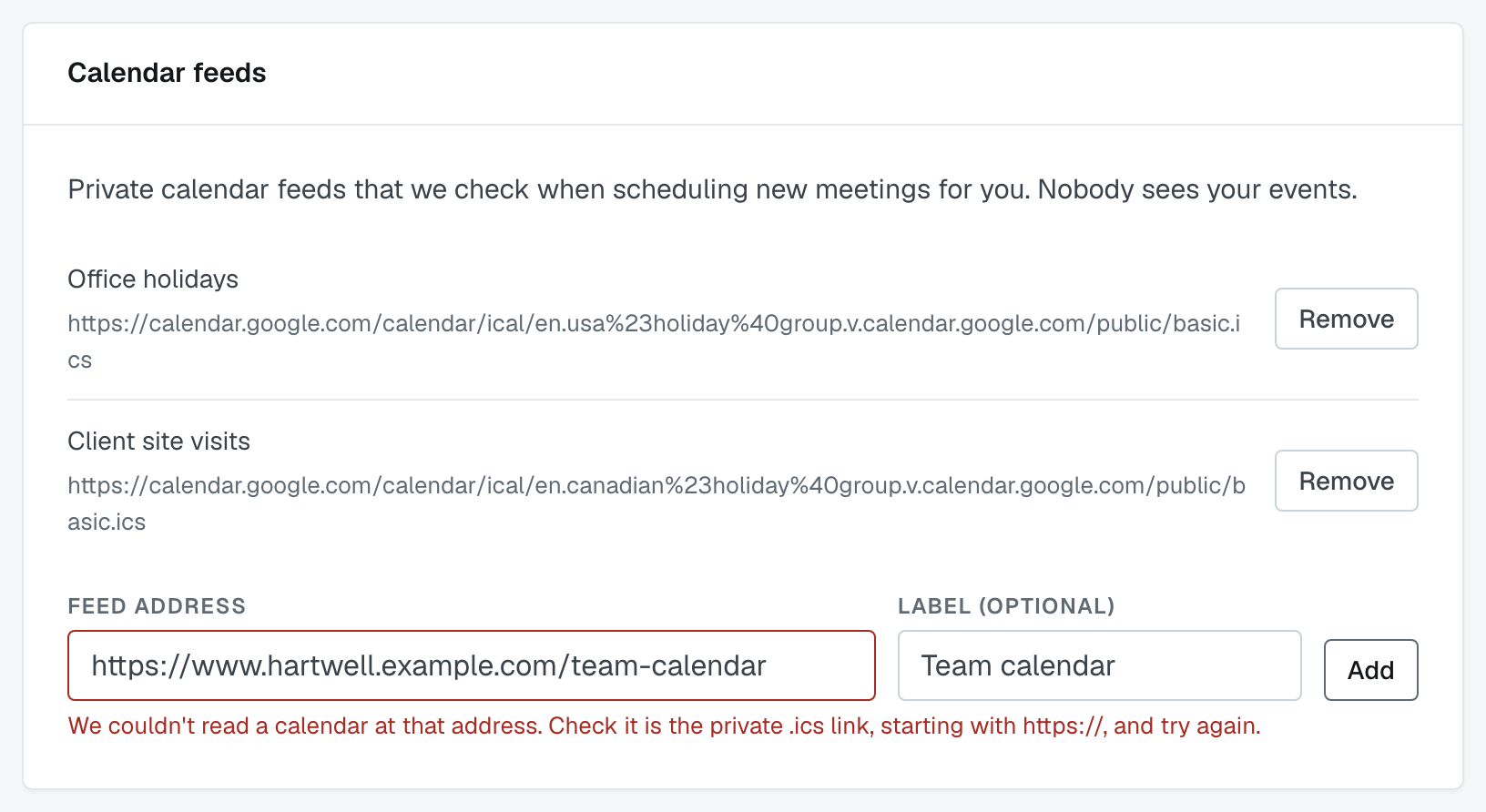
You can add more than one feed — for example a work calendar and a personal one — and all of them count when FirmLinks checks whether you are busy.
Removing a feed
Press Remove on the feed's row. It goes at once.
Where to find your feed address
The card on the right of the page carries these same directions.
- Google Calendar, personal account. Open Google Calendar on a computer, go to Settings, and pick your calendar on the left. Under "Integrate calendar", copy the "Secret address in iCal format" and paste it here.
- Google Calendar, work account. If there is no secret address, your company has turned it off. Under "Access permissions for events", tick "Make available to public" and choose "See only free/busy (hide details)". Then, under "Integrate calendar", copy the "Public address in iCal format" and paste it here. Only whether you are busy becomes public; your events stay hidden.
- Outlook. In Outlook on the web, go to Settings, then Calendar, then Shared calendars. Under "Publish a calendar", choose your calendar, set it to show availability only, press Publish, and copy the ICS link.
⚠️ For a Google work account, always choose "See only free/busy (hide details)". Any setting that shows event details would publish your events to anyone who has the address.
Calendar providers refresh these addresses on their own schedule, so a new event may not show up as busy right away.
Related
- Schedule a meeting from an engagement — how the default meeting link and calendar feeds are used when you schedule.
- The Calendar page: your meetings, and the ones still being scheduled
- Update your own profile and password
Was this article helpful?
That’s Great!
Thank you for your feedback
Sorry! We couldn't be helpful
Thank you for your feedback
Feedback sent
We appreciate your effort and will try to fix the article