This page is about your own record
Everything here is about your own record. Changing a colleague's details is a different job — an administrator does that, or the colleague does it themselves.
My Profile
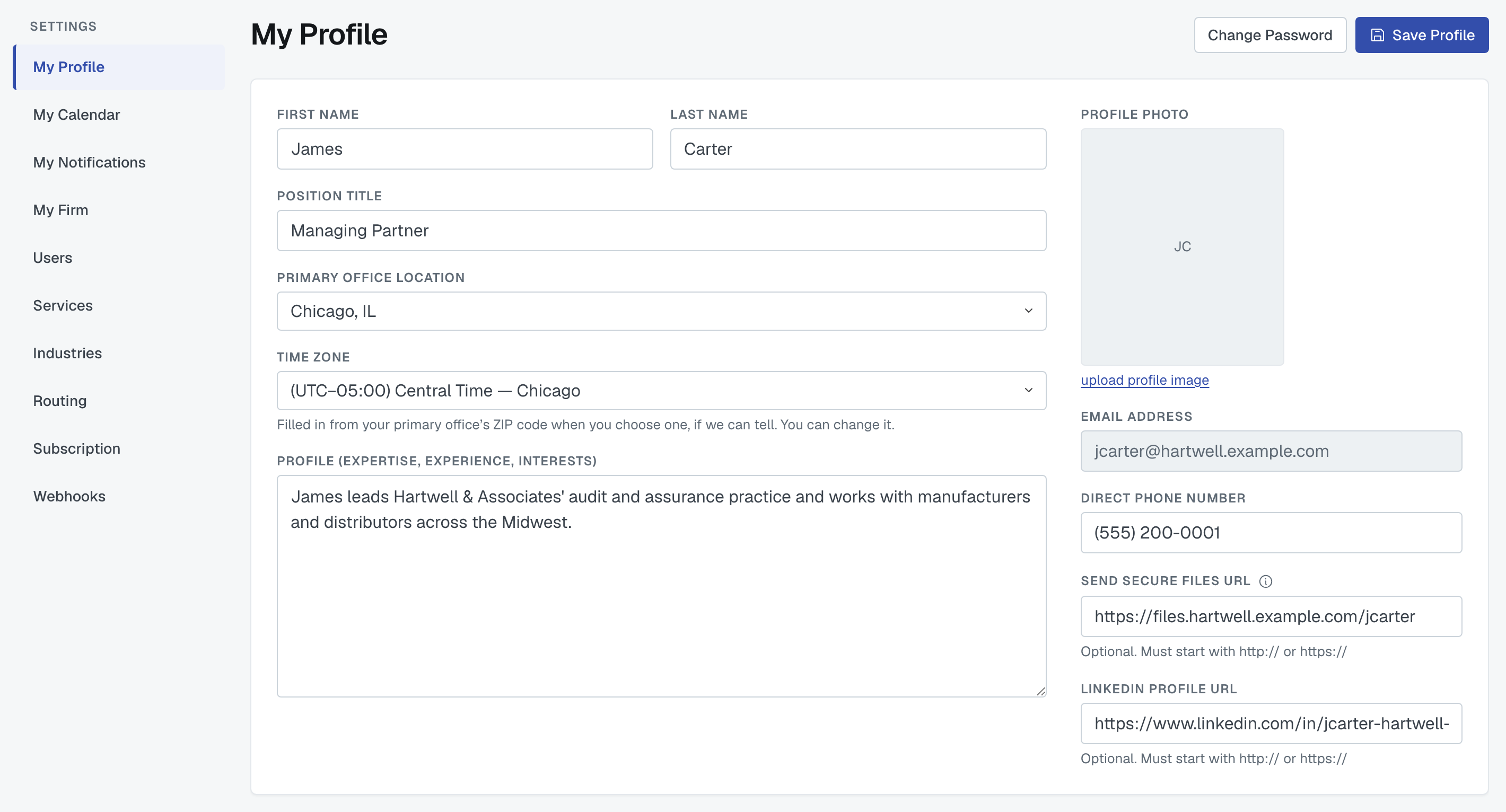
Open My Profile from Settings. You can set:
- Your name — first and last
- Your position title — what you do at the firm
- Your primary office — picked from your firm's offices. If the list is empty, nobody has added an office to the firm profile yet; an editor or admin does that first and then this list has something in it.
- Your time zone — see Your time zone below.
- A short profile — a few lines about you, which other firms see when they look at an engagement you're on
- A photo — upload one, or remove the one that's there
- Direct Phone Number, and two optional links: Send Secure Files URL (your secure upload or portal link, where a client or another firm can send you confidential files) and LinkedIn Profile URL
Save when you're done. Leaving a field alone leaves it as it was.
Your email address is shown but can't be edited here. It's what you sign in with, so changing it is not a text edit — contact support if it needs to change.
Looking for Calendar URL? It has moved. Your booking link, your default meeting link and your calendar feeds are all on Settings › My Calendar, directly under My Profile — see My Calendar: out of office, booking link, meeting link and calendar feeds.
Your time zone
Time zone sits directly under Primary Office Location. FirmLinks uses it to show meeting times in the emails it sends you, with the zone named — for example Tue, Sep 29 · 10:00 – 10:30 AM CT — and, when someone schedules a meeting with you, to look for times inside your own working day.
You usually don't need to set it. When you choose a primary office and the time zone is still empty, FirmLinks fills it in from that office's ZIP or postal code, if it can tell. If it can't — which happens with many addresses outside the US and Canada — the field stays empty and you can pick your zone yourself.
A time zone you chose is never overwritten. Changing your office later does not change it; only you do.
If your time zone is empty, emails show meeting times in the organizer's time zone instead.
Changing your password
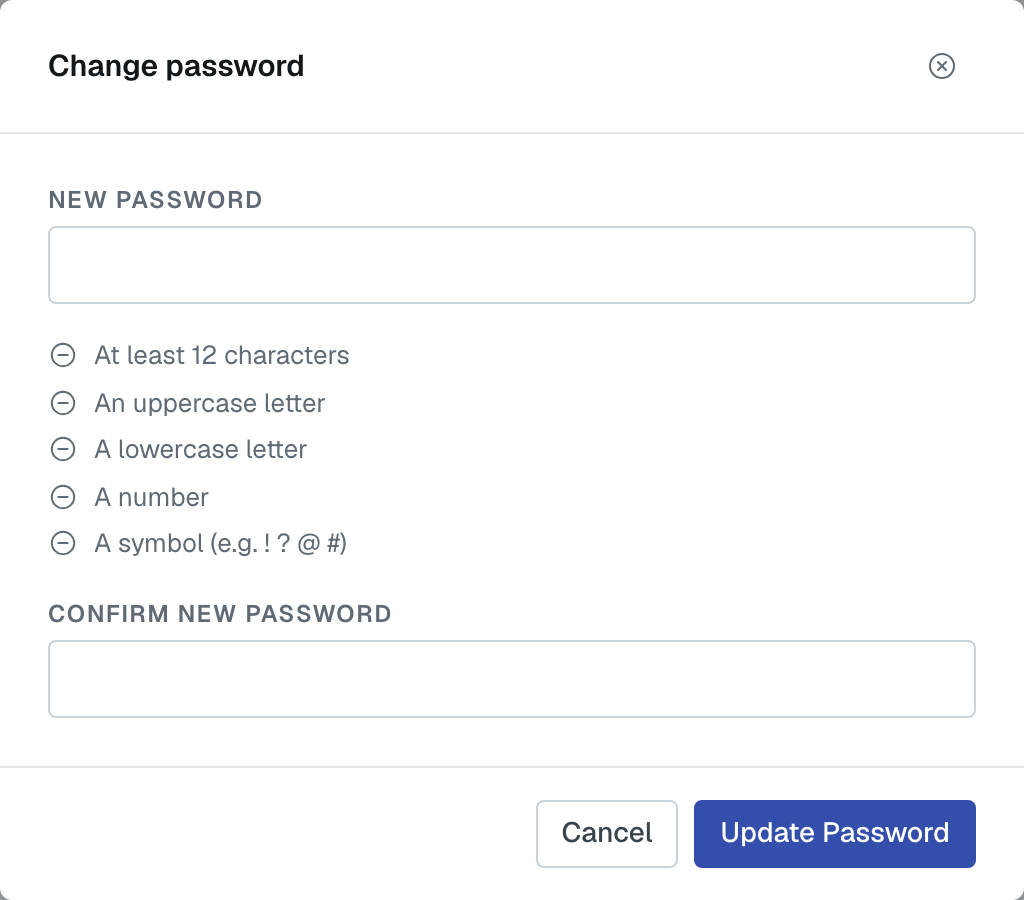
In the same place, choose Change password. Type the new password and confirm it. It needs at least 12 characters, an uppercase letter, a lowercase letter, a number, and a symbol — the same five rules as at signup.
If your account signs in with Google or Microsoft, there's no password on it and you'll be told so. Your password lives with Google or Microsoft in that case.
Why filling this in is worth the two minutes
Your name, title and photo appear next to you on engagements and in messages, for people at other firms who have never met you. A blank profile is the one that looks like nobody is home.
Was this article helpful?
That’s Great!
Thank you for your feedback
Sorry! We couldn't be helpful
Thank you for your feedback
Feedback sent
We appreciate your effort and will try to fix the article