What the page is for
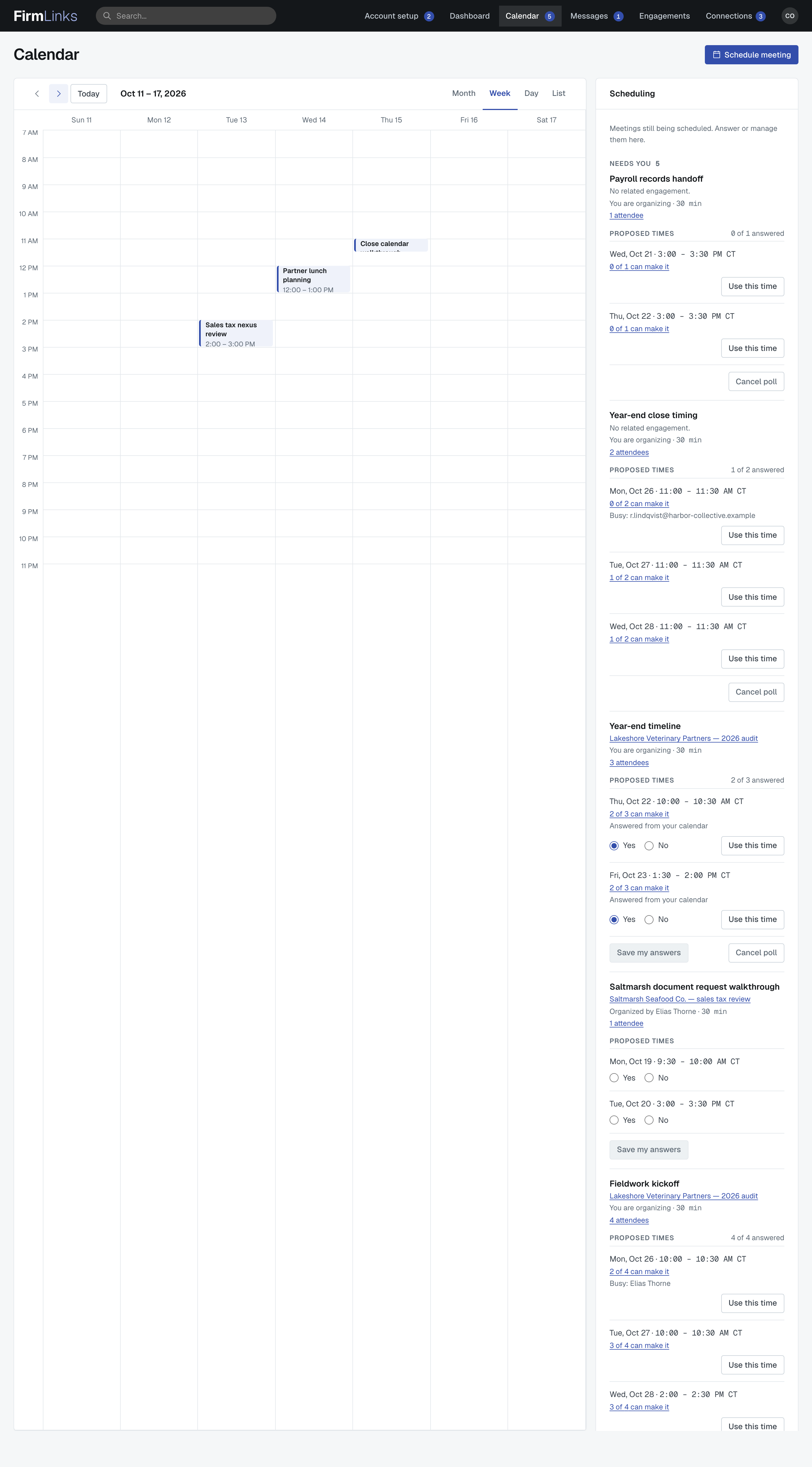
Calendar sits in the top bar of every screen, between Dashboard and Messages. It shows two things side by side: the meetings that are booked, on a calendar, and on the right the Scheduling list of meetings that are still waiting for a time to be agreed.
Everyone at your firm has it, whatever their role. What you see on it is only ever your own: meetings you organize, and meetings you have been invited to.
The number in the top bar
When something on the page needs you, Calendar in the top bar carries a number. It is exactly the number of meetings under Needs you in the Scheduling list: polls waiting for your answer, plus open polls you are organizing. When nothing needs you, no number is shown.
Booked meetings never count, and nor does a poll you have already answered, or one your calendar feed answered for you.
Week, Month, Day and List
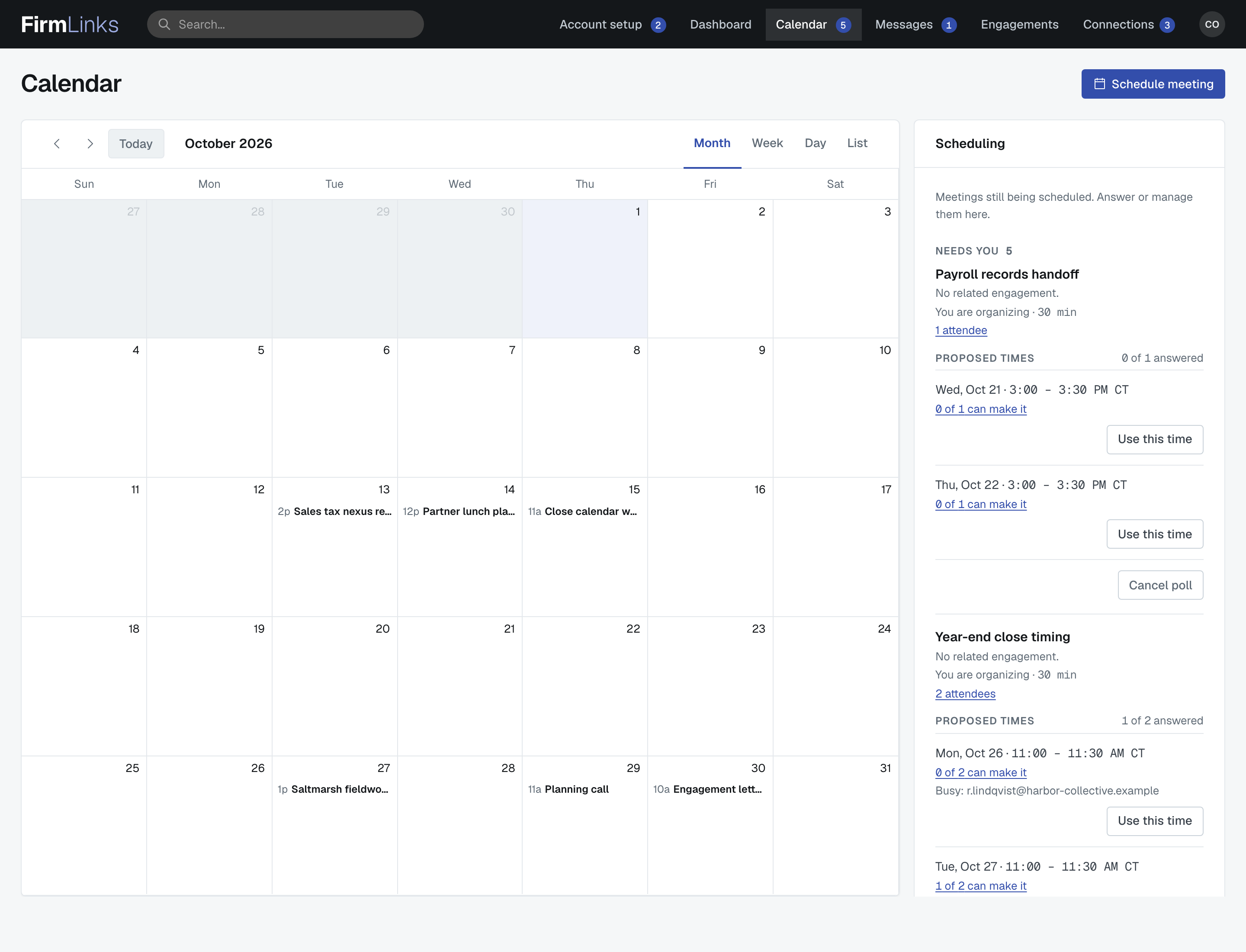
The calendar opens on Week. The tabs at the top right switch to Month, Day or List, and the arrows at the top left move back or forward by one week, month or day. Today takes you back to the current one; it is greyed out while today is already on screen.
- Week and Day draw each meeting as a block at its time, with its title and its start and end.
- Month shows each meeting as one line: its start time and title.
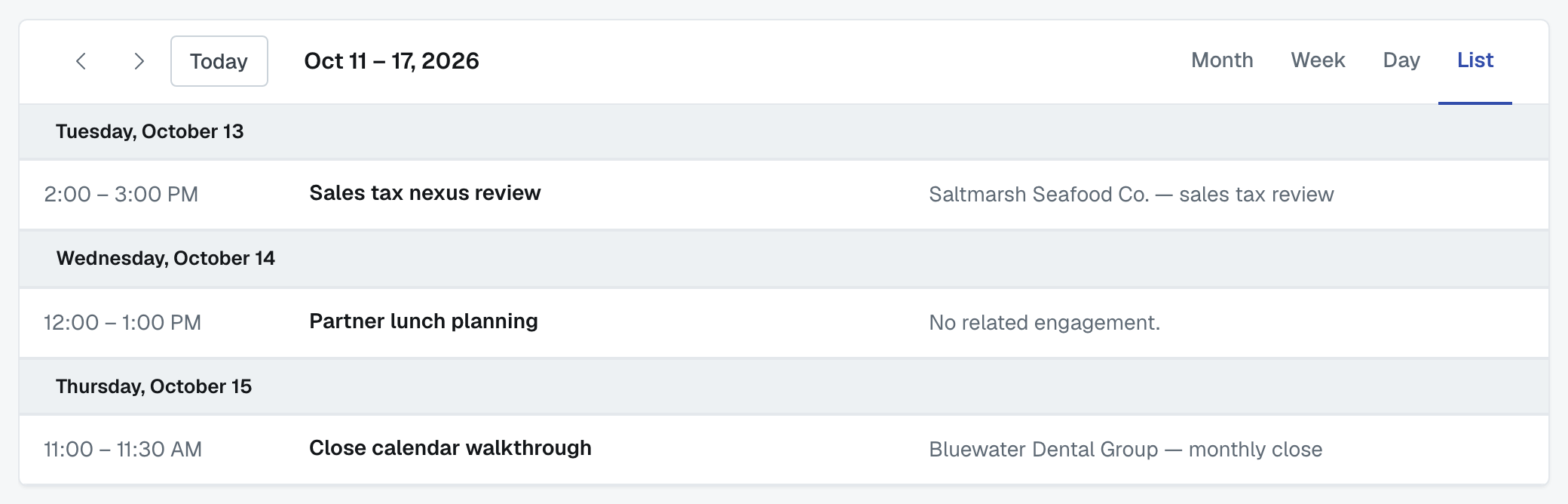
- List lists the week's meetings by day: the time, the title and the engagement it belongs to.
Times are shown in your computer's own time zone. If there is nothing in the range you are looking at, the page says No meetings scheduled in this range.
Only booked meetings appear on the calendar. A meeting still being scheduled is in the Scheduling list instead, and a cancelled meeting is not shown anywhere on the page.
⛔ The calendar itself can't be edited. You can't drag a meeting to a new time, stretch it, or click an empty slot to create one. To book a meeting use Schedule meeting (below). If you organized a booked meeting and need to move it, move it in your own calendar and FirmLinks follows — see Schedule a meeting from an engagement.
Opening a meeting
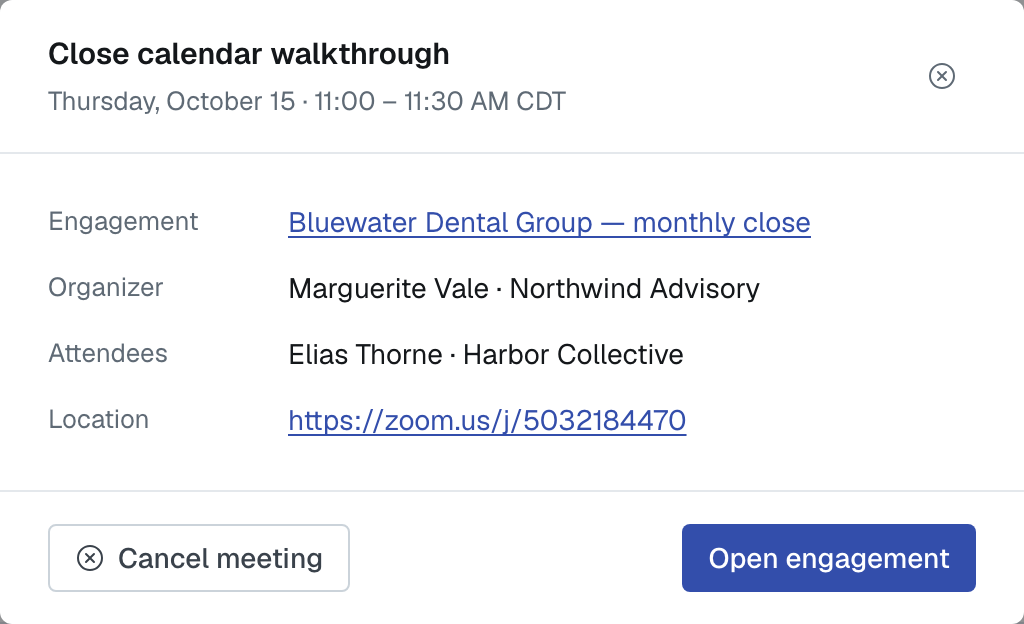
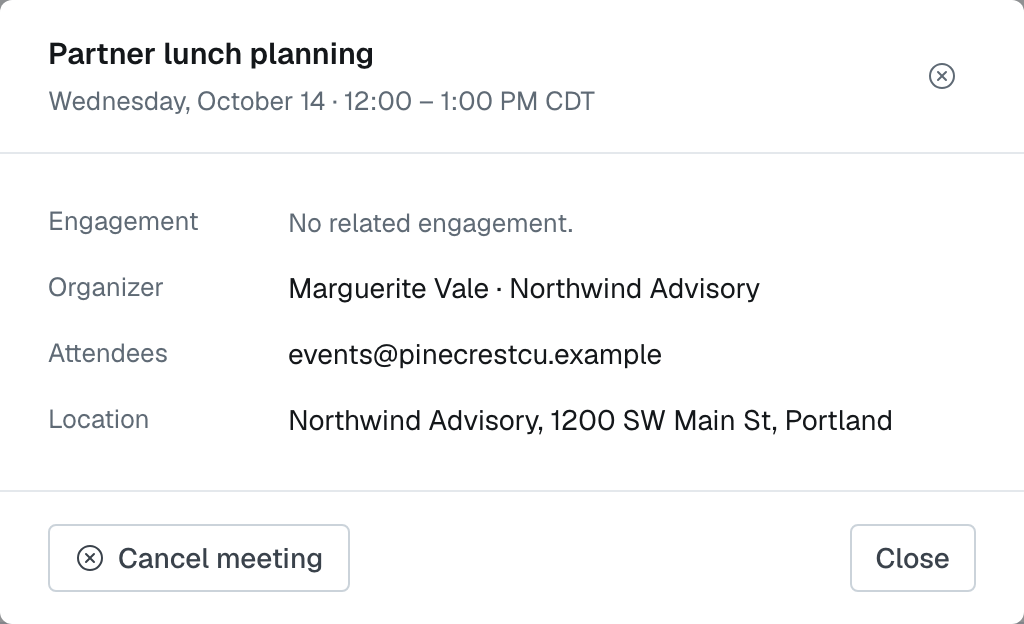
Click a meeting to open its details:
- the title, with the date and time under it
- Engagement — a link to the engagement the meeting is about, or No related engagement.
- Organizer and Attendees
- Location — the call-in number or video link given when the meeting was scheduled. A link opens in a new tab and a phone number can be tapped to call; None given means nobody added one.
At the bottom, Open engagement takes you to the engagement. A meeting with no engagement has Close there instead.
Cancelling a meeting you organized
If you organized the meeting, its details also carry Cancel meeting, whether or not it belongs to an engagement. It asks first: Everyone invited will get a cancellation email, and the meeting will be removed from their calendars. Press Cancel meeting to go ahead, or Keep it.
Only the organizer sees the button.
The Scheduling list
On the right, Scheduling lists every meeting that is still being arranged — polls that have not been booked yet — that you organize or have been invited to. It is in two groups:
- Needs you — polls waiting for your answer, and every open poll you are organizing.
- Waiting on others — polls you have already answered, or that your calendar feed answered for you, now waiting for other people.
Each row is the whole poll, so you can deal with it right there without opening the engagement: the title, a link to its engagement (or No related engagement.), who is organizing it and for how long, and the proposed times, each with Yes and No. Press Save my answers when you are done.
If you are the organizer, the same row also lets you see who can make each time, press Use this time to book one, Propose more times, remove an attendee while the meeting is not yet booked, or Cancel poll. These work exactly as they do on the engagement's Future meetings card; see Schedule a meeting from an engagement for each of them.
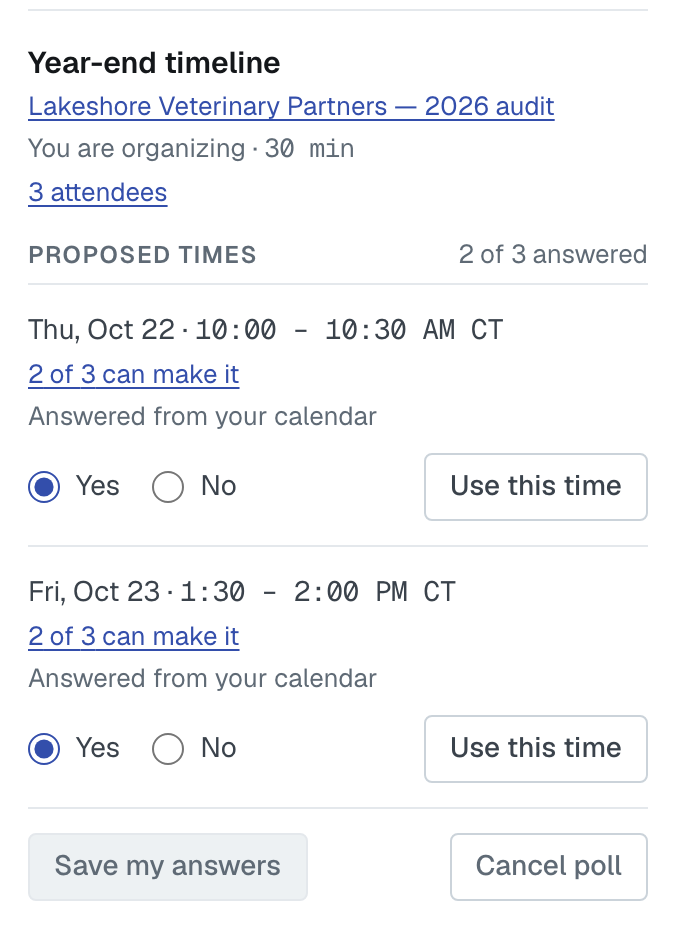
Inside FirmLinks, a poll that isn't tied to any engagement is answered here, because it has no engagement page to live on. Its emails link to the Calendar page for that reason.
When nothing is being arranged, the list says Nothing is being scheduled right now.
Scheduling a meeting from here
Schedule meeting, at the top right of the page, opens the same steps as Schedule meeting on an engagement, with one extra field on the first step: Engagement (optional).
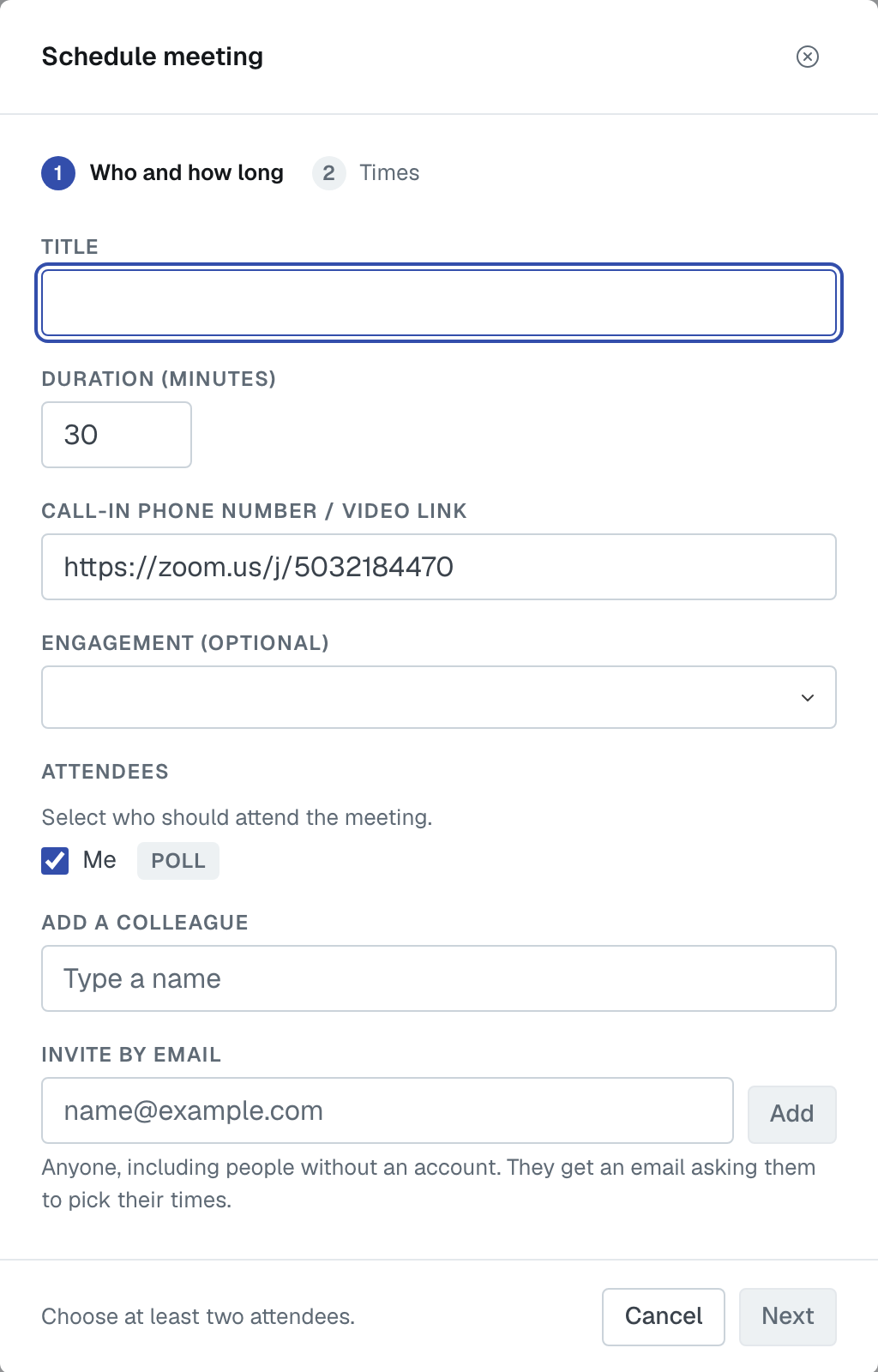
- Pick an engagement and its contacts are added to the meeting, all ticked, alongside you. The list offers the Open and Invited engagements you are a contact on.
- Change to another engagement and the contacts change to that engagement's. Colleagues you added by hand and people you invited by email stay.
- Leave it blank for a meeting that isn't about an engagement. You are the only person on it to start with, so add at least one more — a colleague, or someone by email.
A meeting with no engagement shows No related engagement. on the calendar, in the List view and in the Scheduling list, and its calendar invitation carries only the call-in number or video link.
Everything else about the steps — who has a calendar feed, polls, suggested times — is in Schedule a meeting from an engagement.
Related
- Schedule a meeting from an engagement — the whole scheduling flow, step by step.
- My Calendar: out of office, booking link, meeting link and calendar feeds — your default meeting link and the calendar feeds that let FirmLinks answer polls for you.
Was this article helpful?
That’s Great!
Thank you for your feedback
Sorry! We couldn't be helpful
Thank you for your feedback
Feedback sent
We appreciate your effort and will try to fix the article