There is no notifications list any more
The dashboard used to carry a Notifications list down its right-hand side. That list has gone. What it told you is now shown in three other places:
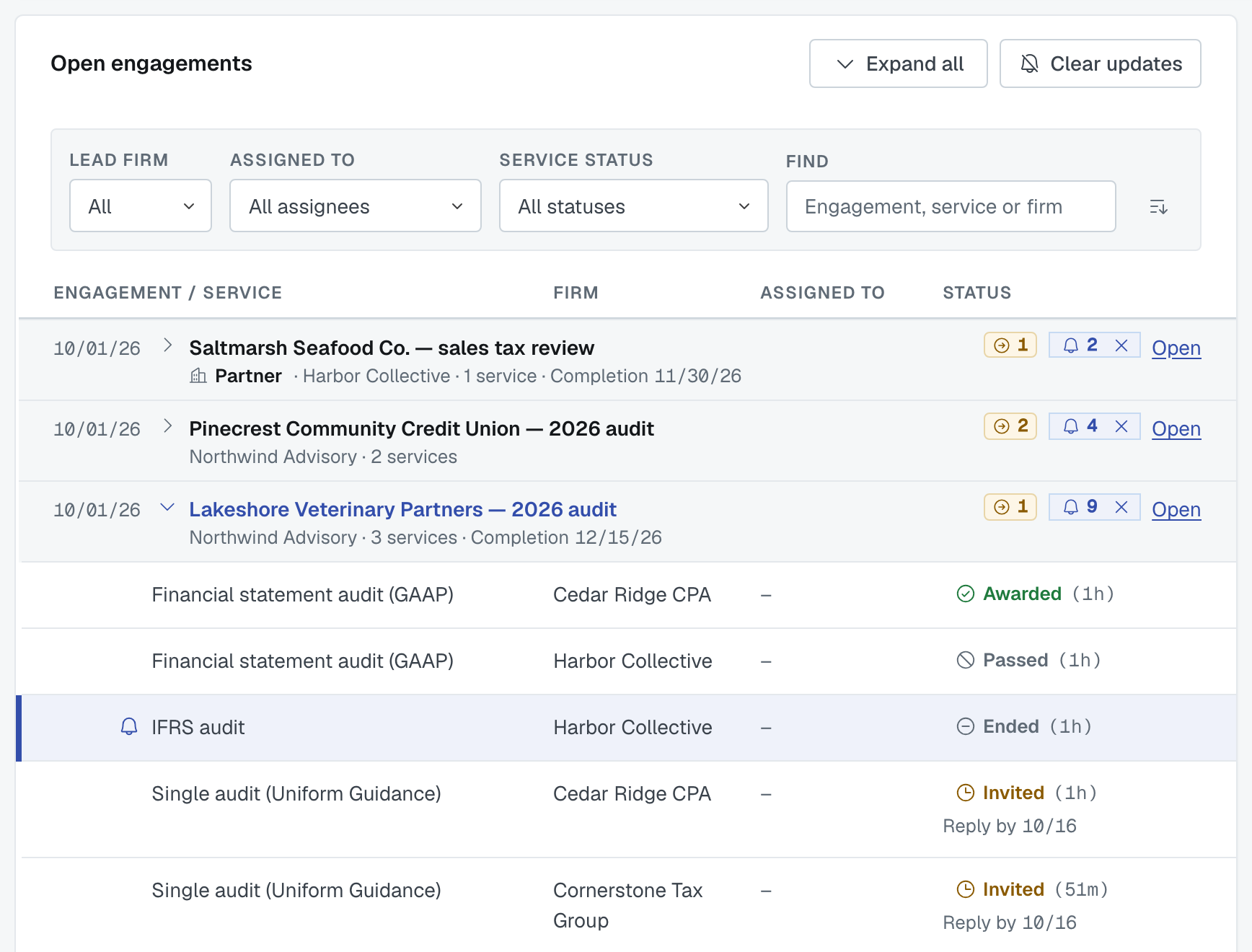
- On the engagement itself, in the dashboard's Open engagements list: an updates chip on the engagement — a bell and a number, with no words — and a small bell beside each service line that changed.
- In the top bar, as counts on Calendar, Messages and Connections.
- By email, at the frequency you choose in Settings › My Notifications.
Updates on your engagements
When something happens on an engagement you are a contact on — a firm invited, a service added, an invitation accepted or declined, a firm awarded, an employee assigned, a value changed, a status moved, additional information added — the engagement's line on In Process gets an updates chip — a bell and the number of updates — and the service it happened to is marked with a bell.
One action is one update. Adding twelve services in one go, or inviting one firm to eight services, counts once, not twelve or eight times.
What decides whether you see an update
You see updates about things you can already see. If an event appears in your activity feed, it can mark an update for you. If your firm can't see an engagement, nothing on it reaches you.
You're never told about your own action. The person who did the thing doesn't get an update for it.
Some news goes only to the firm it's about. When your firm's own engagement status moves as a result of something, that's your firm's news and nobody else is told, because the other firms already saw the cause.
The engagement has to be on your list. Open engagements shows only engagements you are a contact on, so that is where your updates appear. See The Dashboard, explained.
Clearing updates
You can clear one service line (click its Status chip), one engagement (click its updates chip, the bell) or everything (Clear updates in the card header). None of them asks you to confirm, and Clear updates is greyed out when there is nothing to clear.
Clearing is per person: your colleague's updates are their own, and clearing yours doesn't touch theirs. It changes nothing on the engagement and tells nobody.
The counts in the top bar
- Calendar shows how many meetings are waiting for you to answer. See The Calendar page: your meetings, and the ones still being scheduled.
- Messages shows how many conversations hold something you haven't read. Opening a conversation, replying in it or pressing Refresh while it is open marks it read. See Your Messages inbox: what shows, and for how long.
- Connections shows how many connection and group requests are waiting on your firm, and so does Collaboration Center inside that menu. See Respond to connection and group requests.

Emails are separate from all of this. Clearing an update doesn't unsend an email, and reading an email doesn't clear an update.
Settings › My Notifications decides how often FirmLinks emails you — in a summary every hour, twice a day or once a day, or each one as it happens — and which kinds you get. Group and connection news, which used to appear in the dashboard list, now reaches administrators by email. See My Notifications: choose which emails you get and how often.
What updates are not
They're not a to-do list. The needs-you chip on the same line (a circled arrow and a number) is the one that answers "what needs me" — a service with no firms invited, an employee to assign, a firm to award, an invitation to answer. It goes away when you deal with the thing, not when you clear updates.
They're not the unread message count. Messages have their own count, and clearing one doesn't clear the other.
Was this article helpful?
That’s Great!
Thank you for your feedback
Sorry! We couldn't be helpful
Thank you for your feedback
Feedback sent
We appreciate your effort and will try to fix the article