One list, and the 30-day rule
Messages in the top bar is every conversation you're part of, across every engagement, in one list. Its own subtitle is the time rule:
Conversations with a message in the last 30 days, and anything unread. Older conversations stay on the engagement's Messages tab.
Which conversations are yours
The list holds only conversations you are part of. A conversation is yours when any one of these is true:
- It is a direct message to you or from you.
- It is one of the engagement's shared channels — the one for everybody on it, the one between your firm and another, or your firm's private channel — and you are one of your firm's contacts on that engagement, with your firm in that channel.
- You have posted in it — even on an engagement where you are not a contact.
This applies to administrators too. Nobody sees every conversation at the firm here. A colleague's direct messages and channels on engagements you are not a contact on stay off your list; to read an engagement's conversations, open the engagement and use its Messages tab, which is unchanged. The unread count in the top bar counts the same set as this list.
What the time rule means in practice
A conversation is listed if either is true: its last message is within the past 30 days, or it holds something you haven't read. An unread thread is never hidden by age.
Nothing is deleted. A conversation that drops off this list is still on its engagement's Messages tab, in full. The inbox is a recency view, not an archive.
The engagement's state doesn't matter. A closed, cancelled or draft engagement's conversation is listed exactly as long as any other — 30 days from its last message. That's deliberate: the fact that a job closed doesn't make the last thing somebody said irrelevant.
The 30 days is fixed. There's no Last 90 / All switch today.
Reading the list
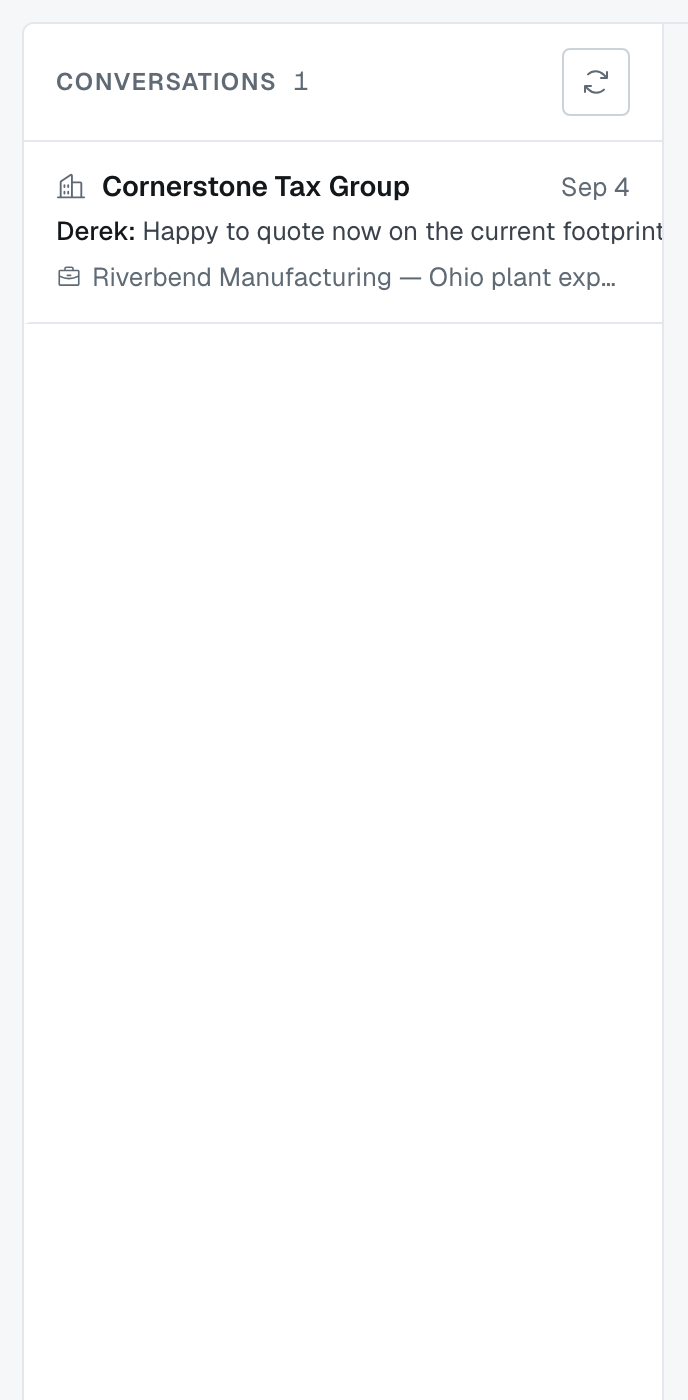
Each row is one conversation: who it's with, the engagement it belongs to, the last message with who sent it, and the date. Rows with unread messages carry a count.
Filter by engagement or by firm when a busy week has buried something.
Clearing the filters

The two dropdowns above the list are Engagement and Firm, and each one's first choice is the one that filters nothing — All engagements and All firms. Putting either back to that undoes it. Clear filters, at the right-hand end of the same row, does both at once, and it is greyed out until a filter is actually set, so a live button always means there is something to clear.
If a filter leaves you with nothing, the list says which case you are in rather than just going blank: "No conversation matches these filters" when one filter is set, or "No conversation matches this engagement and firm together" when both are — and it puts a Clear filters button right there, so you do not have to go back up to the toolbar. Nothing is lost while a filter is on; the other conversations are hidden, not gone.
The reading panel
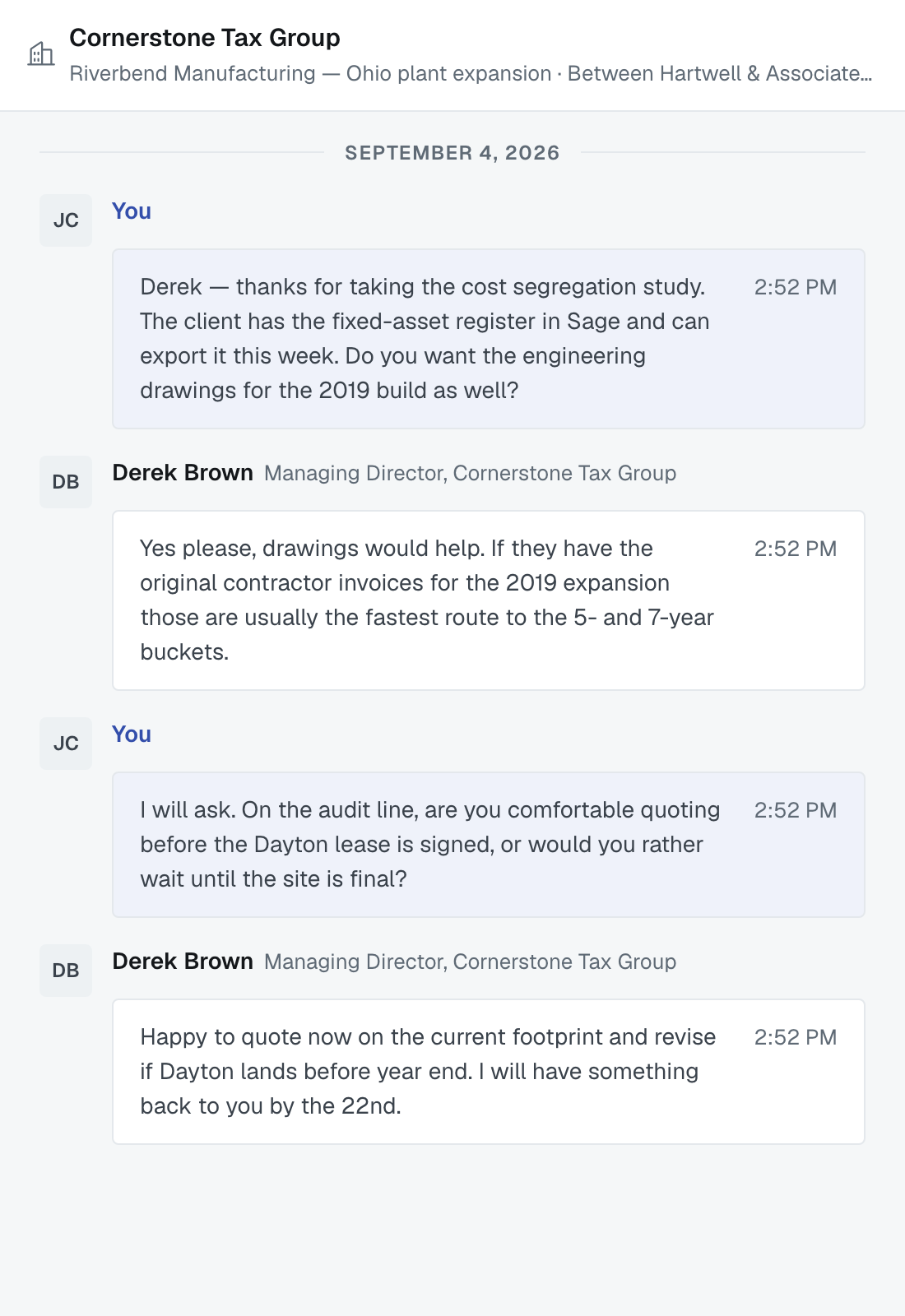
Click a conversation and it opens beside the list, with the thread, a composer, and a panel about the engagement — its status, the lead firm, a link straight into it, and the other firm's address and phone.
So you can answer a question and check who you're talking to without leaving the page.
Unread counts, and what clears them
Opening a conversation marks it read. So do replying in it and pressing Refresh while it is open — so a message that arrives while you have the conversation open is cleared the moment you reply or refresh, and the unread count in the top bar drops straight away.
Messages that arrive while a conversation is open do appear on screen by themselves within a minute, but they still count as unread until you reply, press Refresh or open the conversation again.
The number on Messages in the top bar counts conversations with something unread; the number on each row counts that conversation's unread messages.
Where to start a new conversation
You don't start one here. Conversations belong to engagements: open the engagement, choose the channel or the person, and the thread then appears in this list.
That includes writing to somebody at another firm. There is no address book here and no New message button: you can message a person at another firm when you and they are both on the same engagement, and you start it on that engagement's Messages tab, under Direct messages. ⛔ If you share no engagement with them, there is no way to reach them through FirmLinks at all, and no way to pull an outsider into an existing conversation. Message the other firm on an engagement sets out exactly who appears in that list and why.
Was this article helpful?
That’s Great!
Thank you for your feedback
Sorry! We couldn't be helpful
Thank you for your feedback
Feedback sent
We appreciate your effort and will try to fix the article