What Schedule meeting does
Schedule meeting finds a time that works for everyone and books it. You choose who should come and how long it runs; FirmLinks checks the calendars it can read, books the meeting straight away when everyone is free, and otherwise runs a short poll for the people it could not answer for. When a time is settled, everyone receives a calendar invitation by email.
You are always the organizer of a meeting you schedule. The invitation names you, so accepts and declines from the people you invited come back to your own inbox.
Who can schedule
Schedule meeting sits in the engagement header, and it is there only for people who are contacts on the engagement. If you are not a contact, the button is hidden and the Future meetings card reads Only contacts on this engagement can see and schedule its meetings. Your role at your firm makes no difference.
That includes the firms that were invited. An invited firm's contacts can schedule a meeting with the lead firm from the engagement page before they have accepted the invitation.
You can also start a meeting from the Calendar page in the top bar, with or without an engagement. The steps are the same as below; see The Calendar page: your meetings, and the ones still being scheduled.
Step 1: Who and how long
The dialog has two steps, Who and how long and Times. Back on step 2 keeps everything you entered.
- Type a Title. It is required.
- Set the Duration (minutes). It starts at 30, and can be anything from 5 to 1,440.
- Check Call-In Phone Number / Video Link. It is filled in with the default meeting link you saved on Settings › My Calendar. Change it or clear it for this meeting; your saved default is not touched. A phone number is fine here.
- Under Attendees, choose who should attend. Me and every contact on the engagement, from every firm, start ticked. Untick anyone who should not come.
- Use Add a colleague to add anyone at your own firm by name, and Invite by email to add anyone at all by email address, including people with no FirmLinks account.
- Press Next.
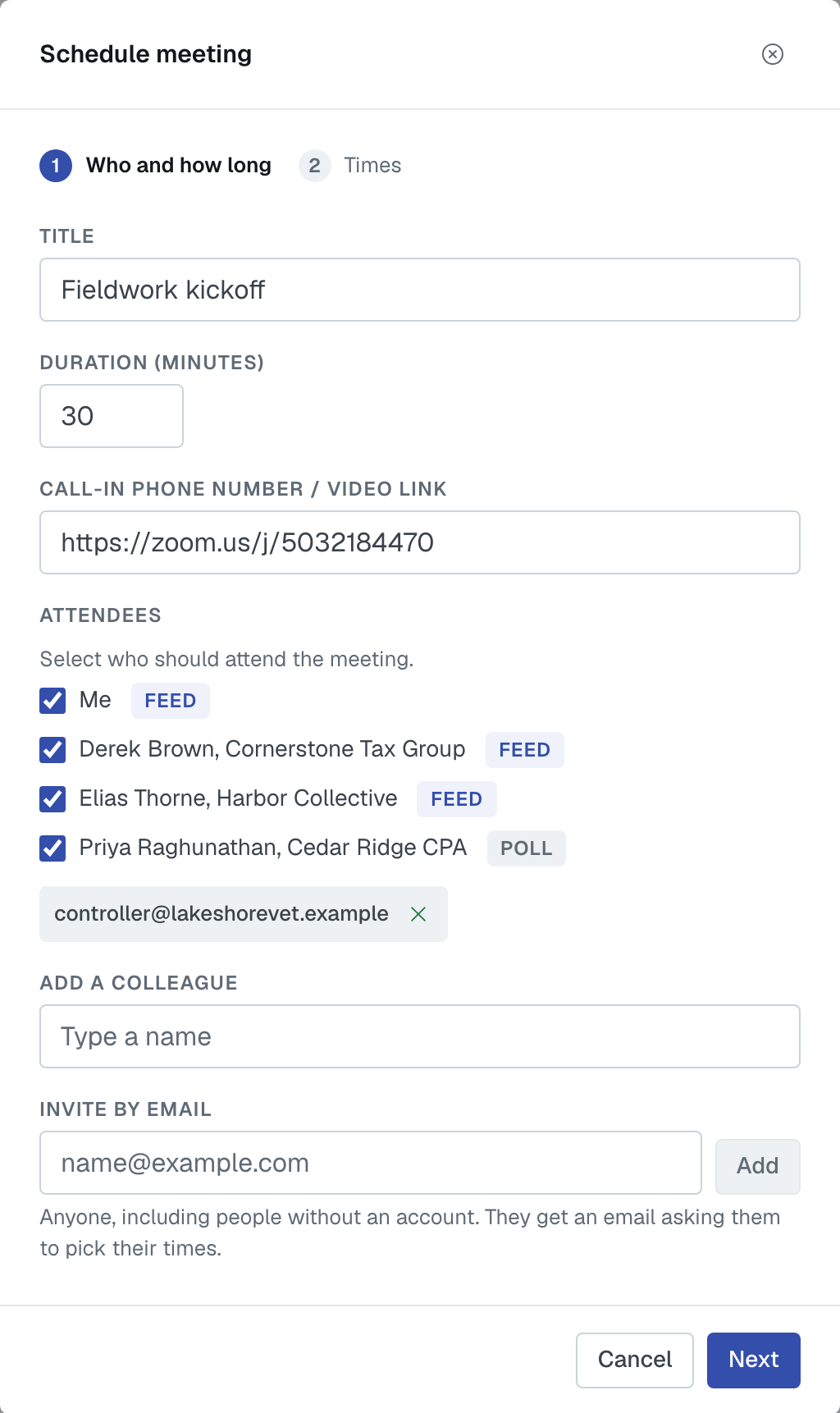
Me means you as an attendee. Leave it ticked if you are coming; you are the organizer either way.
Typing the email address of someone already in the list ticks their row rather than adding them twice.
Next stays greyed out until the meeting has a title and at least two attendees — Me counts as one — and the dialog says Choose at least two attendees. while that is the reason. A meeting can have up to 50 people.
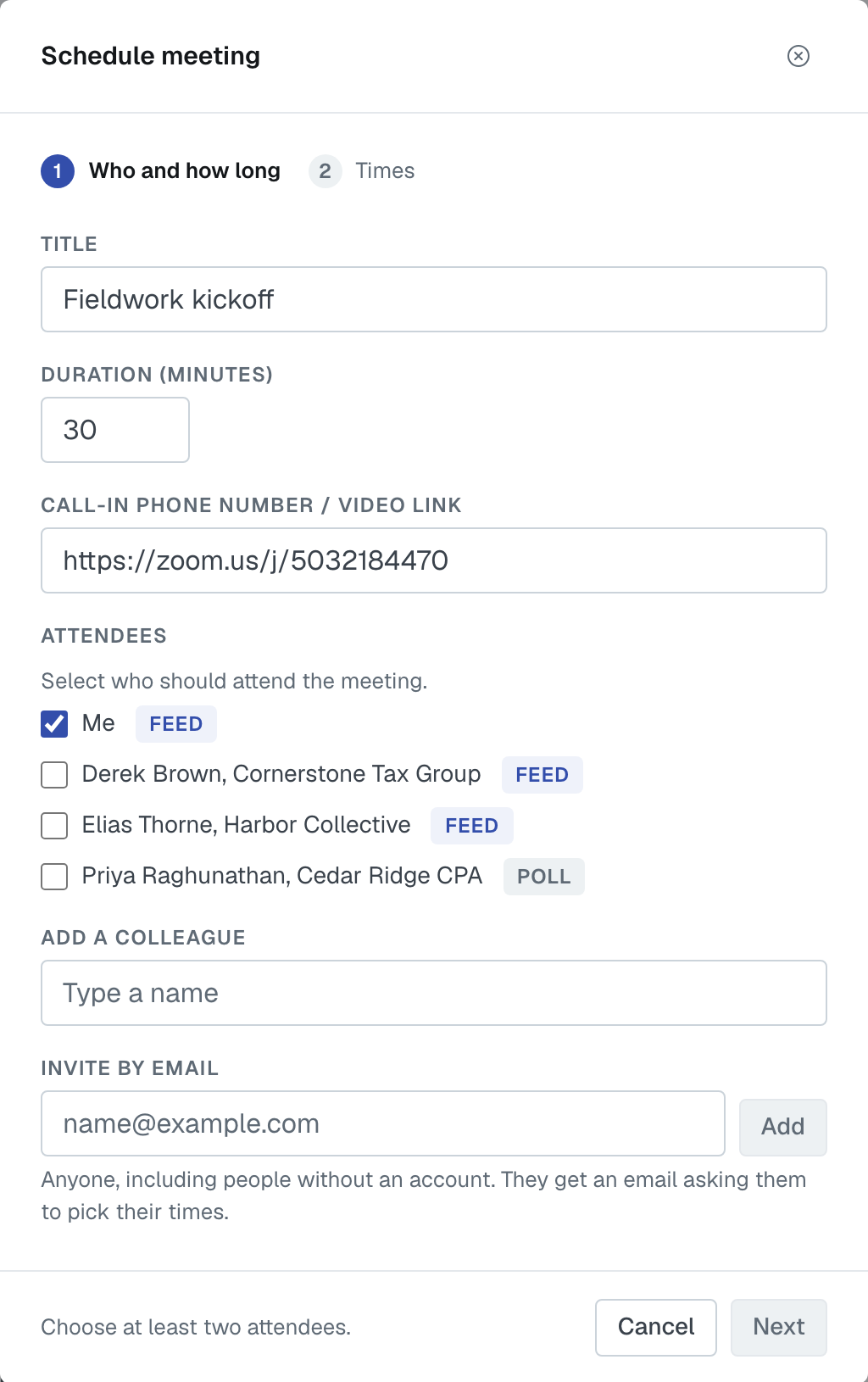
The Feed and Poll tags
Each person in the list carries a tag:
- Feed — this person has at least one calendar feed on FirmLinks, so FirmLinks can see when they are busy. It reads only busy or free, never what an event is.
- Poll — FirmLinks cannot see this person's calendar, so they will be asked which times work for them.
A feed counts wherever FirmLinks finds one: an engagement contact, a colleague you added by name, or someone at another firm you added by email address, as long as that address is their FirmLinks sign-in. People add feeds on Settings › My Calendar; see My Calendar: out of office, booking link, meeting link and calendar feeds.
Step 2: Times
What step 2 shows depends on the people you invited other than you. You are always taken to be free at the times you propose, so your own calendar never decides the path — though when you have a feed, FirmLinks still uses it to suggest times and to warn you when you are busy.
Everyone has a feed, and there is a time they are all free
There is no poll. The line under the title reads Everyone you invited has a calendar feed, so there is no need to poll. Pick one time, and everyone will be sent a calendar invite.
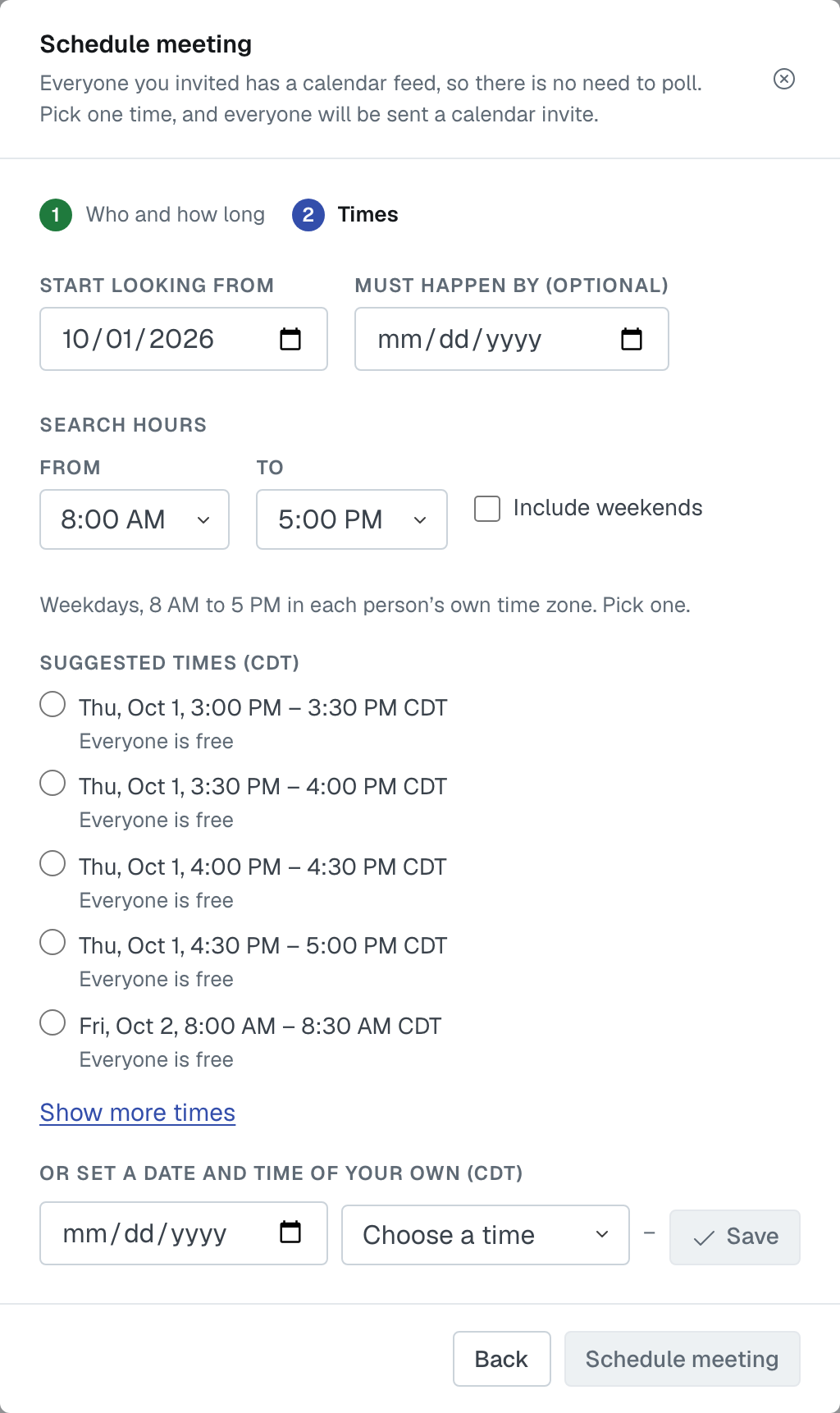
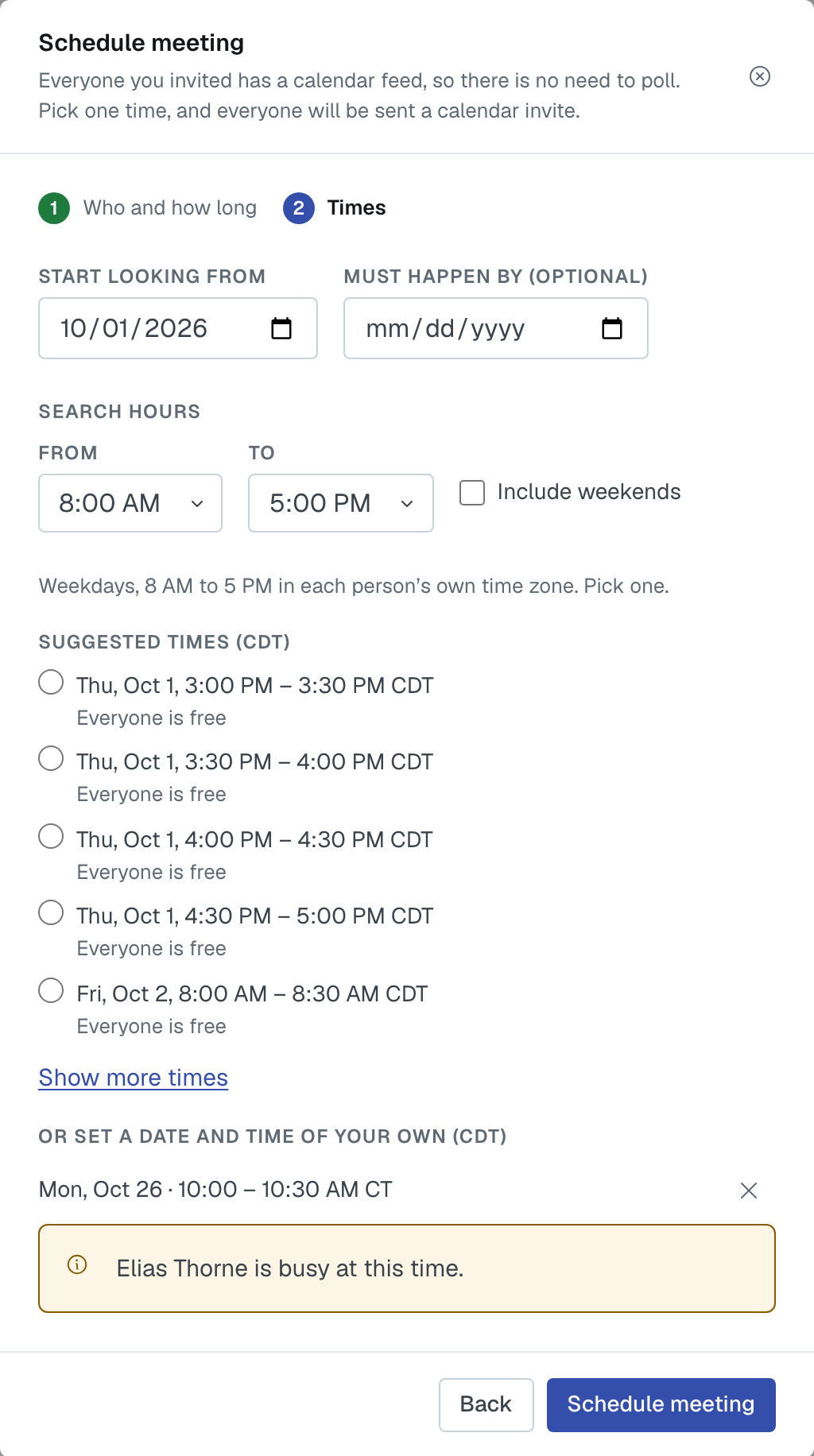
Pick one of the Suggested times, or set one under Or set a date and time of your own. Never both, and never more than one. If anyone is busy at a time you typed yourself, a warning names them — for example Jamie Harding is busy at this time. — but it does not stop you. Press Schedule meeting and the meeting is booked at once.
Some people have a feed
The line reads Not all attendees have a calendar feed. Choose one or more proposed meeting times, and we'll poll attendees without feeds. Tick as many Suggested times as you like, add more under Or add your own times, and press Send.
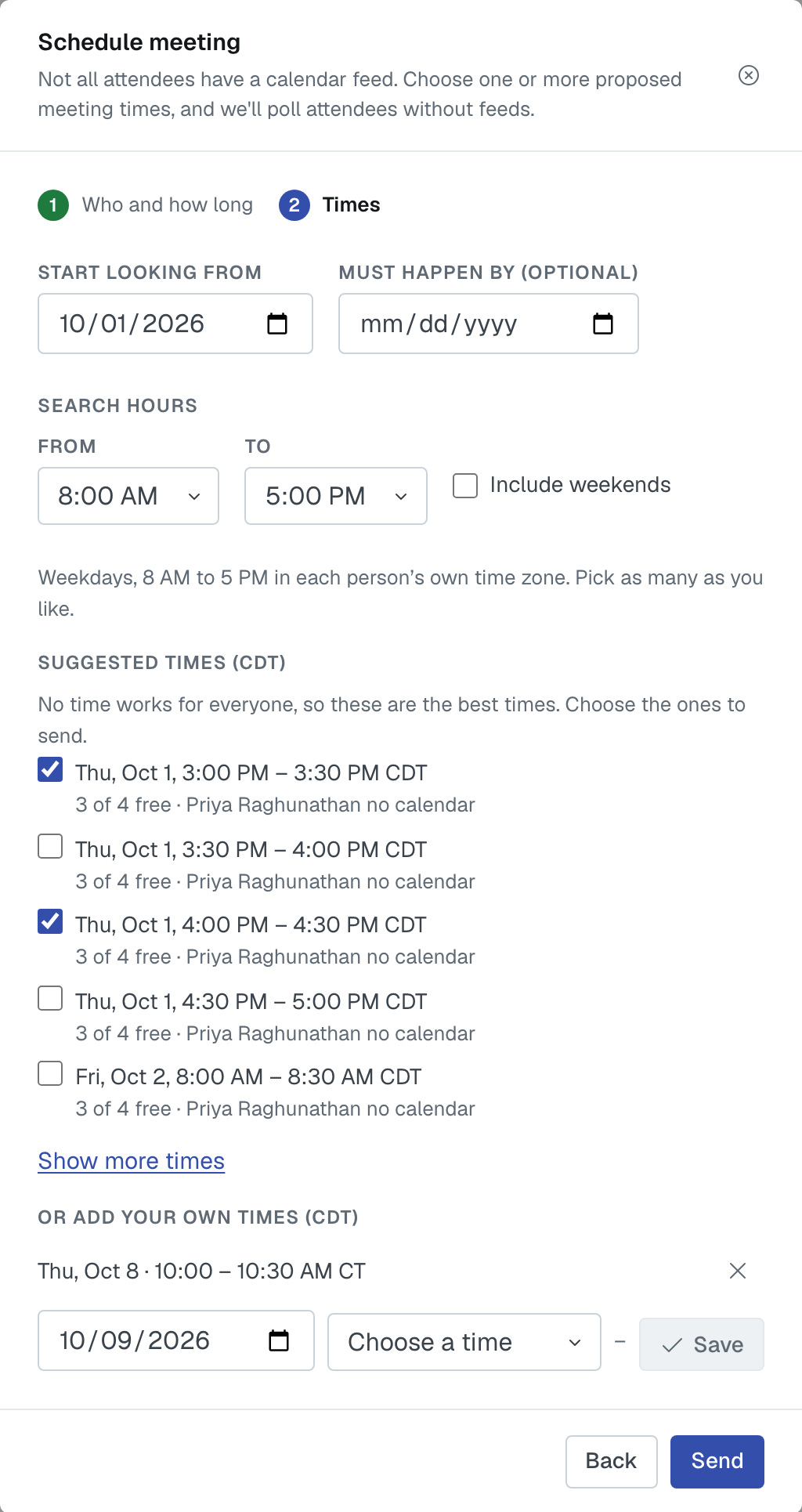
When there is no time they are all free, FirmLinks offers the best times instead and says No time works for everyone, so these are the best times. Choose the ones to send. — just above the Suggested times here. This is also what happens when everyone has a feed but there is no time they are all free; then that sentence replaces the line under the title.
Nobody has a feed
There are no suggestions. Add one or more times under Proposed times and press Send; everyone answers a poll.
How the suggestions are found
- Start looking from — the first day to search. It starts today; a date in the past is moved to today.
- Must happen by (optional) — the last day the meeting can happen. FirmLinks only searches up to and including it.
- Search hours — normally weekdays, 8 AM to 5 PM in each person's own time zone, taken from their profile. Change From, To or tick Include weekends to search different hours, in your time zone, for this meeting only.
If no time falls inside everyone's own working day — people in Chicago and Tokyo, say — FirmLinks searches your working day instead and marks each time that falls outside someone else's, such as 9:00 PM for Kenji (Tokyo). Times you type yourself get the same mark.
The first five suggestions are shown. Show more times adds ten more per press, up to two weeks ahead.
When nobody is free at the same time, the five best times are listed best first — the ones most people can make, favouring times where it is the same one or two people who are busy — and each one says who is free and who is busy, for example 5 of 6 free · Jamie Harding busy. Someone without a calendar feed, or whose calendar could not be read, is counted neither free nor busy and is named as having no calendar, for example 3 of 4 free · Priya Raghunathan no calendar. Swap any of them before you send.
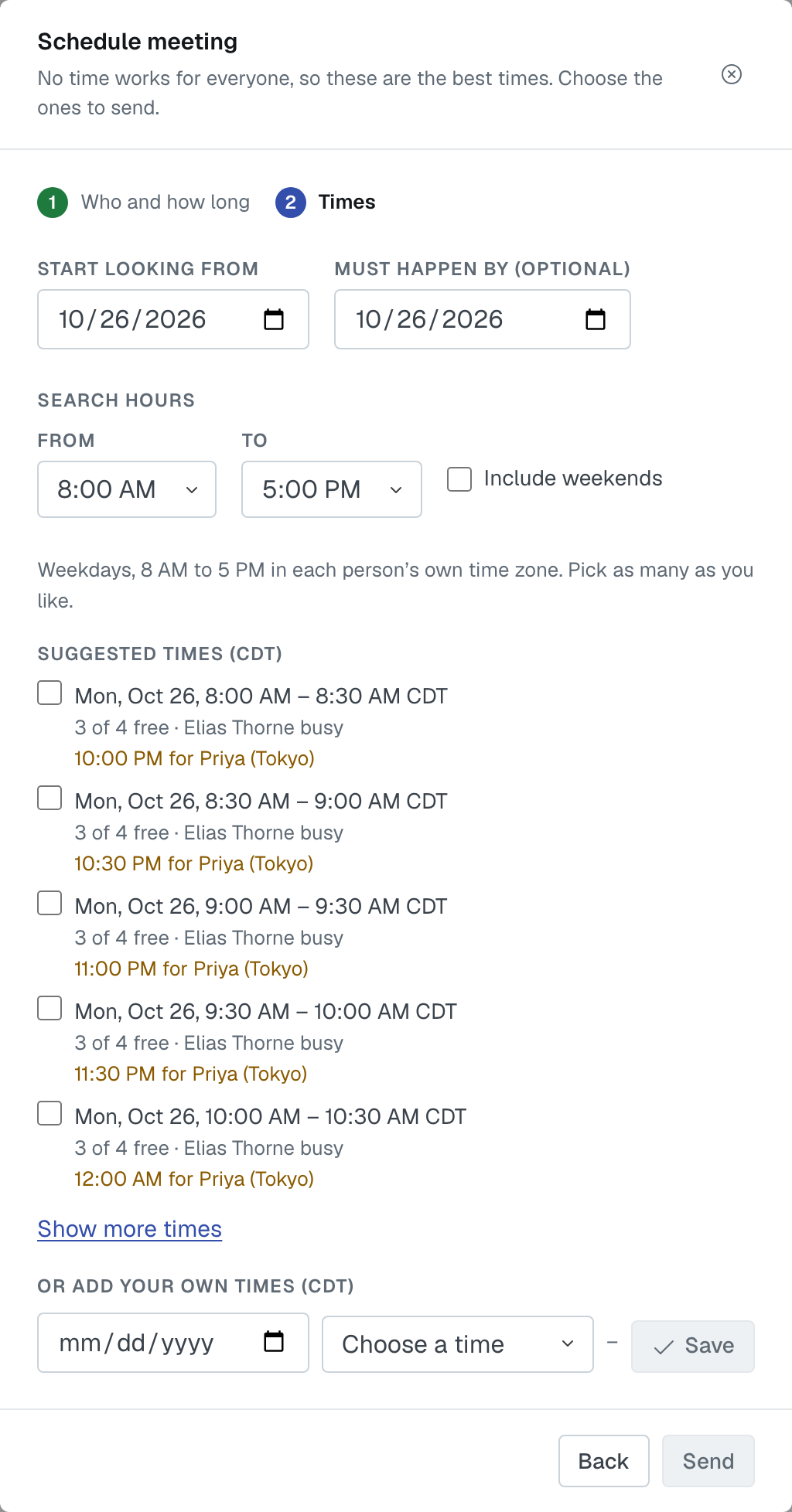
If FirmLinks could not read someone's calendar, a line says so, such as Couldn't read Riley Okafor's calendar. You can still send.
Adding your own time
- Choose the date and the start time. Start times come in 15-minute steps, and the end follows from the duration.
- Press Save beside the row. The time turns into text with an × to remove it.
- Press Add another time for another row.
⚠️ Only saved times are sent. A row you filled in but did not save is left out. A poll can carry up to 20 times.
Times in the dialog are shown in your own time zone, which is named beside each heading.
What the people you invited do
When you press Send, everyone you invited gets an email.
- People with a calendar feed are already answered: Yes where their calendar shows them free, No where it shows them busy. They are asked only about the times their calendar shows them busy, if any, and an email tells them when there is nothing for them to do.
- People without a feed are asked to choose Yes or No for each time.
- You, if Me is ticked, are Yes on every time you proposed.
Contacts on the engagement answer in the Future meetings card on the engagement, or in the Scheduling list on the Calendar page. Everyone else — people you added by email address, and colleagues who are not contacts on the engagement — answers on a private page their email links to, with no sign-in. See Answer a meeting invitation you received by email.
Anyone can change their own answer, including one their calendar gave. An answer a person sets themselves is always kept.
How the meeting gets booked
When the last person who needs to answer saves their answers, the meeting books itself. FirmLinks checks the calendar feeds one more time and books the first time, in date order, that works for everyone. Nobody has to press anything.
If no time works for everyone, you get an email saying so, and the poll shows No time works for everyone. Propose more times.
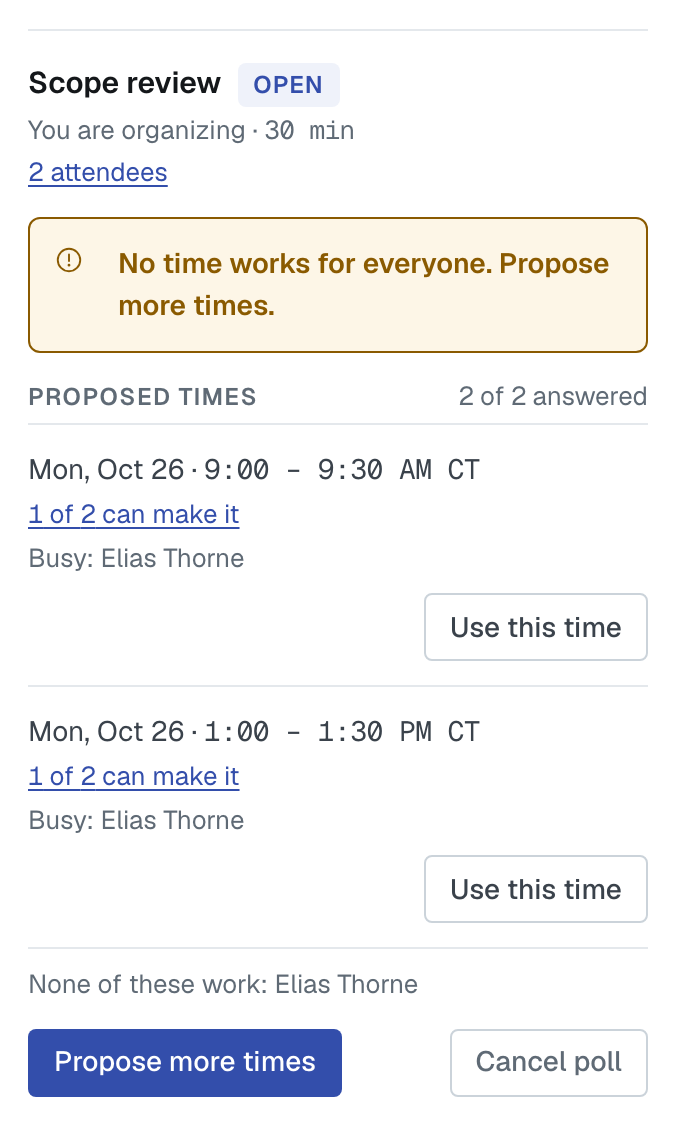
If some people never answer, nothing books itself. You can still choose a time yourself.
Managing an open poll
The organizer has these controls on an open poll:
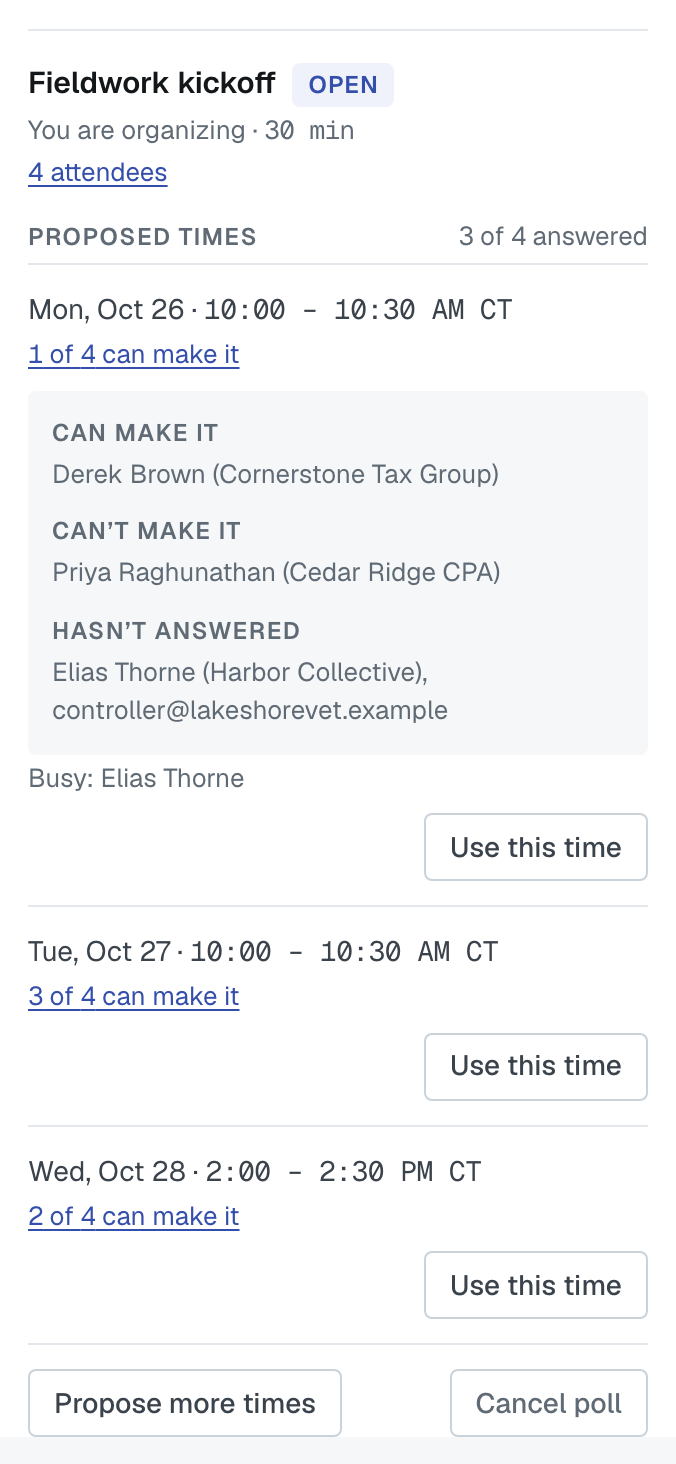
- Use this time, beside each time — books that time now, even if not everyone has answered. It asks you to confirm with Schedule meeting, and everyone, including you, gets the calendar invitation.
- n of N can make it, under each time — opens who Can make it, who Can't make it, and who Hasn't answered, with their firms. Only the organizer sees this.
- Propose more times — appears once anyone has answered No, or when no time works. It opens the times step again with the times already proposed listed above. The new times are added to the same poll, answers already given are kept, and everyone is emailed the new times.
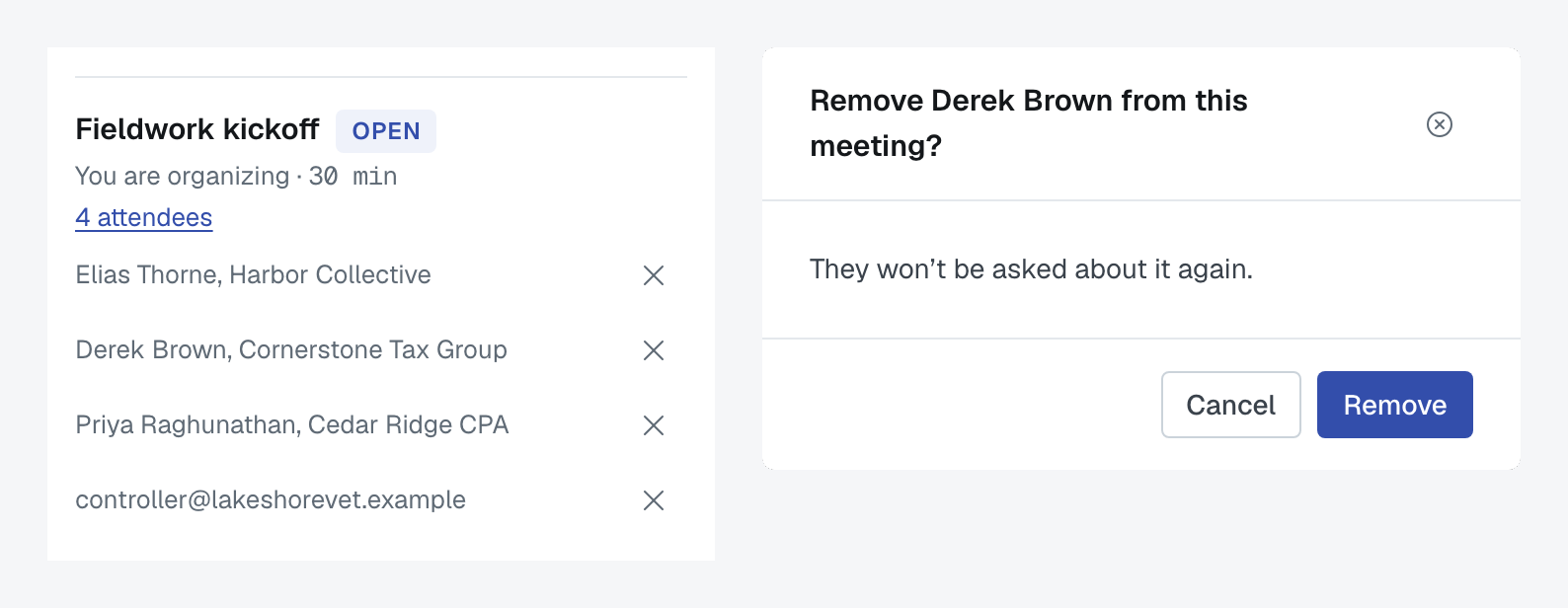
- Remove someone — click the attendee count, then the × beside a name. It asks Remove [name] from this meeting? They won't be asked about it again. They are not emailed, their answers are dropped, and their link now says This meeting no longer includes you. If they were the only one who could not make a time, the meeting may book itself straight away. You cannot remove yourself.
- Cancel poll — closes the poll so nobody can answer it.
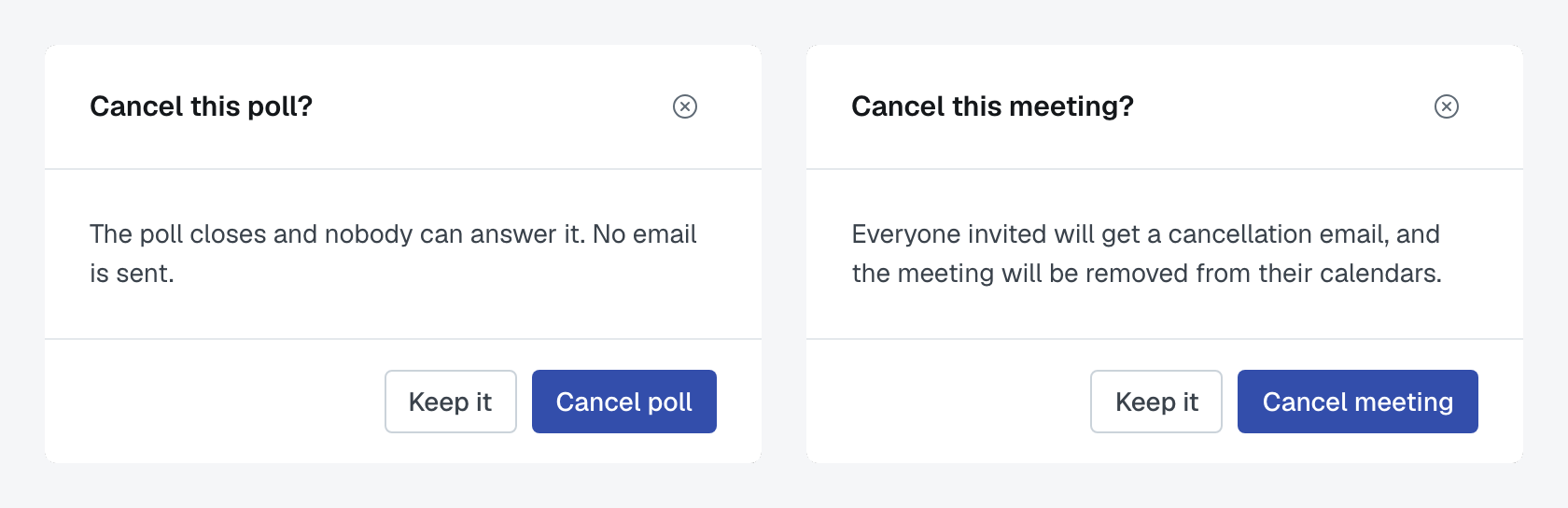
Cancel poll and Cancel meeting
The two are different, and so is who hears about them.
- Cancel poll is for a meeting that has not been booked. The poll closes and nobody can answer it. No email is sent. It was never on anyone's calendar.
- Cancel meeting is for a booked meeting. Everyone invited gets a cancellation email, and the meeting is removed from their calendars.
Only the organizer has either button. Keep it in each confirmation backs out.
The calendar invitation
When a meeting is booked, everyone you invited — and you, even if Me was not ticked — receives a Meeting scheduled email with the calendar invitation attached.
- Organizer — you, by your own name and email address, so replies come to you. The email itself is sent from FirmLinks.
- Location — exactly what was in Call-In Phone Number / Video Link. Left empty, there is no location.
- Description — a link to the engagement and the call-in number or video link. People you invited by email address get the same invitation without the engagement named.
- FirmLinks Events — one extra guest on every invitation. It never replies and takes no seat; it is how FirmLinks hears about changes you make in your calendar. Leave it on the invitation.
Times in emails are shown in each person's own time zone, with the zone named, for example Tue, Sep 29 · 10:00 – 10:30 AM CT. Where FirmLinks does not know someone's time zone, it uses yours.
Moving or cancelling it in your own calendar
Once a meeting is booked, you can manage it from your own calendar. Move it there and FirmLinks takes the new time within a minute; cancel it there and FirmLinks shows it as cancelled. FirmLinks sends nobody a second email, because your calendar has already told everyone.
Only the time comes back to FirmLinks. Renaming the meeting, editing its description or adding people in your calendar changes nothing in FirmLinks. And only the organizer's calendar counts: an attendee moving their own copy does not move the meeting.
Future meetings on the engagement
The Future meetings card sits near the top of the engagement's right-hand column, under the management card where there is one, and above Client. It lists only what is still ahead — open polls with a time still to come, and booked meetings that are not over — newest first. You see only meetings you organize or were invited to.
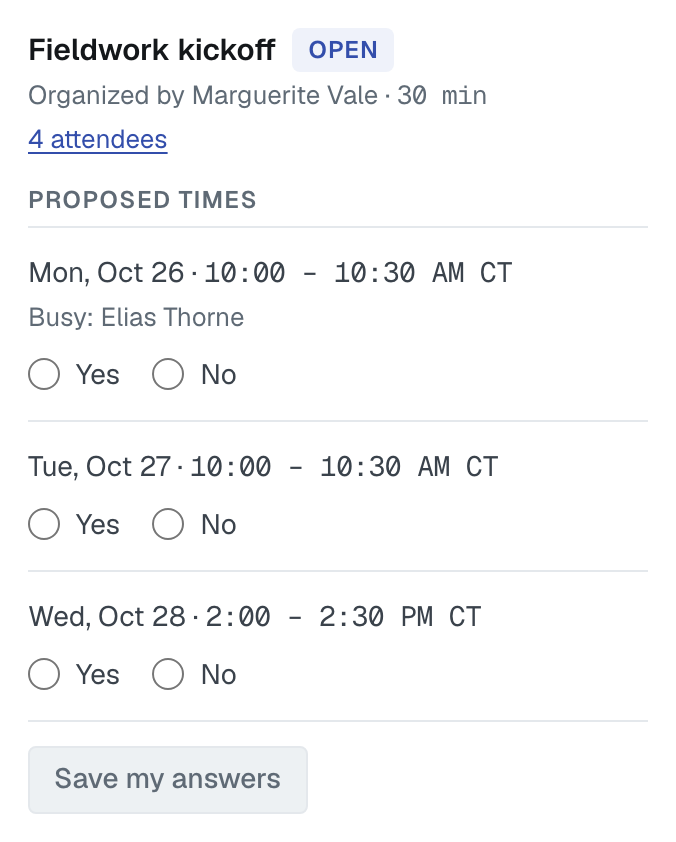
An open poll shows its title with an Open tag, You are organizing or Organized by with the duration, and the number of attendees, which you can click to see their names and firms. Under Proposed times, each time carries its own lines:
- Yes and No, if you are attending, and Save my answers to send them.
- Answered from your calendar, on a time your calendar answered for you.
- Busy: and the names of anyone whose calendar shows them busy then.
- For the organizer only: how many have answered, n of N can make it, any out-of-hours mark, and Use this time.
None of these work: names anyone who said no to every time.
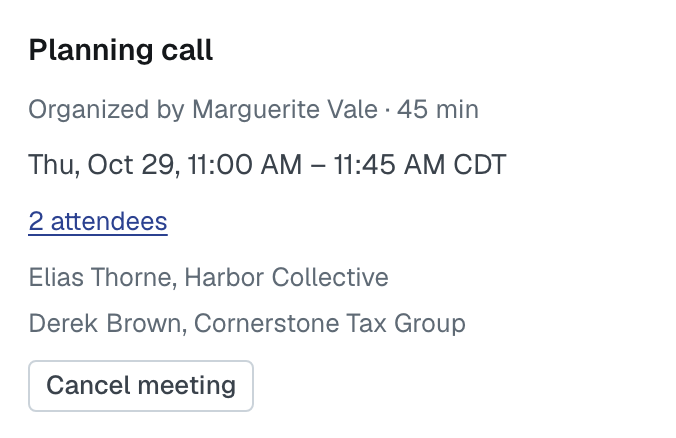
A booked meeting shows five lines: its title, who organized it and how long it runs, the date and time, the number of attendees, and — for the organizer only — Cancel meeting.
With nothing ahead, the card reads No upcoming meetings. Use Schedule meeting to propose times.
The Schedule link beside a contact
The Schedule link beside a person's name in the Contacts card is something else: it opens that person's own booking page in a new tab. It only appears if they have saved a Booking link on Settings › My Calendar.
Was this article helpful?
That’s Great!
Thank you for your feedback
Sorry! We couldn't be helpful
Thank you for your feedback
Feedback sent
We appreciate your effort and will try to fix the article