Who this page is for
Someone using FirmLinks wants to meet you, and has sent you an email headed Pick the times that work for you, with a Choose your times button. This page explains where that button takes you and what to do there.
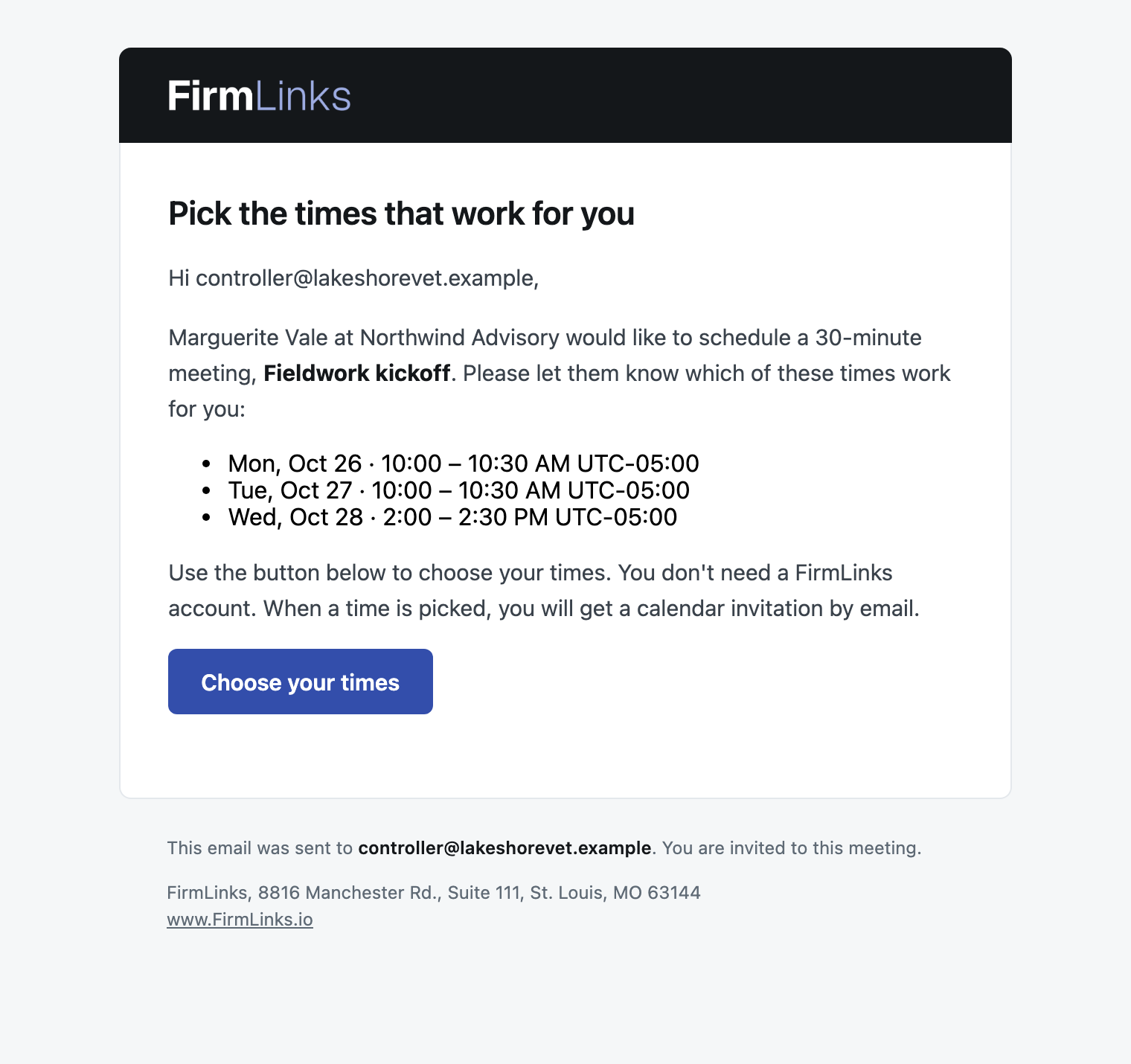
You do not need a FirmLinks account, and you do not sign in. The link in your email is yours alone: it opens your own answers to this one meeting. Keep it to yourself, because anyone who opens it answers as you.
People invited by email address get this link. So do FirmLinks users who are invited to a meeting about an engagement they are not a contact on; contacts on the engagement answer inside FirmLinks instead — see Schedule a meeting from an engagement.
What the page shows
At the top, the meeting's title, then who organized it, their firm and how long the meeting runs — for example Organized by Avery Cole, Pacific Ridge · 30 minutes. Under that, Answering as and your email address — the one the invitation was sent to.
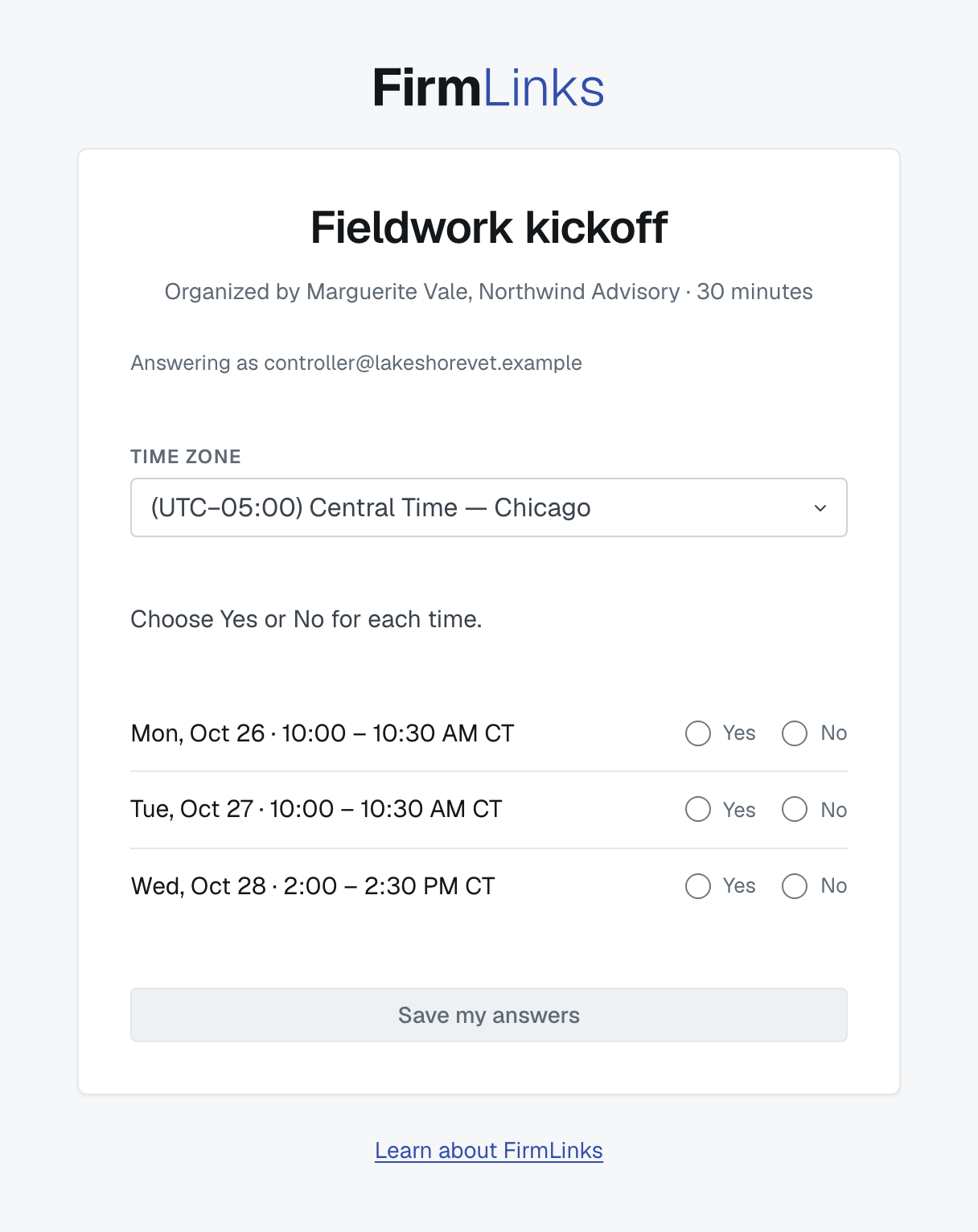
The page shows nothing else about the meeting: not the work it is about, not who else is invited, and not anyone else's answers.
Choosing your times
- Check Time zone, above the times. It starts on your own computer's time zone. Change it and every time on the page is shown in the zone you pick. It only changes how the times are shown: it saves nothing and changes no answer.
- Choose Yes or No for each time.
- Press Save my answers.
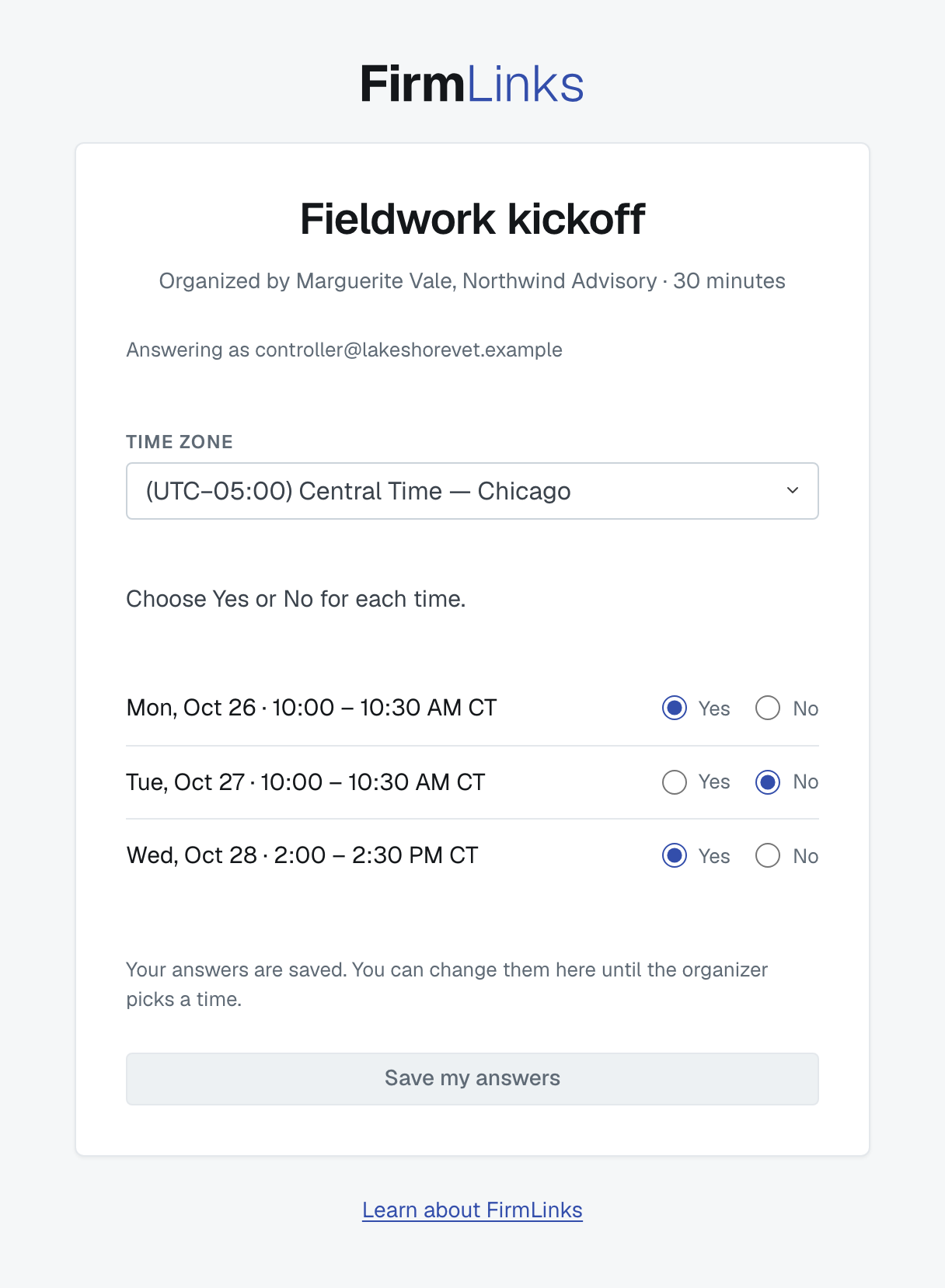
Save my answers stays greyed out until every time has an answer and you have changed something. Once saved, the page says Your answers are saved. You can change them here until the organizer picks a time. Open the same link again to change them.
Times your calendar already answered
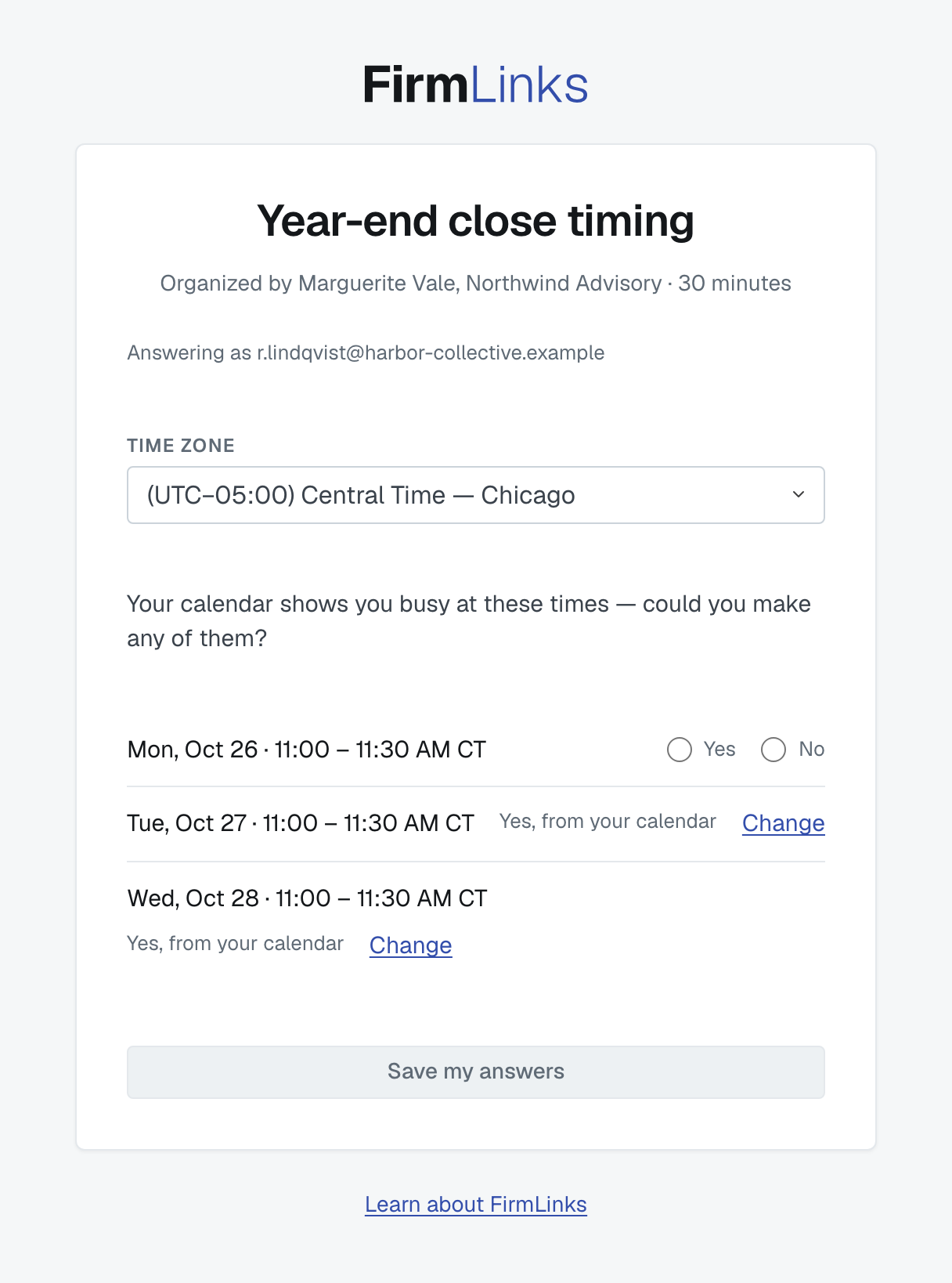
If you have a FirmLinks account with a calendar feed, FirmLinks has already answered for you where your calendar shows you free. Those times read Yes, from your calendar, with a Change link in case that time is not really free. The page then says Your calendar shows you busy at these times — could you make any of them?, and asks only about those.
What happens next
When a time is chosen — by the organizer, or automatically once everyone has answered and a time suits them all — you get a Meeting scheduled email with a calendar invitation attached. Open it to add the meeting to your calendar. The invitation names the person who scheduled it as the organizer, so if you accept or decline, your reply goes to them.
If you open your link after that, it no longer asks anything:
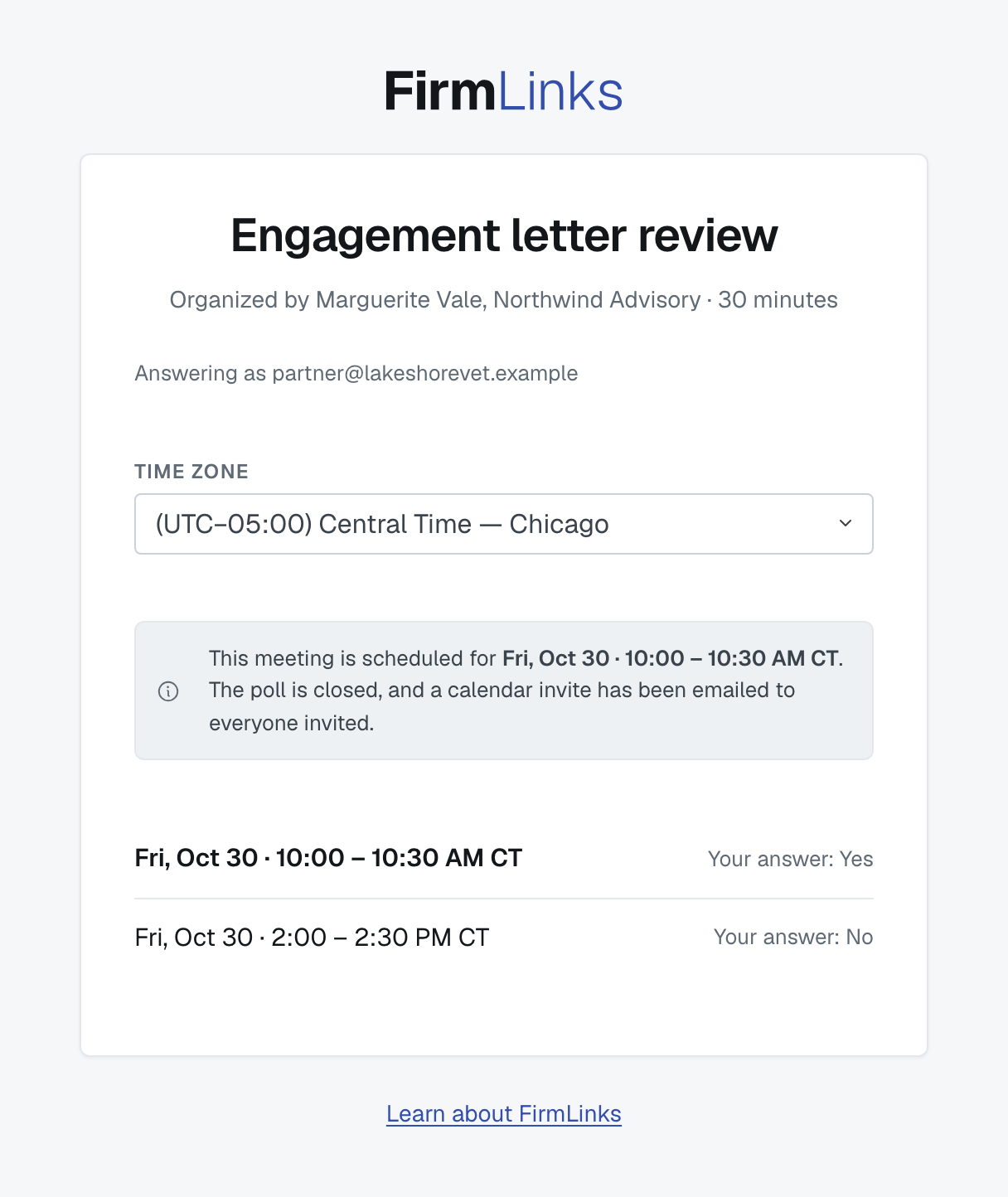
- Booked — a notice across the page says This meeting is scheduled for the time, The poll is closed, and a calendar invite has been emailed to everyone invited. Below it, the times are listed with your own answer to each.
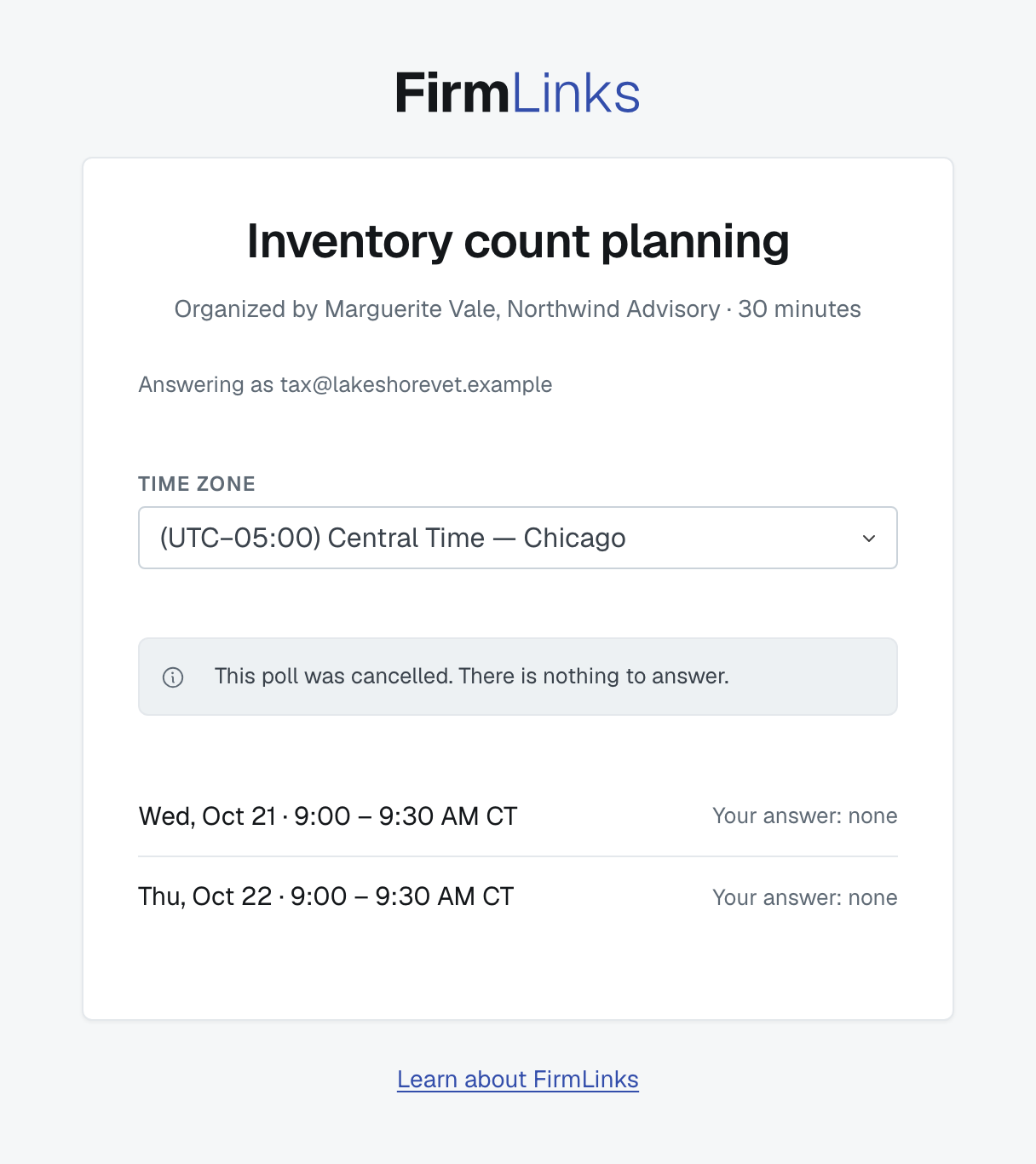
- Cancelled — the notice says This meeting was cancelled. or This poll was cancelled., then There is nothing to answer. A booked meeting that is cancelled also sends you an email whose attachment removes it from your calendar.
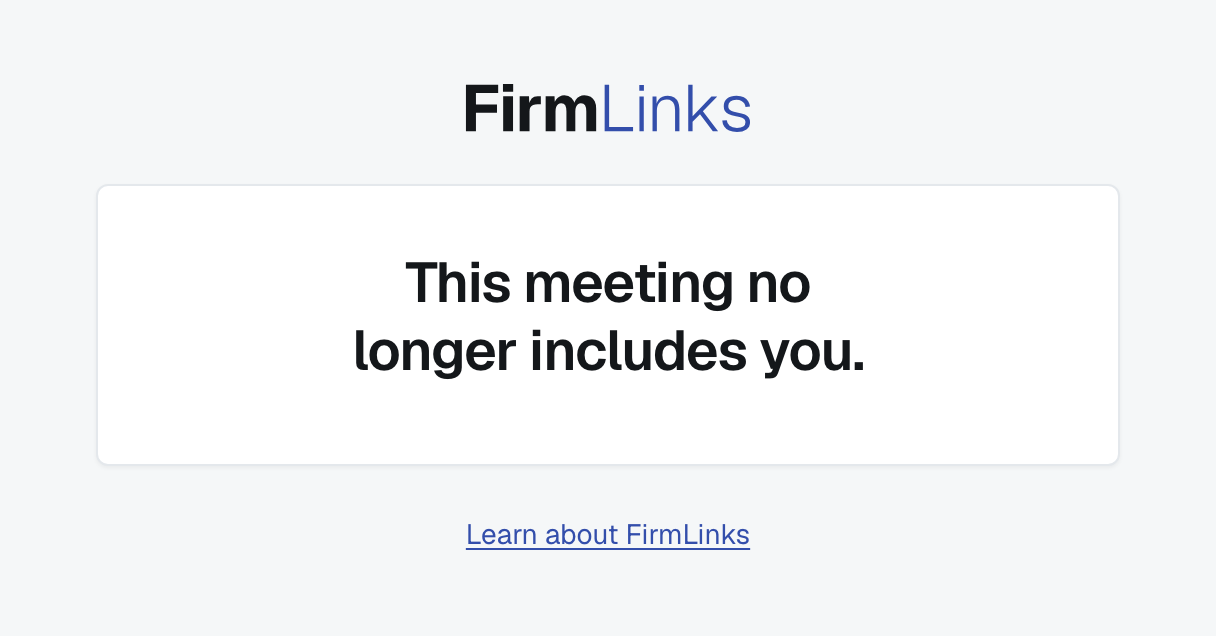
- No longer invited — if the organizer took you off the meeting, the page says only This meeting no longer includes you.
If the link does not open
- This link does not work — the meeting poll could not be found. Ask the organizer to send it again.
- Please wait a few minutes — the link has been opened many times in a short while. Wait, then reload the page.
- We could not open this poll — something went wrong on FirmLinks' side. Reload the page to try again.
What FirmLinks reads from your calendar
Nothing, unless you have a FirmLinks account with a calendar feed. If you do, FirmLinks only ever reads whether you are busy or free at a time — never what an event is called, who is in it, or anything else about it.
Curious about FirmLinks?
Under the box, Learn about FirmLinks opens FirmLinks' own website in a new tab.
Was this article helpful?
That’s Great!
Thank you for your feedback
Sorry! We couldn't be helpful
Thank you for your feedback
Feedback sent
We appreciate your effort and will try to fix the article