Learn it once, use it on every list
FirmLinks has six big lists, and they all carry the same control bar above the grid: a Saved view dropdown, whatever filters that page needs, and a Reset filters button on the right.

The six are Engagements, Services, Invitations Received, Invitations Sent, Employees and Connected Firms. Learn the bar on one and you know it everywhere.
What differs between them is only the filters in the middle. Engagements has Scope, Firm and Employee; Services has Scope and Engagement status; the two invitation pages have Scope; Connected Firms has Service line, Service and Industry; Employees has none at all and relies entirely on its column filters. Engagements, Services and the two invitation pages also carry a row of status tiles under the bar, and those are filters too — press one to narrow the list, press it again to clear.
Filtering a single column
Every list is a grid, and nearly every column can be filtered. There is no funnel icon — hover a column heading and a three dots button appears at its right. That menu is where filtering lives, along with hiding, pinning and re-ordering columns.
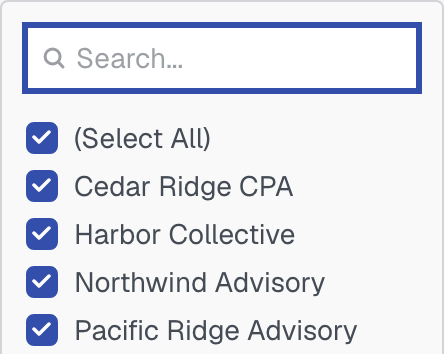
What you get depends on the column:
- Text columns (an engagement name, an email) — type a fragment and choose contains, equals and so on.
- List columns (a firm, a service, a status) — a tick-list of the values actually present, so you can pick several at once.
- Number and date columns (a value, a created date) — a range, or before/after.
Filters stack. A firm in the Lead Firm column plus a range in Value gives you both conditions at once, and the status tiles above the grid narrow it further still.
Your column widths, column order and column filters are remembered for each list in your own browser, so leaving a list and coming back finds it as you left it. That's separate from a saved view, and it's per person — nobody else is affected.
Reset filters
Reset filters sits at the right-hand end of the bar and is greyed out when there is genuinely nothing applied. Pressing it clears everything in one go: the filters above the grid, the pressed status tile, every column filter, and the Saved view dropdown drops back to None.
It does not delete anything. A saved view you had loaded is still in the list, ready to pick again.
What a saved view actually saves
A saved view is a named snapshot of how you had a list set up. It remembers:
- which columns are showing, in what order, at what width;
- every column filter;
- the filters above the grid, including the pressed status tile.
It does not remember how many rows per page you chose, or where you'd scrolled to.
Views belong to one list. A view saved on Engagements never shows up on Services. Invitations Received and Invitations Sent keep entirely separate sets, even though the two pages look alike — so a view you want on both has to be created on both.
Creating one
- Set the list up the way you want it: filters, columns, sort, the lot.
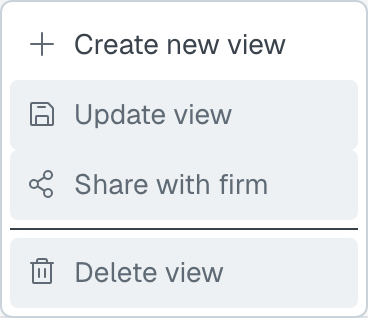
- Open the three dots beside the Saved view dropdown and choose Create new view.
- Type a name and press Save (Enter does the same). Cancel backs out and changes nothing.

The new view is selected straight away, and it's private to you until you choose to share it.
Name it after the question it answers — "Unassigned, open engagements" beats "My view 2".
Using one
Pick it from the Saved view dropdown and the list rearranges itself. Choosing None puts the list back to plain, unfiltered.
Views are listed alphabetically, yours and your colleagues' together.
Changing one
There's no edit screen. Load the view, change the list until it's right, then open the three dots and choose Update view — it overwrites the selected view with exactly what's on screen.
There's no way to rename a view. If the name is wrong, create a new one with the right name and delete the old.
Sharing a view with your firm
Open the three dots and choose Share with firm. Your colleagues will see it in their own Saved view dropdown on that list, labelled with your name in brackets — (shared by Dana Whitfield) — so it's clear whose it is.
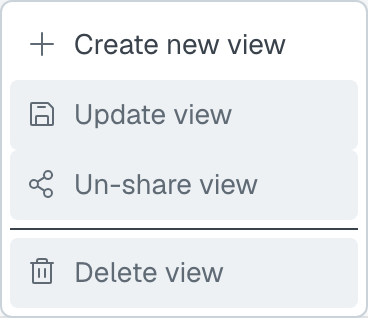
Un-share view, in the same menu, takes it back. Colleagues stop seeing it immediately; nothing of theirs is lost, because a shared view is yours, not a copy of theirs.

Sharing is per view, not per list. Sharing one view shares that view only.
Deleting a view
Open the three dots and choose Delete view. It goes immediately — there's no confirmation step and no undo, and if the view was shared it goes for everybody.
Only the owner can change a view
Update view, Share with firm / Un-share view and Delete view are greyed out when the view you've selected belongs to a colleague. You can load and use their view as much as you like; you can't alter or remove it. Being an admin makes no difference — this is ownership, not permissions, so nobody at your firm can tidy away somebody else's view.
If a colleague's view is nearly what you want: load it, change what you need, then choose Create new view. You now have your own, which you own outright and they never see unless you share it.
How many rows are shown
Every list pages at 100 rows to start with. Rows per page at the foot of the grid offers 100, 250 and 500, with the range and total beside it — "1–22 of 22".

The smaller grids on an individual employee's page start at 25 and offer 25, 100 and 250.
Page size isn't remembered. Next time you open the list it's back to the default, whatever you last chose and whatever your saved view had loaded.
Getting a list out of FirmLinks
Right-click anywhere in a grid and the menu offers Export, with CSV Export and Excel Export under it.
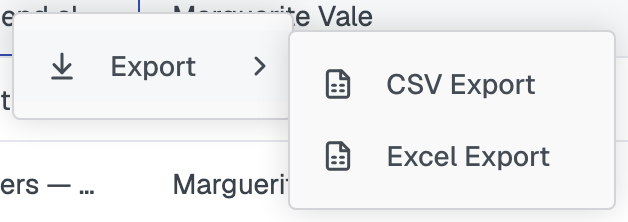
You get every row your filters have left, in the order the list is sorted — not just the page on screen — with the columns you currently have showing. So filter first, then export.
Was this article helpful?
That’s Great!
Thank you for your feedback
Sorry! We couldn't be helpful
Thank you for your feedback
Feedback sent
We appreciate your effort and will try to fix the article