Launching sends nothing to anybody
Launch is the moment your draft becomes a real engagement. Nothing is sent to anybody by launching it — no firm hears about it until you invite them.
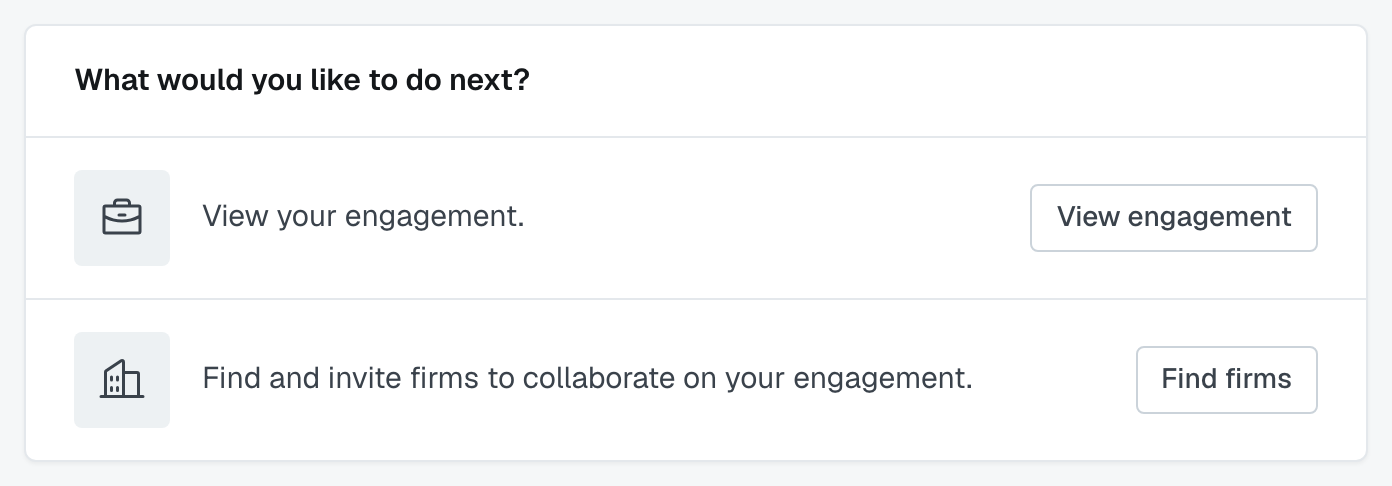
The confirmation page says what was created — "Billy's Real Estate · 2 services" — and offers three ways on.
Find firms
The usual next step. Go to matching, pick firms for each service, and send invitations. See Find and invite firms to bid on a service.
Ask your alliance's collaboration team
If your firm belongs to an alliance whose hub firm staffs work on members' behalf, you can hand the engagement to them. The card names the hub firm — "Let the [hub firm] collaboration team find the appropriate resources for your engagement" — and its button reads Request followed by the hub firm's name.
The button asks before it does anything. Pressing it opens a confirmation explaining that the hub firm will be invited to each service on the engagement, and that its Collaboration Team will be able to manage the engagement with you. Where it applies, the confirmation also gives the numbers for this engagement:
- services that already have firms invited keep those invitations — the hub firm is invited alongside them, not instead of them;
- services already awarded are left as they are, because there is nothing left to find for them.
Press Continue to go ahead, or Cancel to change your mind. After Continue you're taken to the engagement, and it opens on a short notice titled with the hub firm's name and is managing this engagement. It confirms that the hub firm's collaboration team has been notified and will begin work shortly, and that you can track progress from the engagement at any time. Close dismisses it. Your firm's primary contact on the engagement also gets an email saying the same.
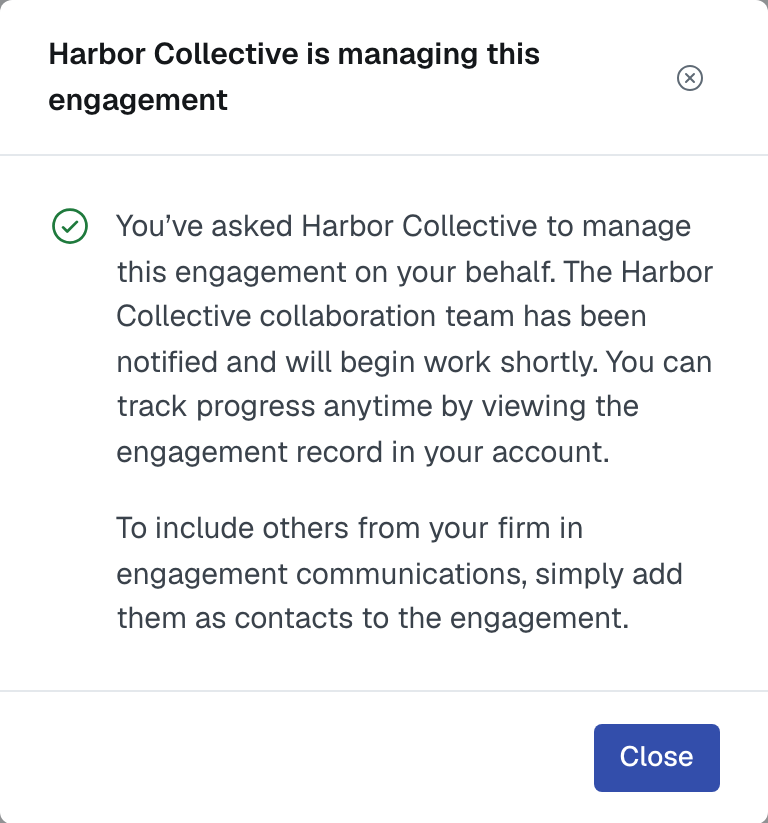
To bring colleagues in, add them as contacts. That is how others at your firm are included in the engagement's communications. Use the add-a-person button on the engagement's Contacts card — see Reading an engagement. The collaboration team can add your firm's people too while it manages the engagement.
From then on you keep watching the engagement as normal while the hub firm's team invites firms and manages the services with you. Once the hub firm manages the engagement, the card says so and the button can't be pressed again.
This option only appears if your firm is in such an alliance. Most firms won't see it.
View the engagement
Go straight to the engagement itself — the services, the invitations, the client panel, the message channels. Useful when you want to add a service or add a note for invited firms before anybody is asked. What you cannot do there is reword the engagement: see below.
What's true immediately after launch
- The engagement exists and is yours. It appears on your firm's engagement list; a draft never did.
- Every service starts Unassigned. Nothing to answer yet.
- The wording is now fixed. Launching is the point at which the engagement's own details stop being editable — its title, description, the lead and partner roles, the time frame and every client field. They are shown on the engagement, read-only, and once a firm has been invited they also carry a padlock, so nothing can shift under a firm that has already agreed to it.
- Your colleagues can see it now. A draft was private to you; a launched engagement is the firm's.
If you got the wording wrong
There is no edit button on a launched engagement. The only thing you can change about the engagement itself is its status, from Actions › Update engagement status or the pencil beside the status in the header.
So it depends on how far along you are. While nobody has been invited and nobody at your firm is assigned to a service, the lead firm's Actions menu carries Delete engagement — delete it, and create it again with the right wording. The moment either of those happens that item disappears, and the only route left is to set the engagement to Canceled (Actions › Update engagement status, which asks you for a reason) and create a new one.
If the difference is small enough to explain rather than redo, you do not have to redo it. Add an entry under Additional information on the engagement — every invited firm reads that panel — and say the same thing in the channel with each firm. See Reading an engagement.
If the page looks half-empty
Reload it and you may see fewer choices than the moment before. Go back to the engagement itself and carry on from there — every route off this page is also reachable from the engagement.
Was this article helpful?
That’s Great!
Thank you for your feedback
Sorry! We couldn't be helpful
Thank you for your feedback
Feedback sent
We appreciate your effort and will try to fix the article