Why this list matters
Settings › Services is the list other firms are matched against. If a service isn't ticked here, nobody will be asked to send you that work.
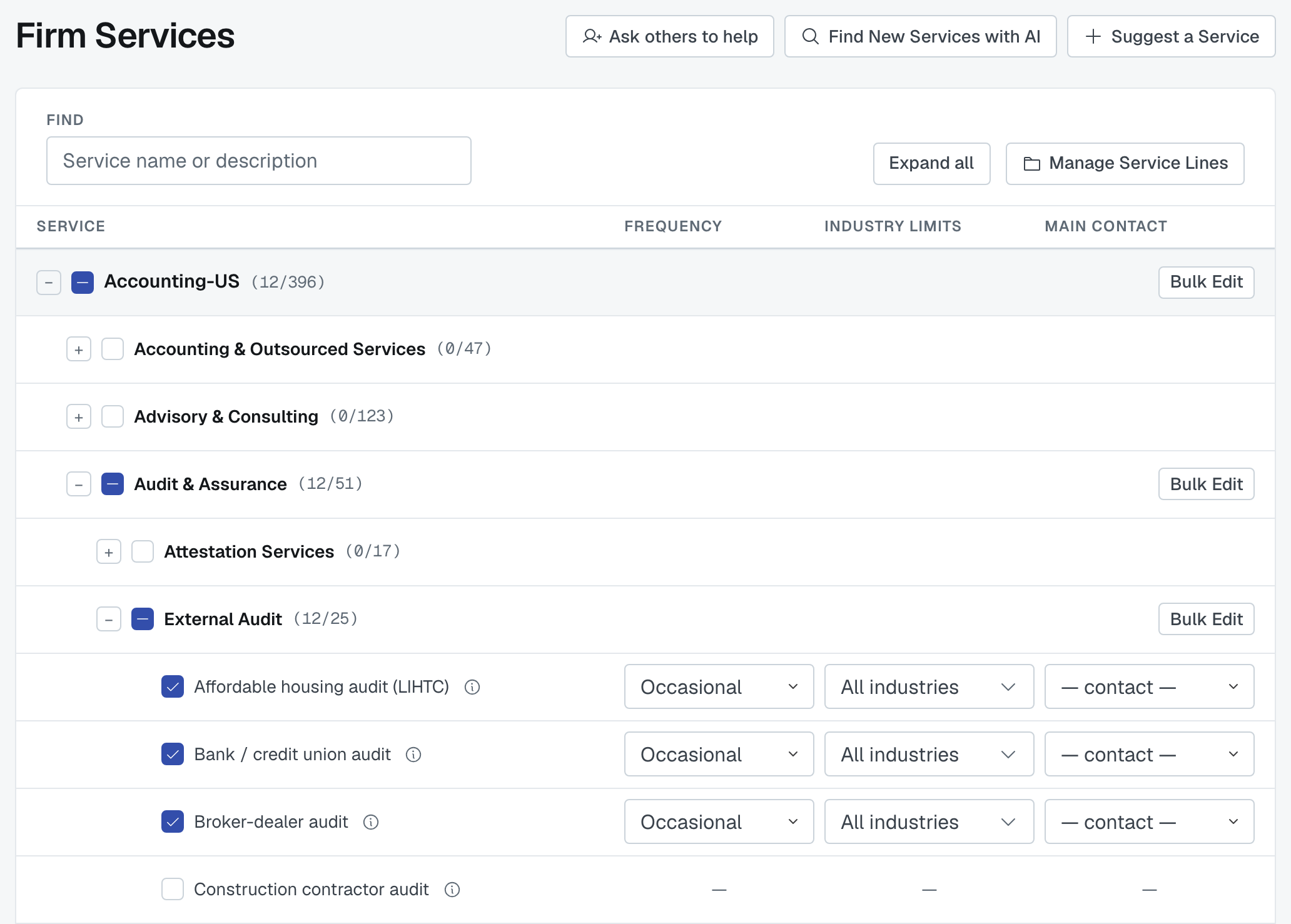
Admins and editors can change it. Everyone else can read it. Changes autosave — the header shows when it last saved, and there's no Save button to forget.
How the list is arranged
Service line → category → service. Your service lines come first, each with a running count of how many of its services you've ticked: (386/388). Under a line sit categories, and under those the individual services, each with a one-line description of what it means.
The service lines on offer include Accounting-US, Accounting-CA, Accounting-International, Legal-US and Legal-CA, and — beyond accounting and legal — IT, Marketing and Wealth Management-US. You only see the lines your firm holds; see Managing your service lines below.
The tree opens with everything you've selected on show. Any branch with nothing ticked inside it starts closed, so what your firm offers isn't buried among the services it doesn't. Open a branch with its +, or press Expand all above the tree to open every branch at once. You can close any branch again afterwards.
Find filters the whole tree as you type — faster than scrolling 2,000 rows. While you're searching, the matches show even if they sit in a branch that would otherwise start closed.
The three columns beside each service

A ticked service carries three facts, and they're what make a match good rather than merely possible:
- Frequency — Core Service (this is what you do) or Occasional (you'll take it, it isn't your bread and butter).
- Industry Limits — All industries, or a chosen few. Use this when you only do a service for particular sectors.
- Main Contact — who at your firm should hear about this work.
An unticked service shows a dash in each column: it isn't offered, so it has no frequency, industry limits or main contact. Tick it first, then fill the three in.
Changing a whole category at once
A category that has at least one ticked service carries a Bulk Edit button. It opens a dialog that changes every ticked service in that category in one go — it tells you how many that is.
Each field starts at — leave unchanged —, and a field you leave there keeps each service's current value, so changing Frequency alone won't touch anybody's industry limits.
- Frequency — Core Service or Occasional.
- Industry Limits — All industries removes the limits from every ticked service in the category. Limit to selected industries… opens an industry list: tick the industries to limit them all to. At least one has to be ticked before you can apply — Leave unchanged, above the list, backs out.
- Main Contact — one of your colleagues, or — clear — to remove the contact.
Press Apply to category to save, or Cancel.
Managing your service lines
Manage Service Lines is where you add or drop a whole line. Each line shows how many of its services you have checked out of the total.
Adding a line writes nothing but the line itself — its whole catalogue simply becomes available below, with nothing ticked. That's the honest order for an acquisition or a new practice area: add the line, then pick the services (or let the AI look, which only ever looks inside the lines you hold).
A line that still has services checked can't be dropped — in the dialog it stays ticked and is marked Locked. This is deliberate: a confirmation dialog would ask you to accept a loss you can't see, so instead the loss is impossible. Untick the services first if you really mean it.
If you drop an empty line and add it back later, anything that was attached to it comes back with it.
A category with nothing under it is an offering too
Some categories have no sub-categories and no individual services. Those you tick directly, and they count as a service everywhere in FirmLinks — on your public profile, in matching, in your coverage figures.
During account setup
The Services step of account setup shows the same tree, saving the same way, with a few things left out: there's no Manage Service Lines (you choose your lines in an earlier step) and no Main Contact column, in the tree or in Bulk Edit.
In their place, a panel on the right headed Important Information explains the two columns you'll fill in: services you select are marked Core Service by default, so change the frequency to Occasional for anything you only do now and then; and if you offer a service only to certain industries, choose them under Industry Limits. It also reminds you the list doesn't have to be complete yet — you can refine it after setup, and invite others at your firm to help.
If this page looks empty
An empty Firm Services almost always means your firm holds no service lines yet. Add one under Manage Service Lines and the tree appears.
Was this article helpful?
That’s Great!
Thank you for your feedback
Sorry! We couldn't be helpful
Thank you for your feedback
Feedback sent
We appreciate your effort and will try to fix the article