The group page at a glance
If your firm hosts a group, its page has everything in five tabs. Administrators only for anything that changes it.
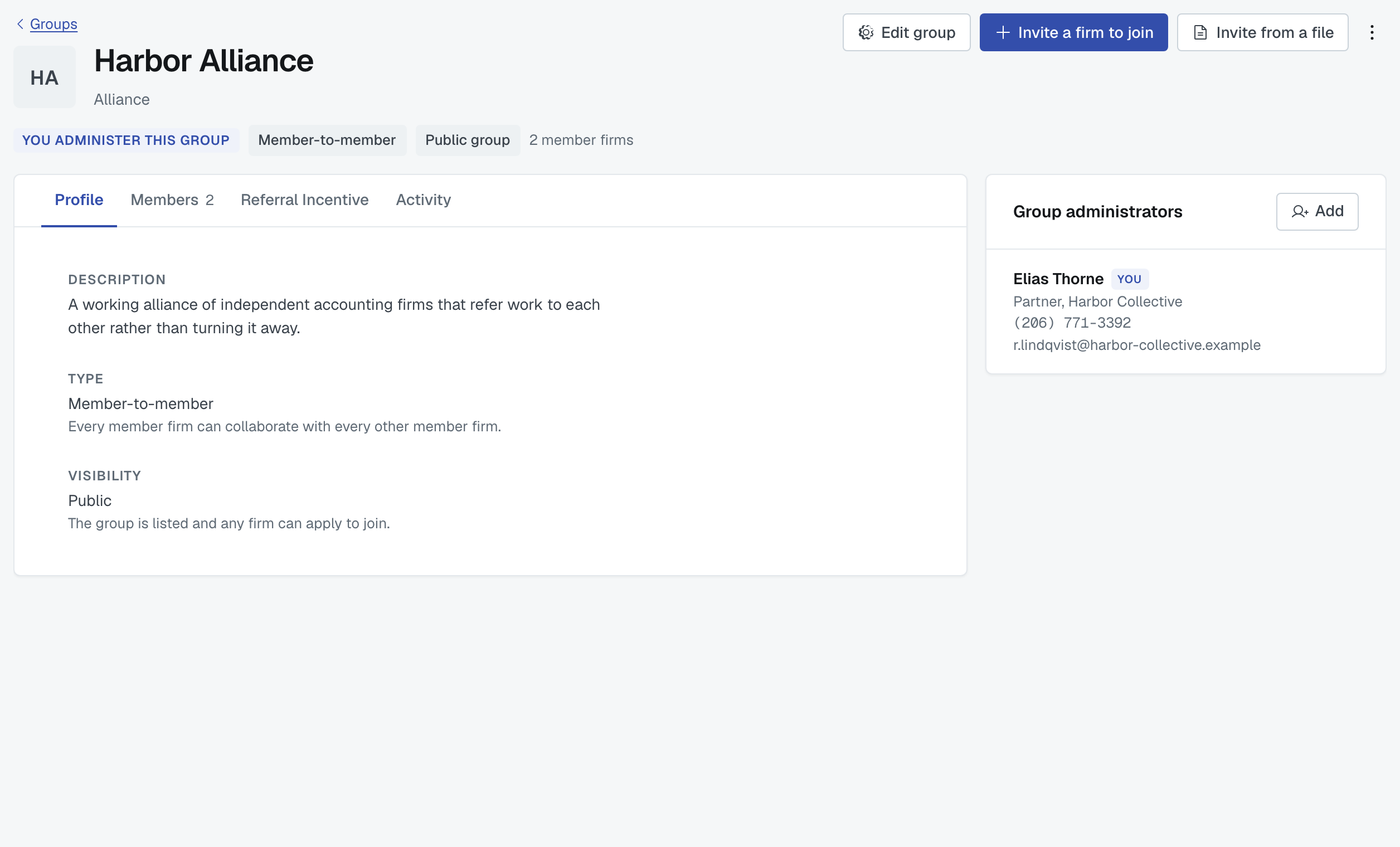
The header says what the group is — you administer this group, its type, private or public, and how many member firms it has — with Edit group, Invite a firm to join and Invite from a file beside it.
Profile
The group as members and applicants see it: name, short title, description, icon, and its administrators with their contact details.
Members
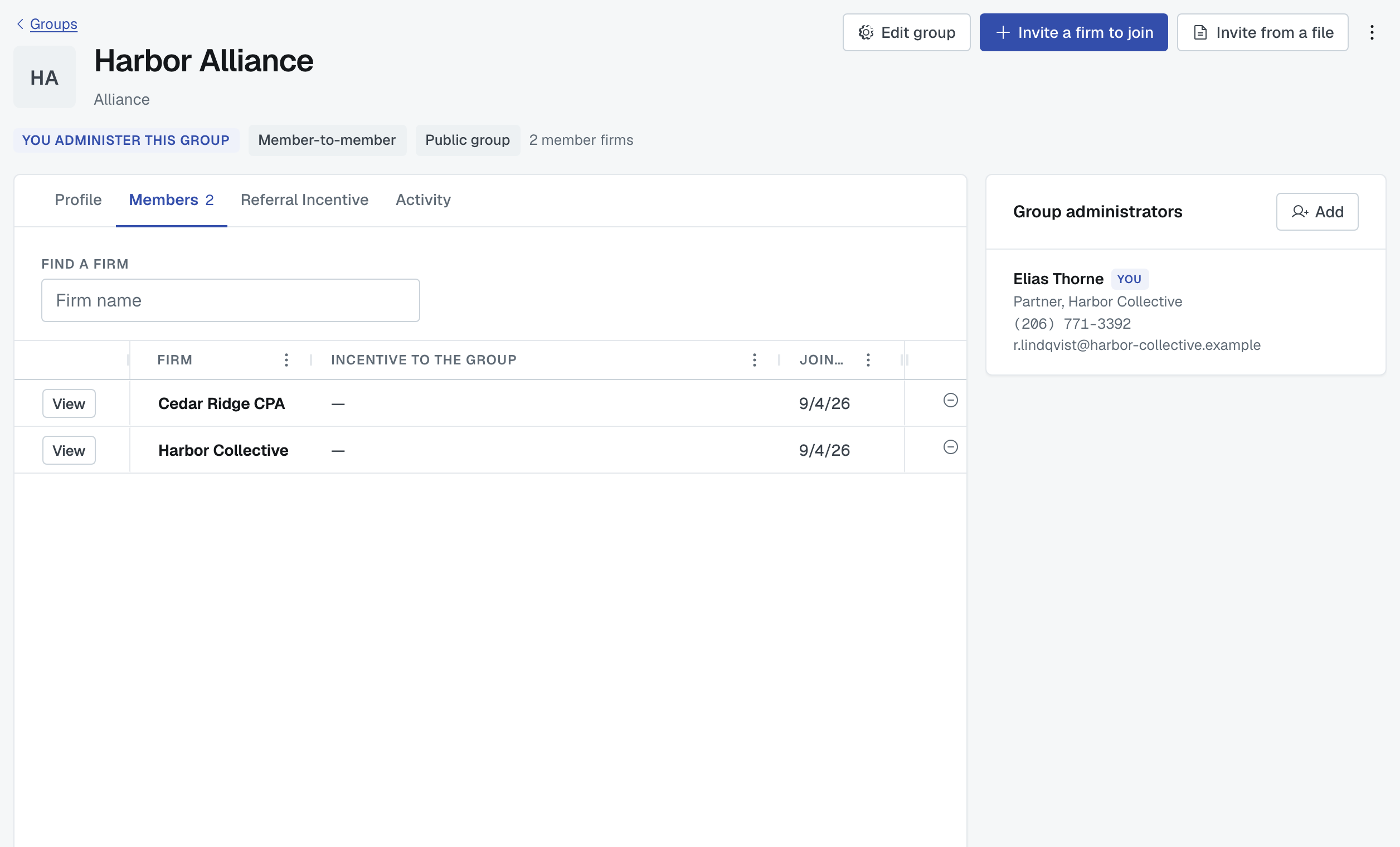
Every member firm, with the incentive that firm offers to the group and the date it joined. That column is the most useful thing on the page — it's what each firm pays for referred work, side by side.
The list shows 25 firms a page. The controls at the bottom move between pages and let you show 25, 100 or 250 at a time, and Find a firm above the list narrows it by firm name.
Row actions: view the firm or remove it from the group. Removing a firm stops it being matchable to the rest of the group through this channel; it doesn't touch any direct connection or any engagement already under way.
Requests
Firms that have applied to join, each with its note, its profile link, and the incentive it applied with. Accept makes it a member; Reject doesn't.
Applying never joins a firm automatically — for either type of group — so this tab is the only door in for a firm that wasn't invited.
Referral Incentive
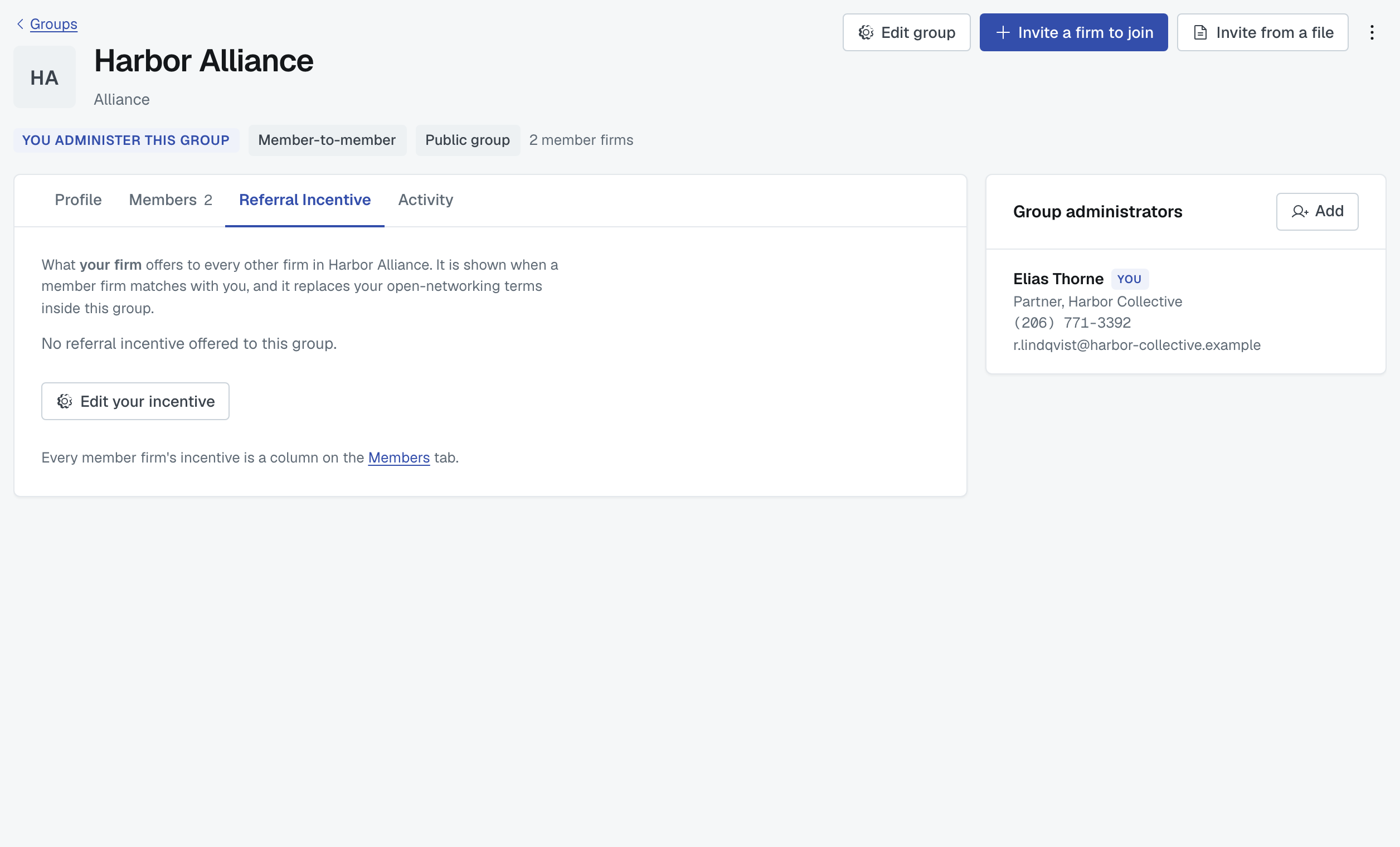
What your firm offers to every other firm in this group. It's shown when a member firm matches with you, and inside this group it replaces your open-networking terms.
Edit your incentive asks Do you offer a referral incentive? — Yes or No. On Yes you fill in a Brief description and the Incentive details. If you've already written terms for open networking or for another group, a Copy existing terms from list lets you start from those; picking one fills the two boxes and you can edit them afterwards. Editing it here changes nothing anywhere else — each membership carries its own.
Activity
What's happened in the group: firms invited, applications accepted, firms joining and leaving.
Inviting firms in
Invite a firm to join takes one firm's domain. Invite from a file takes up to 100 at a time — see Invite many firms to a group from a spreadsheet.
A group invitation is different from an application: when a firm accepts your invitation it becomes a member immediately, because you already chose it.
Adding another administrator
You can give another person at your firm administrator rights over the group, so it isn't one person's private project.
If you're a member, not the host
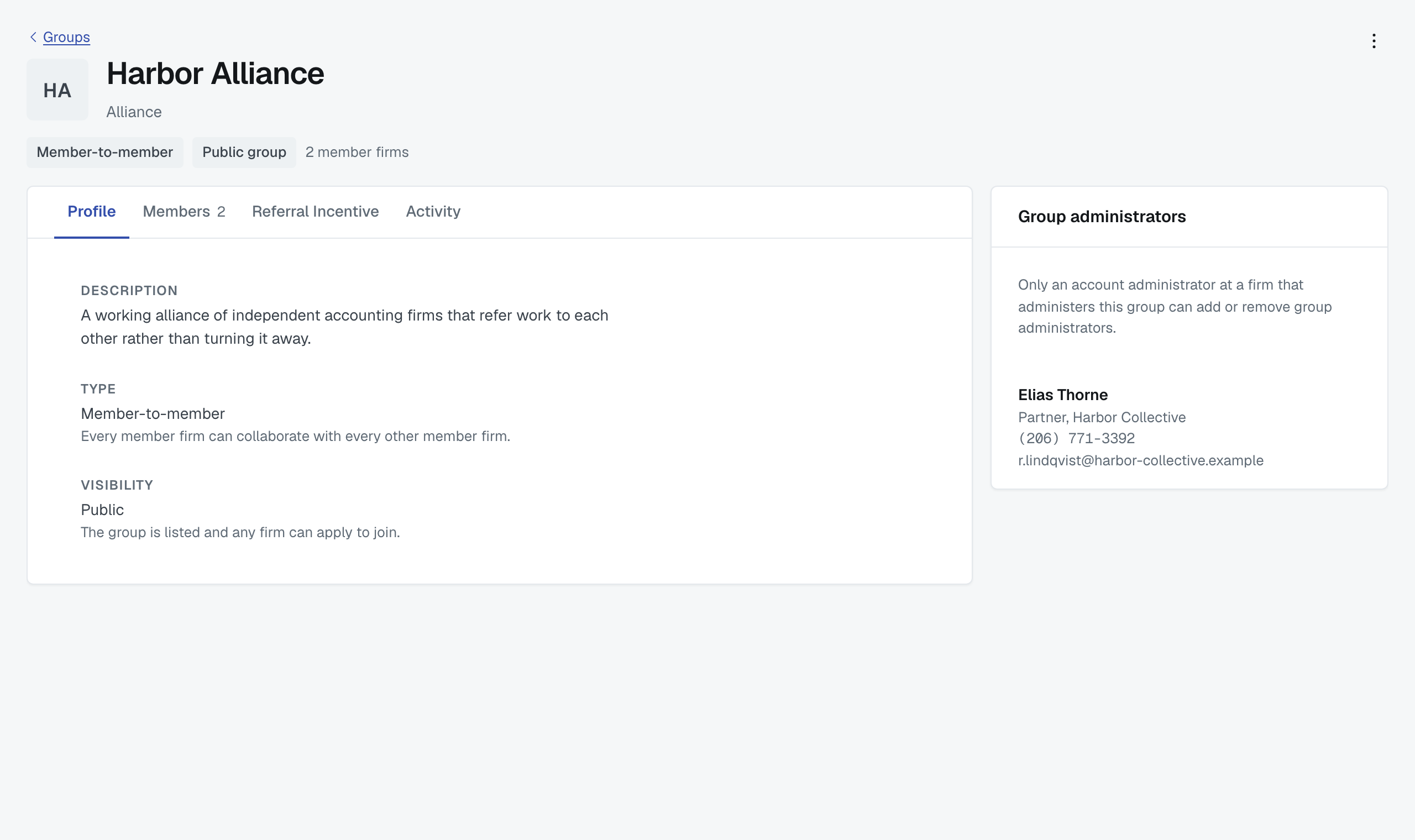
A group you belong to but don't administer opens at the same place — Collaboration Center › Groups, then the group's name — and shows you Profile, Members and Referral Incentive. Requests is the host's tab and isn't there for you. Activity appears if you're an account administrator at your own firm, and shows you firms joining, leaving and being removed — not other firms' pending or declined dealings with the group. Instead of the Edit group and Invite a firm buttons you'll see a line saying why: only this group's administrators can invite firms or edit it.
In a member-to-member group, the Members tab is the full roster — every member firm, the Incentive to the group each one offers (with an info button for the detail, or a dash where a firm offers nothing), and the date it joined. That's deliberate: the point of the column is that any member can read what the others offer. You can edit your own firm's incentive and nobody else's, and removing a firm is the host's action, not yours. There's no address on the grid — click through to a firm's own page for that.
In a member-to-host group, you can't see the other members — and the Members tab is empty. Members of this kind of group work with the host, not with each other, so there's no roster to show you and the list is empty. The host firm's name isn't on the group page either — you'll find it on the group's preview, the version you read before you joined.
To work with the host from a member-to-host group, go to Find firms on an engagement and use the Group filter to narrow the matches to that group. That's where the relationship actually pays off, and the same filter exists on the Dashboard's Coverage view if you want to see what the group covers.
Leaving
A member firm leaves from the group's page. A host firm leaving its own group is the same as closing it down for everybody — remove the members or delete the group instead, so nobody is left in a group with no host.
Was this article helpful?
That’s Great!
Thank you for your feedback
Sorry! We couldn't be helpful
Thank you for your feedback
Feedback sent
We appreciate your effort and will try to fix the article