What a group is for, and who can create one
A group puts the firms you work with in one place, so an engagement can go to all of them at once.
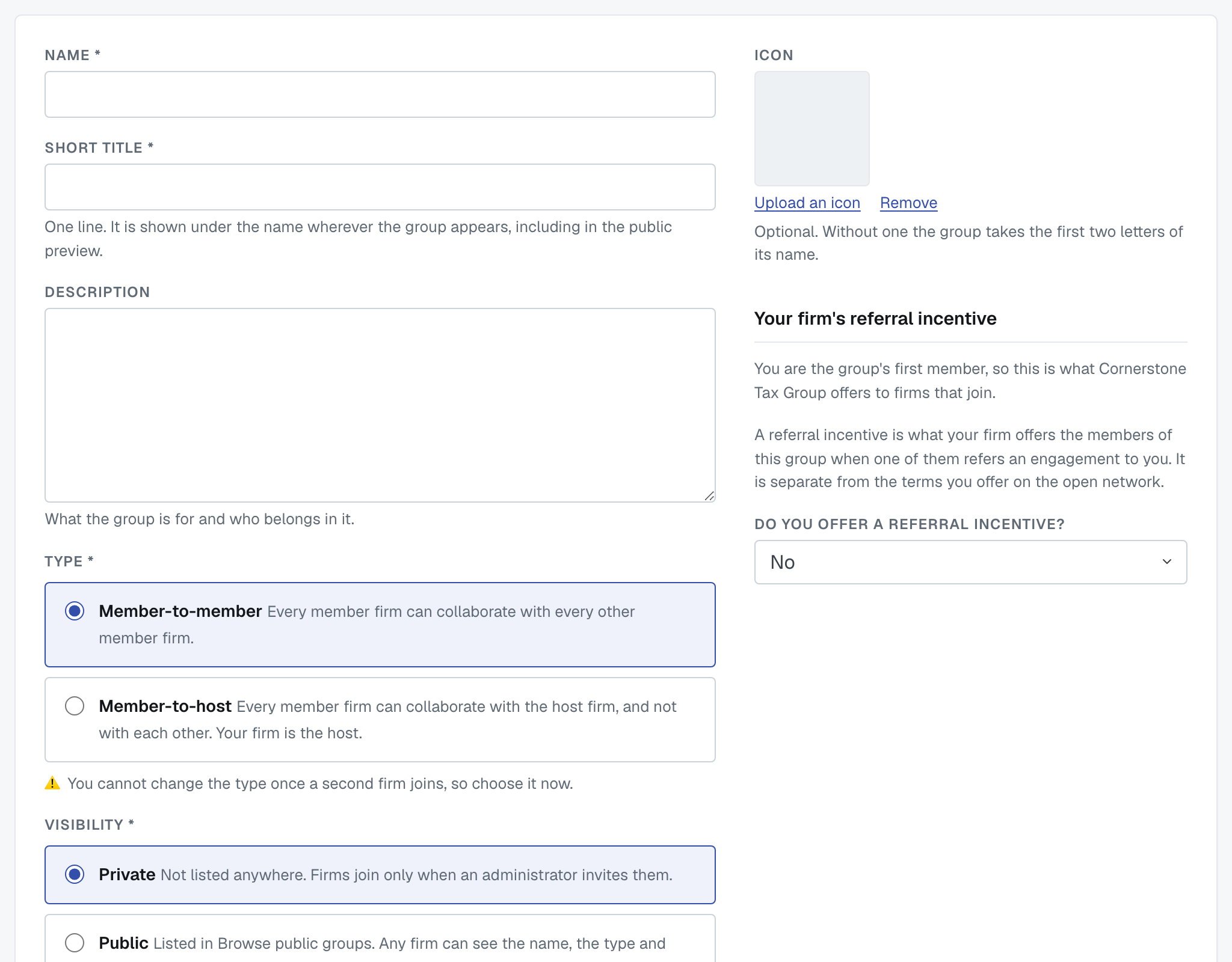
Only an administrator can create a group, and creating groups needs Pro Membership.
What you're asked for
Name and short title. The short title is one line and appears under the name wherever the group shows up, including the public preview. Write it for a firm deciding whether to apply.
Description — what the group is for and who belongs in it.
Type, and this is the decision to get right:
- Member-to-member — every member firm can collaborate with every other member firm.
- Member-to-host — every member firm can collaborate with your firm, and not with each other.
⚠️ You can't change the type once a second firm joins. Choose it now.
Visibility:
- Private — not listed anywhere. Firms join only when an administrator invites them.
- Public — listed in Browse public groups. Any firm can see the name, the type and how many members there are (not who they are) and apply to join.
Icon — optional. Without one the group shows the first two letters of its name.
Your firm's referral incentive — as the first member, this is what your firm offers to firms that join. It's separate from the terms you offer on the open network. The question is Do you offer a referral incentive? — Yes or No. Choose Yes and fill in a Brief description (one line, shown beside your firm on a match) and the Incentive details.
What happens when you create it
Your firm becomes the group's first member, and you become an administrator of it. Then you invite firms — one at a time, or from a spreadsheet.
Editing it later
Edit group changes the name, short title, description, visibility, icon and your firm's referral incentive. The type is fixed once a second firm has joined.
When you edit the incentive here, a Copy existing terms from list offers the terms you've already written — for open networking, or for this or another group. Picking one fills the two boxes, and you can edit them afterwards.
Changing visibility works both ways: making a public group private takes it out of Browse (existing members stay), and making a private group public lists it and lets firms apply.
Deleting a group
An administrator can delete a group. Its memberships go with it; the firms themselves and any engagement you've already run are untouched. A firm that was only matchable to you through that group stops being matchable — check your direct connections before deleting something with members in it.
Was this article helpful?
That’s Great!
Thank you for your feedback
Sorry! We couldn't be helpful
Thank you for your feedback
Feedback sent
We appreciate your effort and will try to fix the article