When somebody else pays for your membership
Some firms don't buy FirmLinks at all — an alliance or partner firm pays for their membership. If that's you, Settings › Subscription looks different, and this is why.
Your plan is provisioned, not purchased
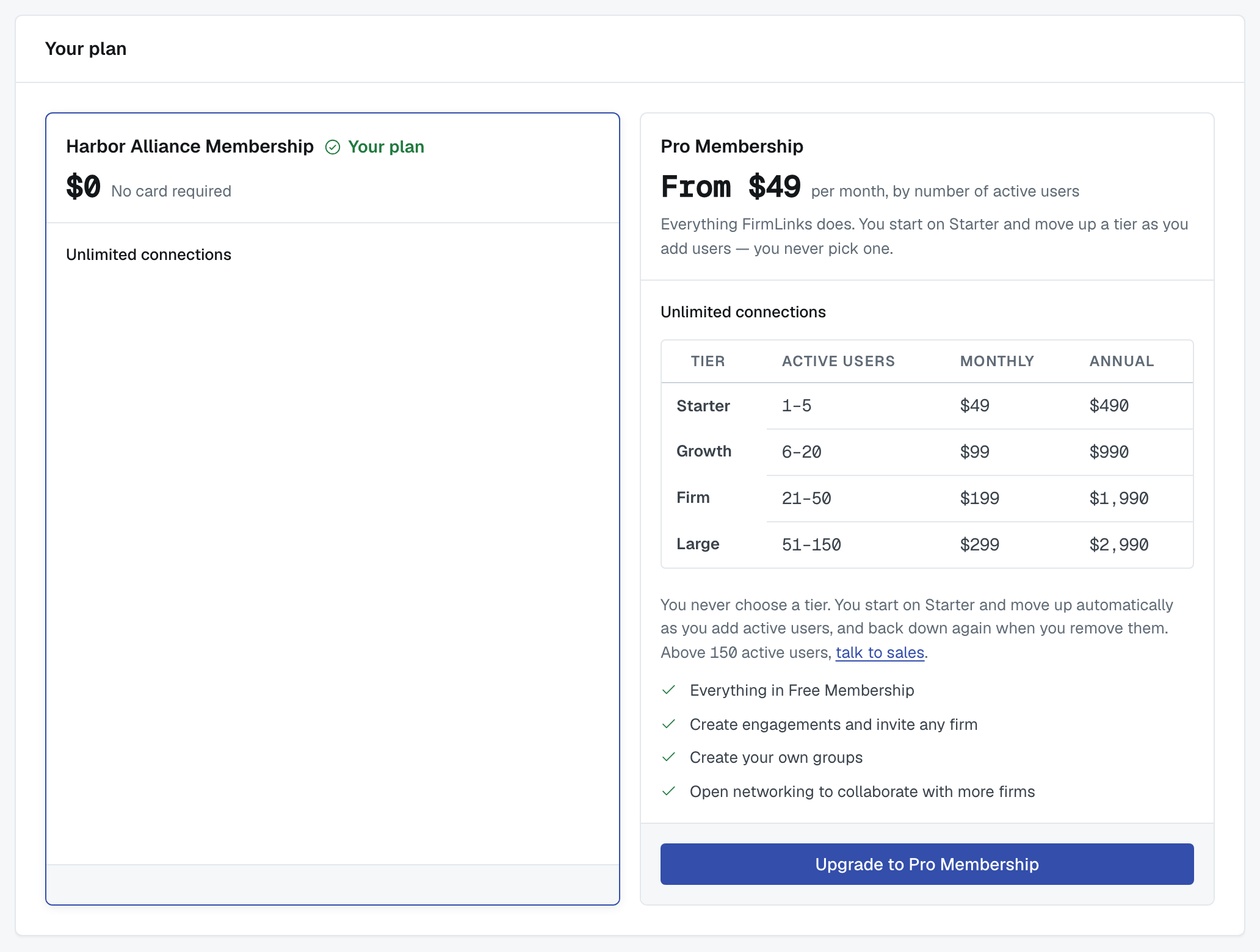
Settings › Subscription shows your plan named after the alliance — "Harbor Alliance Membership", or whatever yours is called — at $0, with No card required. There's no invoice, no checkout, and no billing portal, because there's nothing to bill. The plan cannot be bought: it exists because the partner provisioned it for members of its alliance.
You may also see the alliance's branding rather than plain FirmLinks in the app, depending on the arrangement.
What your alliance membership includes
Read your own card — this genuinely varies between alliances. Each partner's membership is configured separately, so one alliance's free membership may include things another's doesn't (open networking is the usual difference). The card on your subscription page lists what yours carries.
What every alliance membership has in common: you can work inside the alliance without paying anything.
The upgrade offered beside it
Next to your plan sits the paid membership you could move to, with its full price ladder and an Upgrade button. Which one is offered depends on the arrangement — it may be FirmLinks Pro Membership at the standard per-user ladder, or a partner-branded equivalent.
Upgrading is yours to choose and yours to pay for. It doesn't remove you from the alliance.
⚠️ Nobody upgrades you, and nobody downgrades you. Your alliance can stop paying for the membership (see below), but it cannot move you onto a plan you didn't choose.
Paying for a plan buys a line on an invoice, not a key to your account
The firm that pays for your membership does not get access to your account. It can't read your engagements, change your settings, see your clients or act as you. What it can do is pay, and stop paying.
There's one exception, and it's one you switch on yourself: on an engagement you lead, you can allow a partner firm to manage that engagement on your behalf. That's a toggle on the engagement's contacts rail, it's per engagement, and it's yours to turn off.
If the arrangement ends
If the partner stops paying for your membership, you land on a live plan straight away — you're not suspended and you don't lose your firm. Your connections, your groups and your engagements are unaffected. You'll be told, and you can take a paid plan whenever you want one.
Being offered a managed membership
If a partner firm offers to pay for your membership, your administrators see the offer at the top of Settings › Subscription, naming the firm and the plan you would move to. To accept, press the Switch to … button on that plan; to turn it down, press Decline this offer. Nothing changes until somebody accepts, and the plan you'd move to is the equivalent of the one you're on — accepting is never a way to be moved onto something you didn't ask for.
If your firm is the one paying
If your firm pays for other firms' memberships, your administrators have Managed Subscriptions in the app menu. Nobody else at your firm sees it.
It lists every firm on your subscription, with its plan, the groups it's in, its active users, when it joined and its Status — Active, Invited or Inactive.
Finding a firm. Type a firm name or domain into Find, or narrow the list with the Plan, Group and Status filters above it. Each filter only offers values that some firm in your list actually has.
Adding a firm. Add a firm asks for the firm's website domain and checks it. A firm already on FirmLinks is offered a place on your subscription and accepts for itself; a firm that isn't gets an invitation to create an account under your subscription. If the domain belongs to a firm that is already on one of your own subscriptions, the check stops on "This firm is already on a managed subscription" — there's nothing to invite. Back returns you to the domain field.
Removing a firm. Remove on the firm's row. The dialog tells you the firm will move onto a FirmLinks Free or Pro membership straight away, and lists the groups you manage that it's in — tick any you want it taken out of. Nothing is ticked for you; groups you leave unticked, the firm stays in. If the firm hasn't answered your offer or invitation yet, the same button withdraws it instead. Inactive rows have no button.
Was this article helpful?
That’s Great!
Thank you for your feedback
Sorry! We couldn't be helpful
Thank you for your feedback
Feedback sent
We appreciate your effort and will try to fix the article